
Use team messages, conversations, and attachments
Use direct, group, and team conversations with role-aware contacts, mentions, message state, image uploads, voice notes, pop-out chats, safe call handoff, and tenant-aware security boundaries.
DentalXpand Messages is a role-aware collaboration workspace for legitimate operational conversation. Use direct, group, and Team conversations to coordinate work while keeping the official decision, task, claim, patient, provider, credentialing, HR, finance, and compliance record in its owning authorized module. This lesson reflects the reviewed current primary Messages interface: text, participant mentions, unread activity, image upload, voice notes, message search, pins, pop-out chats, and direct chat call controls. It does not make a visible chat card, a copied media URL, or browser filtering an authorization decision.
1 / Purpose
Understand the Messages workspace
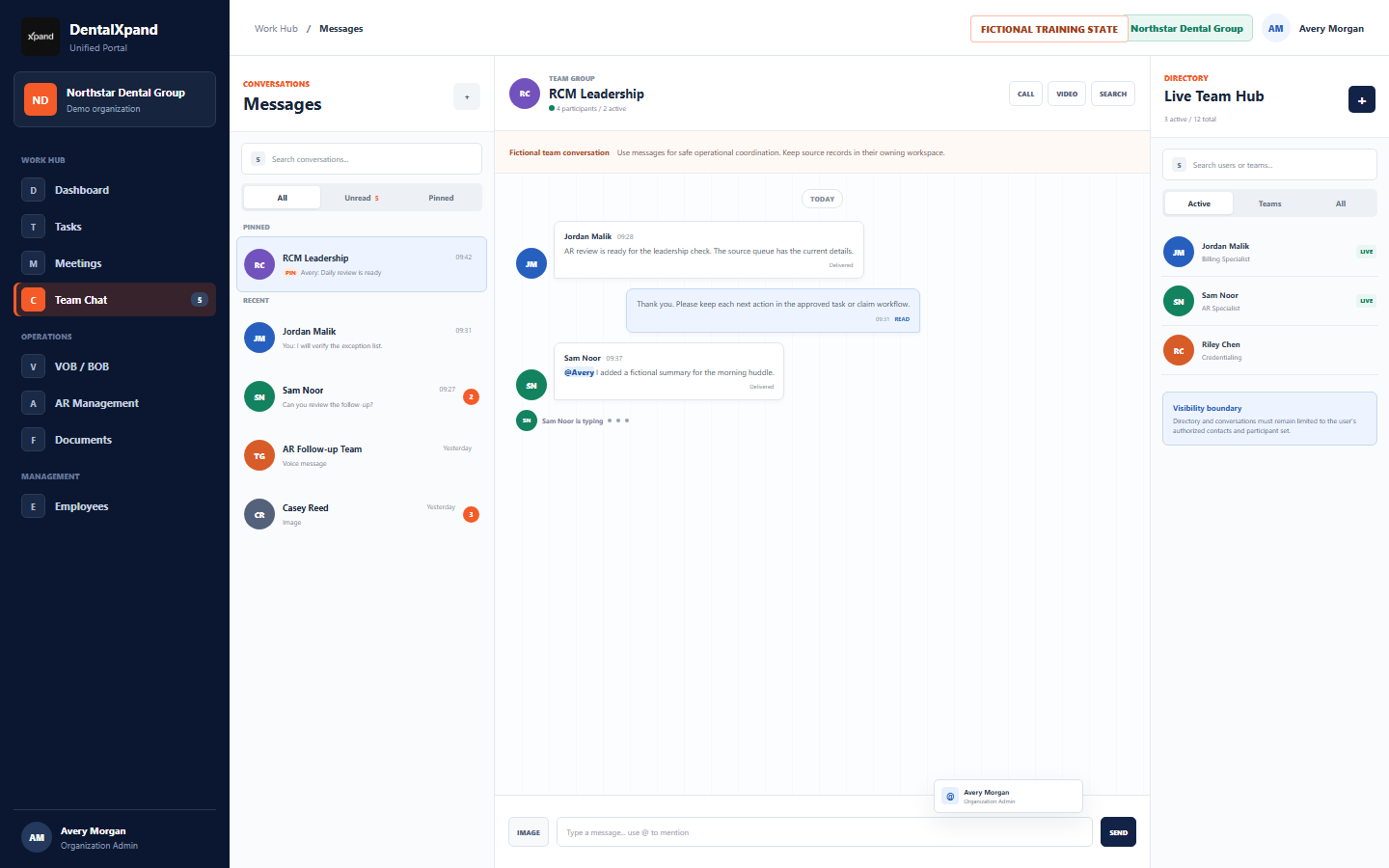
Use a one-to-one conversation with a legitimate authorized contact. Existing direct conversations can be reused when available.
Use a purpose-led group name and add only people with an active chat account and legitimate need to receive the discussion.
Employees can open a Team conversation from the Teams area. The system can ensure that a Team group exists for that legitimate team context.
Use a concise message to point a person to an authorized source workflow or a task. Do not replace the source record with a chat summary.
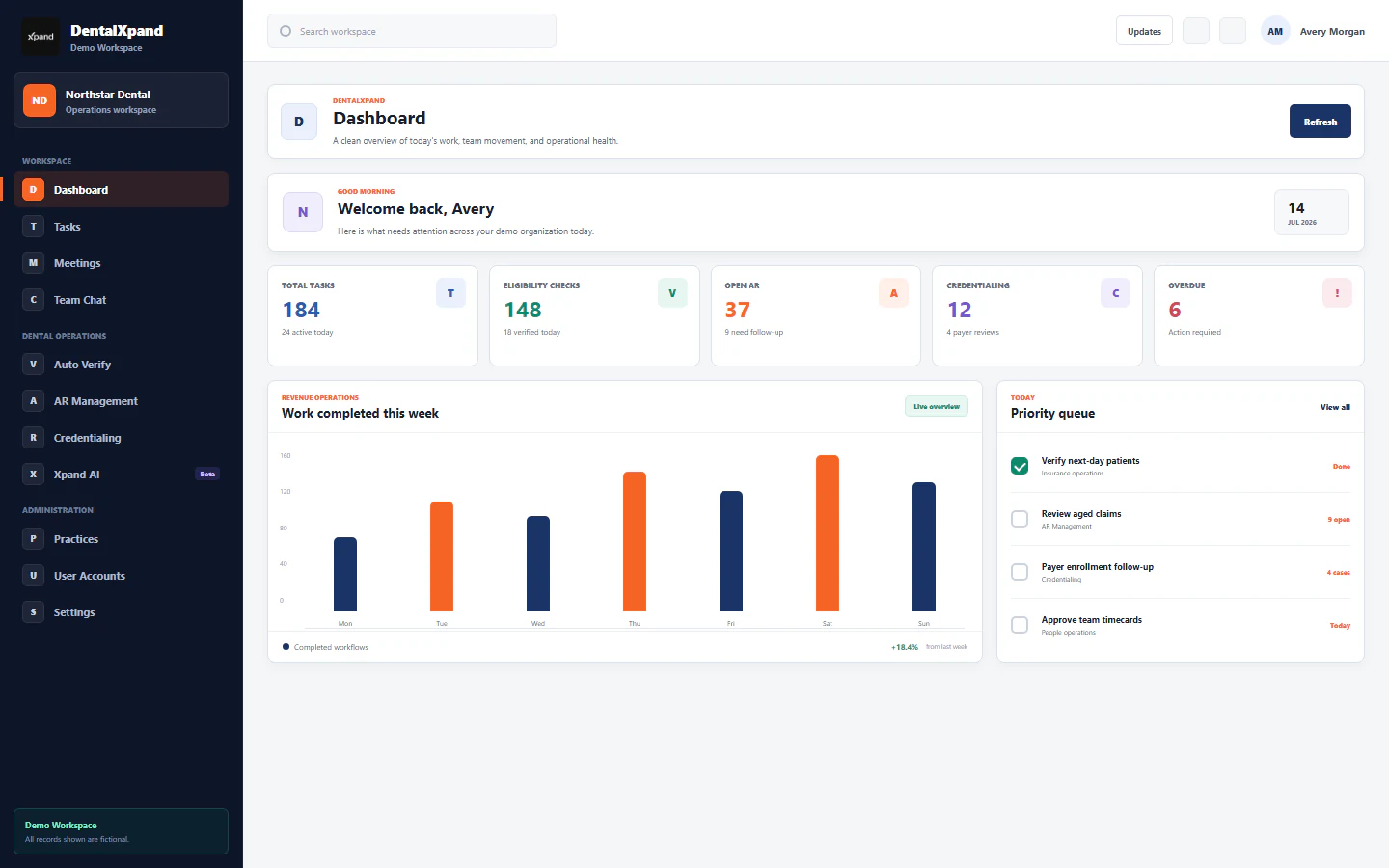
Messages appears in the protected Work Hub route. Read Use the Dashboard command center and Navigate sections and pin frequent tools if you need help finding the correct workspace first.
2 / Access
Confirm current access and contact scope before writing
| Check | Confirm before messaging | Why it matters |
|---|---|---|
| Identity | Use your own active DentalXpand account and current session. | Another user’s browser session, copied screenshot, message URL, or media URL is not permission to read or send. |
| Organization and practice | Confirm the expected tenant, organization, practice, and operating context. | Messages must not carry information between Guardian Connect and DentalXpand or across unrelated organizations. |
| Contact scope | Choose only a legitimate recipient or participant set for the operational purpose. | Participants can receive the conversation and related notification activity. |
| Employee versus client access | Client users can start direct chat only with allowed assigned DentalXpand contacts. Employee group and Team controls are not exposed to client users. | Client directory views must not become a broad employee directory or leak names, photos, or access relationships. |
| Role and policy | Confirm the action is appropriate for your role and current membership. | Visible client code or a button does not override backend authorization, row-level policy, storage rules, or organization policy. |
Review roles, permissions, and access boundaries and organization and practice context before expanding a participant set or troubleshooting an unexpected contact.
3 / Conversations
Start direct, group, and Team conversations deliberately
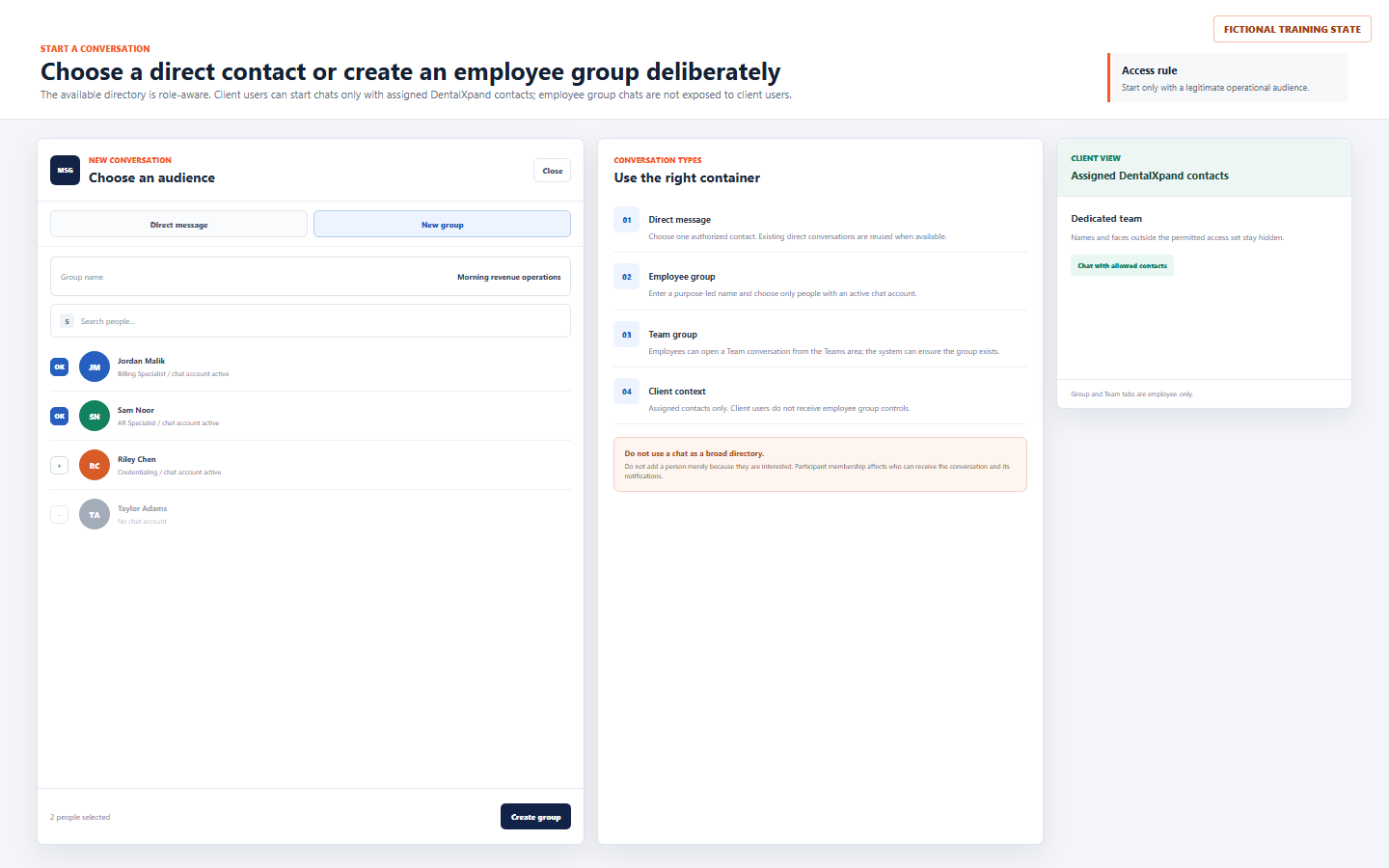
- Decide whether direct, group, or Team context is appropriate.Use a direct message for one authorized contact. Use a group only when multiple active account holders need the same conversation. Use a Team conversation from the legitimate Team context.
- Search the available directory.The available contacts are role-aware. A missing person or unavailable control is a scope state to respect, not a reason to seek a workaround.
- For a group, enter a specific purpose-led name.Choose only people with active chat accounts and legitimate operational need. Do not add an observer merely because they may be interested.
- Confirm the participant set before creating or continuing the conversation.Recipient membership affects who can receive the thread and notification activity.
- Use an assigned client contact only within the allowed client scope.Do not use employee group or Team flows to bypass a client user’s assigned-contact boundary.
4 / Compose and status
Compose clear updates, use mentions carefully, and interpret status cues
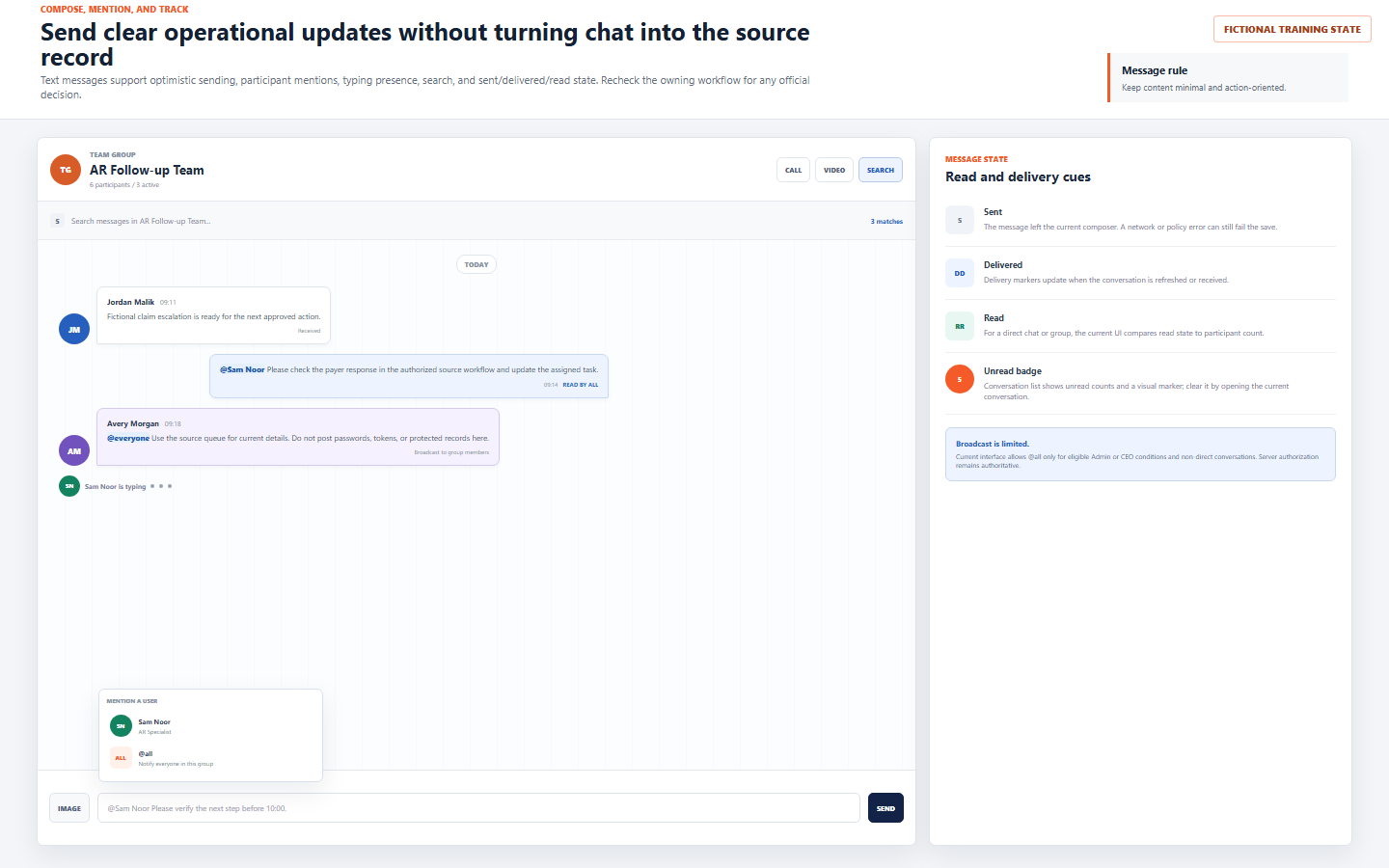
Write the smallest clear update, owner, and next action. Never paste passwords, session tokens, API keys, protected data, or sensitive records into a conversation.
Use @ to select a legitimate participant when a specific response is required. Mentioning a person is an alert, not proof that the task or source record was reviewed.
The current UI exposes @all only in eligible Admin or CEO conditions for non-direct conversations. Actual server-side authorization remains authoritative.
Search helps find visible text in the current conversation. Pinning is a personal conversation-list preference; it does not change participant permission or record retention.
| Visible state | What it can indicate | Correct interpretation |
|---|---|---|
| Sent | The current composer submitted a message request. | A network, policy, or save error can still prevent the message from becoming an authoritative stored result. |
| Delivered | Current delivery markers have updated for the conversation. | Do not treat a delivery marker as proof that the recipient completed an action. |
| Read | Current direct or group read state compares to the relevant participant count. | Read is not approval, agreement, task completion, or proof of a source record change. |
| Unread badge | The conversation list shows unread activity and a count. | Open the current thread to clear the visible state, then check the current source record if the matter is important. |
| Typing indicator | A recent typing state is present. | Typing is transient presence only. Do not wait indefinitely or infer message content before it is sent. |
Use a text message to coordinate the next action, then create or update the authorized task or source workflow. Do not treat a read receipt as a substitute for the action’s documented state.
5 / Image and voice media
Use the current image and voice controls only for approved content
| Current control | What it does | Boundary |
|---|---|---|
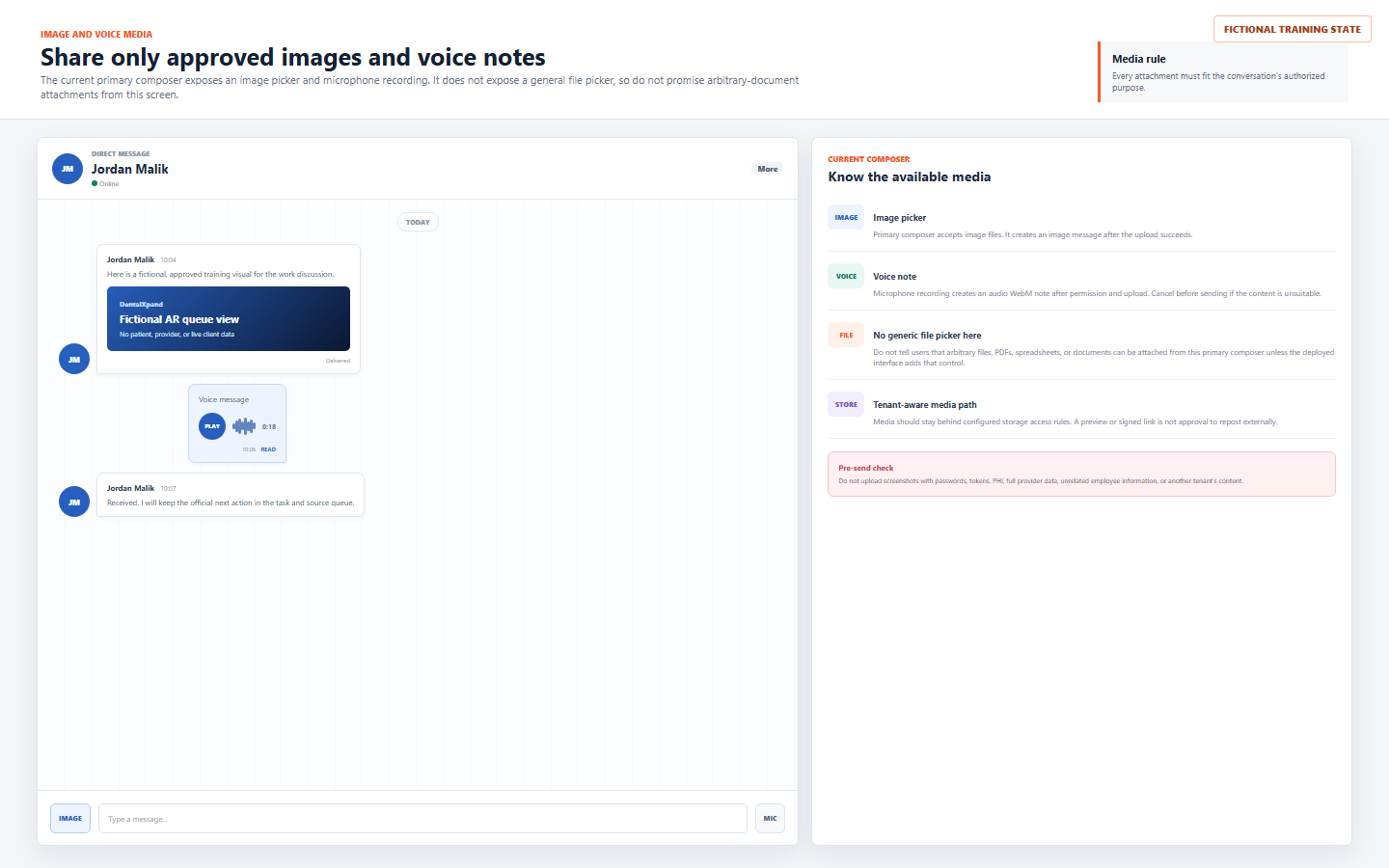
| Image picker | The primary composer accepts an image file and creates an image message after the upload succeeds. | Use only an approved, minimum-necessary image. Check it for protected data, passwords, tokens, unrelated staff data, or another tenant’s information before upload. |
| Voice note | The microphone flow requests browser audio permission, records an audio WebM item, uploads it, and presents a playable voice message. | Use a private setting, say only what belongs in the legitimate conversation, and cancel before sending if the content is unsuitable. |
| Generic file attachment | The reviewed primary Messages composer does not expose a general picker for arbitrary PDFs, spreadsheets, documents, or files. | Do not promise generic file attachment from this screen unless the deployed interface adds that control. Use the authorized Documents workflow when that is the approved record path. |
| Media retrieval | Message media is expected to use tenant-aware storage policy and configured signed retrieval. | A preview or URL is not permission to forward, download, repost, or store content outside the authorized tenant and policy. |
6 / Real-time and call handoff
Use real-time updates, calls, pins, and pop-outs safely
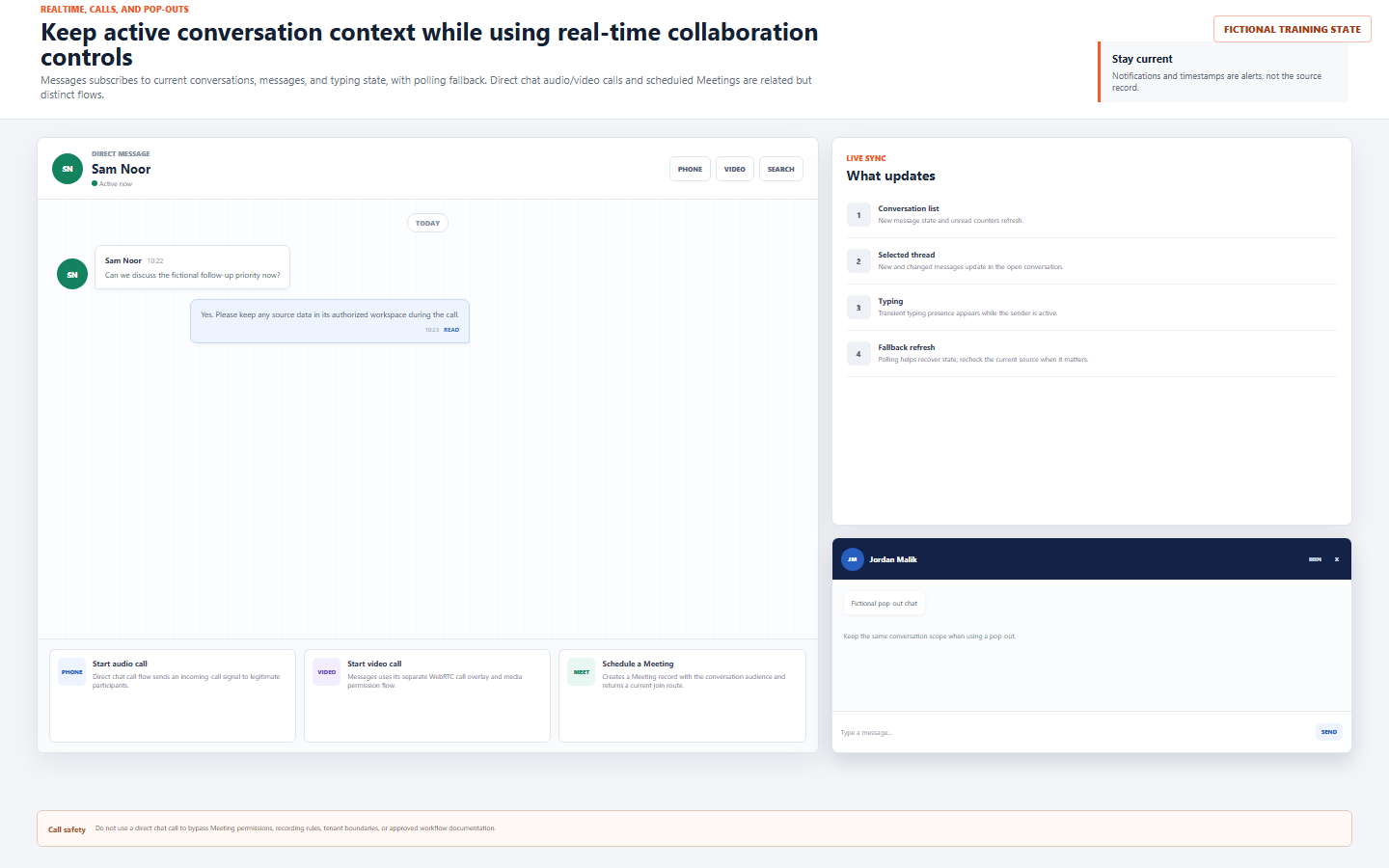
The Messages experience subscribes to conversation, message, and typing state, with polling fallback. Refresh and notification states are useful cues; recheck the current source record when accuracy matters.
Audio and video controls in a legitimate direct conversation begin a separate Messages WebRTC call flow. Do not assume its controls or recording behavior match the Meetings room.
A meeting action can create a Meeting record for the conversation audience and return a current join route. The Meeting record, participant rules, and live-room checks still apply.
Open a pop-out to keep a legitimate conversation handy. It preserves the same conversation scope; it is not a way to bypass membership or use a wider desktop context.
Read Schedule and manage meetings and Use video, audio, and screen sharing before relying on a call workflow. Do not use a direct chat call to bypass Meeting membership, browser permissions, recording rules, tenant boundaries, or documentation requirements.
7 / Record discipline
Keep chat separate from source records and reply expectations
Use chat to coordinate the next step. Record ownership, decisions, follow-up, timers, claim status, patient work, provider work, finance, HR, or compliance outcomes in the appropriate authorized module.
A useful message thread is not automatically the complete audit, clinical, billing, credentialing, HR, or legal record. Follow the owning workflow and retention policy.
The underlying message model can hold a reply reference, but the reviewed primary Messages UI does not expose a dedicated reply composer control. Until that UI is present, write a brief contextual message and point to the correct source record.
Message search filters visible conversation text. It is a navigation aid, not proof that every historical, deleted, inaccessible, or policy-restricted message is available or should be used.
8 / Cleanup
Understand deletion and clear-history behavior before using it
| Action | Reviewed current behavior | What not to assume |
|---|---|---|
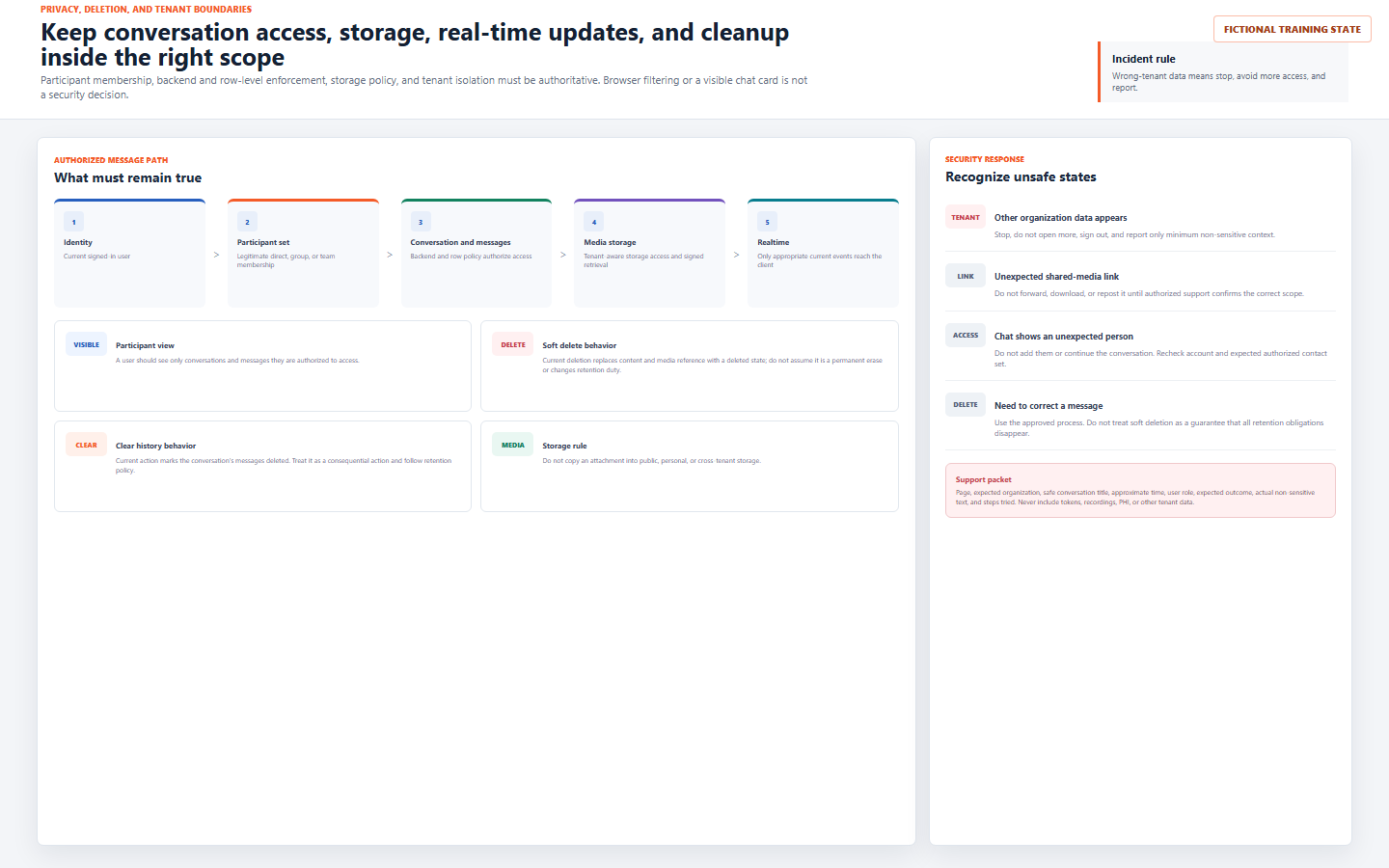
| Delete a message | The current service soft-deletes the message, replaces content with a deleted state, clears the media reference, and updates the message record. | Do not assume this guarantees permanent erasure from all databases, backups, retention workflows, exports, legal holds, recipient memory, or other required records. |
| Clear conversation history | The current action marks non-deleted messages in the conversation as deleted. | Do not treat clear history as a way to escape organizational retention, audit, incident, or legal duties. |
| Remove unsuitable media | Use the approved correction and incident process promptly. | Do not forward, download, repost, or store questionable media while trying to diagnose it. |
| Correct a mistaken message | Use the available approved action and then update the owning record if needed. | Do not hide a material operational issue by relying only on a soft delete or an informal replacement message. |
9 / Security
Protect participant, storage, and tenant boundaries throughout the conversation
Do not add someone, invite them to a call, or forward a media URL because a conversation is convenient. Use the narrowest legitimate audience.
Never mix Guardian Connect and DentalXpand data or share information between unrelated organizations, practices, providers, clients, or users.
Do not copy message media to public, personal, unmanaged, or cross-tenant storage. A signed retrieval mechanism must not become an external sharing policy.
Report only safe diagnostics. Never include session data, tokens, passwords, protected records, recordings, media contents, or another tenant’s data in a support request.
10 / Troubleshoot
Troubleshoot expected states without bypassing access
| What you see | Possible reason | Correct first response |
|---|---|---|
| Cannot create a direct conversation | Contact is outside the allowed scope, lacks an active account, session state is stale, or backend policy denies the action. | Confirm your current account, organization, expected contact set, and safe error text. Do not use another account or an unapproved group instead. |
| Group or Team option is unavailable | Current user is a client user, lacks employee group eligibility, or is outside the legitimate Team context. | Respect the role boundary. Ask the legitimate responsible employee or administrator to confirm the proper communication path. |
| Message does not send | Network, session, policy, conversation state, or storage problem. | Check the current thread and safe error feedback, then retry only with your own active authorized session. Do not paste sensitive content into another channel. |
| Image or voice upload fails | File type, microphone permission, browser support, storage access, connectivity, or policy issue. | Remove unsuitable content, confirm local permission and safe file selection, then report the non-sensitive state if it persists. |
| Message status looks stale | Real-time connection, fallback refresh, session state, or another participant’s current activity can differ. | Refresh the current conversation and check the owning workflow. Do not infer task completion from a stale or changed status indicator. |
| Call control is unavailable or fails | Conversation type, participant eligibility, browser media permission, WebRTC state, or configured live-service issue. | Recheck current conversation scope and use the approved Meeting workflow when appropriate. Do not bypass with an unapproved external call. |
| Unexpected person or other tenant data appears | Potential participant, API, row policy, storage, cache, notification, search, AI, or tenant-isolation failure. | Stop immediately, avoid further access, sign out, and report an incident with minimum non-sensitive context. |
When escalation is necessary, send the page, expected organization and practice, safe conversation title, approximate time, user role, expected behavior, actual non-sensitive text, and steps already tried to support@xpand.dental. Never include a password, token, cookie, media file, protected record, unredacted screenshot, or another tenant’s data.
11 / Verify
Verify that the Messages workflow is understood
Practical verification
- I can identify the correct Messages workspace and verify my own signed-in account, organization, practice, and operating context before opening a conversation.
- I choose a direct, employee group, or Team conversation only for the smallest legitimate audience.
- I understand that client users can use only assigned allowed DentalXpand contacts and cannot use employee group or Team controls.
- I can write a concise action-oriented message and use participant mentions only when the recipient legitimately needs to act.
- I know sent, delivered, read, unread, typing, search, and pin states are collaboration cues, not source-record proof.
- I know the reviewed primary composer supports image upload and voice notes but does not expose a generic file picker for arbitrary documents.
- I know a reply reference exists in the data model but a dedicated reply composer is not exposed in the reviewed primary Messages interface.
- I understand direct chat calls, scheduled Meetings, and pop-out chats are separate collaboration experiences with their own current controls and boundaries.
- I understand current message deletion and clear history use soft-delete behavior and do not guarantee permanent erasure or erase retention duties.
- I keep official decisions, ownership, and outcomes in Tasks or the owning authorized module.
- I know backend authorization, row-level policy, participant eligibility, tenant scope, media storage rules, and real-time delivery must remain authoritative.
- I stop, avoid more access, sign out, and report immediately if cross-tenant or unexpected data appears.
Open the configured DentalXpand application and practice only with your own authorized account and fictional or non-sensitive demonstration data.
Related lessons
Need workflow support?