
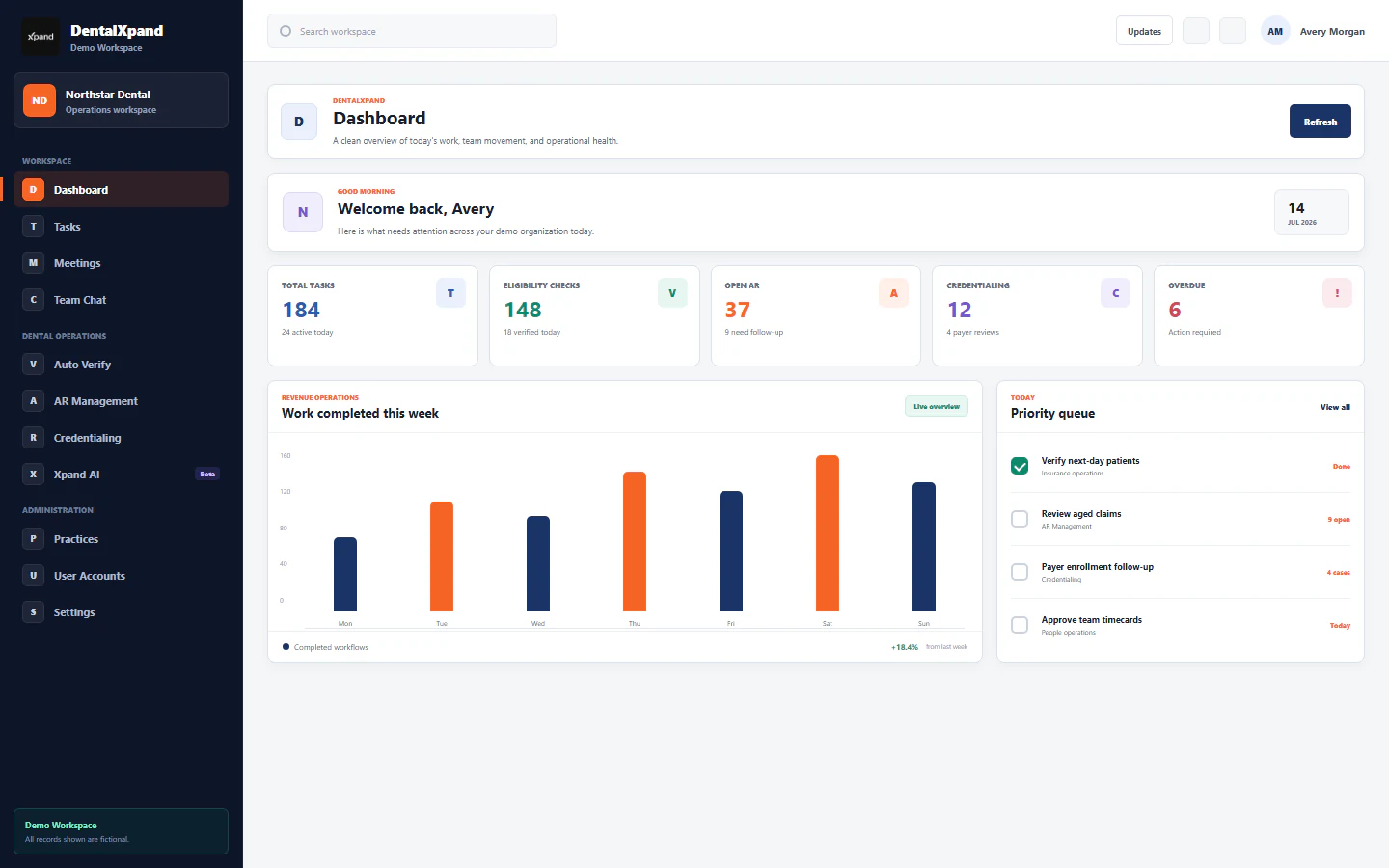
Schedule and manage meetings
Schedule and manage DentalXpand meetings with calendar and list views, participants, RSVPs, notifications, join links, live video or audio, recurring events, organizer actions, and secure access boundaries.
DentalXpand Meetings is the shared scheduling workspace for authorized team conversations. Use it to create a meeting, invite the necessary people, review calendar or list context, track RSVP state, join a current meeting, and close or cancel an organizer-owned meeting. It does not replace the source record for patient, payer, financial, credentialing, or clinical decisions.
01 / Purpose
Understand what the Meetings workspace is designed to do
Create a meeting with a title, optional description, date, start time, end time, type, organizer, and selected participants.
Use calendar and list views, search, filters, quick filters, statuses, and RSVP state to find the current authorized meeting set.
Join scheduled or in-progress video or audio meetings through the current application session and live-room authorization.
Use organizer-owned edit, cancellation, and end behavior with enough safe context for the team to understand the current state.
Meetings help organize a conversation. The source module remains authoritative for payer, patient, provider, claims, credentialing, task, financial, clinical, or compliance work. Confirm every important result in that owning workflow after the meeting.
02 / Access
Confirm access, organization, and role boundaries before scheduling
The protected meeting route is /meetings and requires pages:meetings. The current interface adds organizer and participant behavior, but visible navigation, a card, a button, a join URL, or a local role check is not the security boundary.
| Account context | Current interface behavior | Important boundary |
|---|---|---|
| Authorized meeting user | Can open the protected workspace when granted page access and see only returned meeting rows. | Organization, practice, API authorization, and row-level policy still control the result set. |
| Organizer | Sees edit and cancel actions for meetings where the organizer ID matches the current user. | Organizer UI is not a substitute for backend mutation authorization. |
| Participant | Can accept or decline while their participant status is invited. Scheduled and in-progress cards can show Join. | Current membership and live-room authorization must still be enforced when joining. |
| Super Admin | Can see the current local recording control in the live overlay. | Consent, local device permission, policy, and authorization remain required. |
Review roles, permissions, and access boundaries and organization and practice context before changing a user’s meeting access.
03 / Meeting record
Understand types, statuses, ownership, and attendance state
| Field or state | Current use | Correct operator response |
|---|---|---|
| Title and description | Operational purpose and safe context for the meeting. | Keep details minimal and link to the authorized source workflow instead of copying sensitive records. |
| Video, audio, in person | Meeting type selected in the scheduler. | Choose the intended conversation mode before inviting people. |
| Scheduled | Future or ready-to-join meeting state. | Confirm time, participants, and current status before joining. |
| In progress | Active live meeting state. | Use the current authorized card or link; do not rely on stale notifications. |
| Completed or cancelled | Meeting should no longer be treated as an active join session. | Review the source follow-up, then create a new meeting only when needed. |
| Organizer and host | Organizer is automatically added as accepted host during creation. | Only use organizer controls for the meeting you actually own. |
| Participant RSVP | Invited, accepted, declined, and attendance timestamps are tracked as meeting-participant state. | Respond to the current invitation; do not infer attendance from an old calendar event. |
04 / Command center
Use the Meetings command center
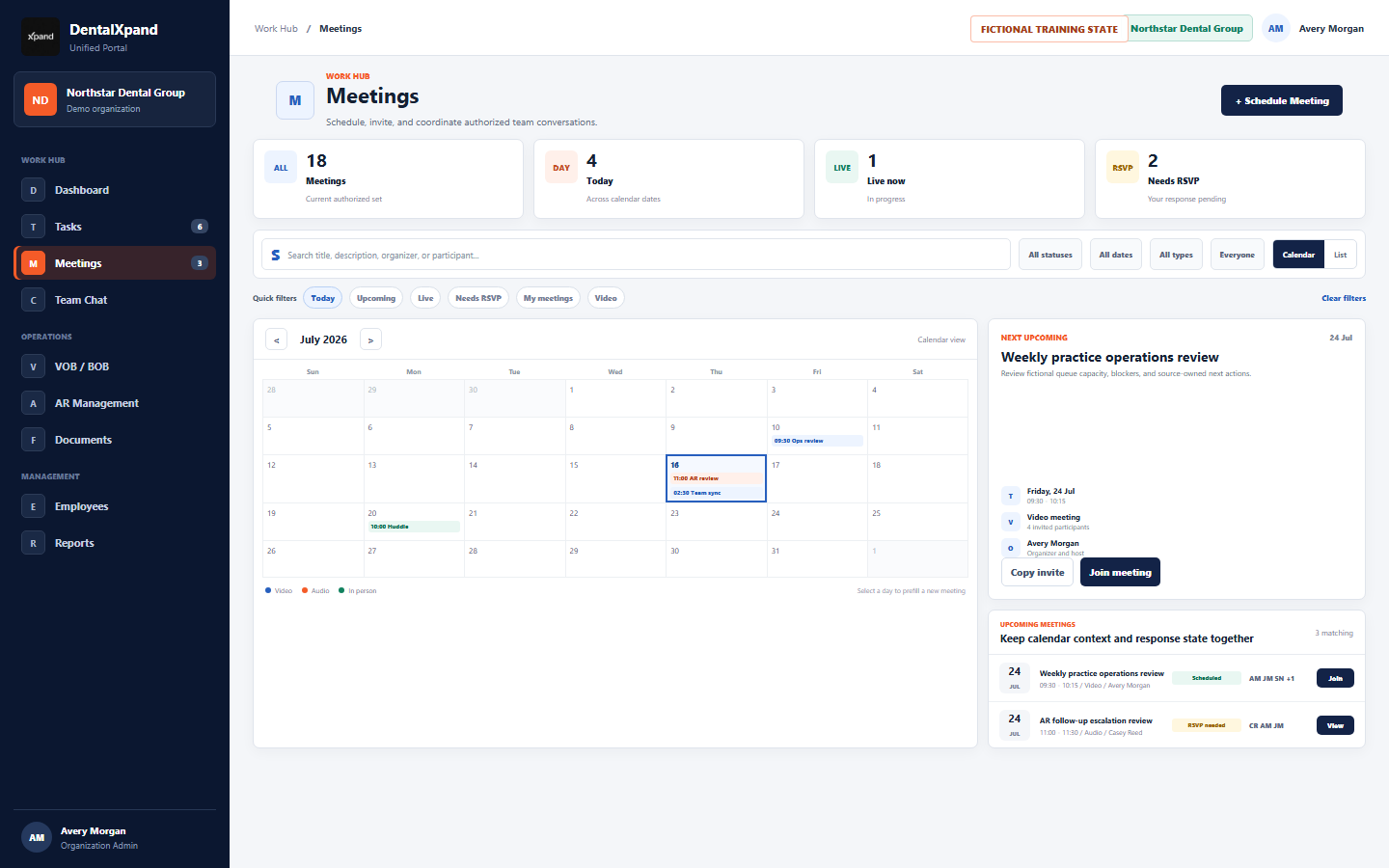
- Confirm the workspace.Check account, organization, and practice context before opening a card.
- Scan metrics as orientation only.Total, Today, Live Now, and Needs RSVP values help prioritize but do not replace the meeting record.
- Use search and filters.Narrow the authorized set before deciding a meeting is missing or active.
- Read the next or selected card.Confirm title, date, time, type, organizer, participant state, and status.
- Use the correct action.RSVP when invited, Join from a current eligible card, and edit or cancel only when organizer-owned.
05 / Find and filter
Search, filter, and review the current authorized meeting set
Search checks meeting title, description, status, type, organizer name or email, and participant names. The current controls filter by status, type, time, and relationship to the meeting.
| Control | Current behavior | Before reporting a meeting missing |
|---|---|---|
| Status | All, scheduled, in progress, completed, or cancelled. | Clear status when looking for a past or closed meeting. |
| Time | All dates, Today, Upcoming, or Past. | Check calendar date and local time expectation. |
| Type | Video, audio, or in person. | Remove type filtering when meeting mode is uncertain. |
| Relationship | Everyone, Mine, Hosting, Invited, or Accepted. | Confirm current organizer or participant membership first. |
| Quick filters | Today, Upcoming, Live, Needs RSVP, My Meetings, and Video. | Clear active quick filters before escalating. |
06 / Views
Use Calendar and List views without changing access
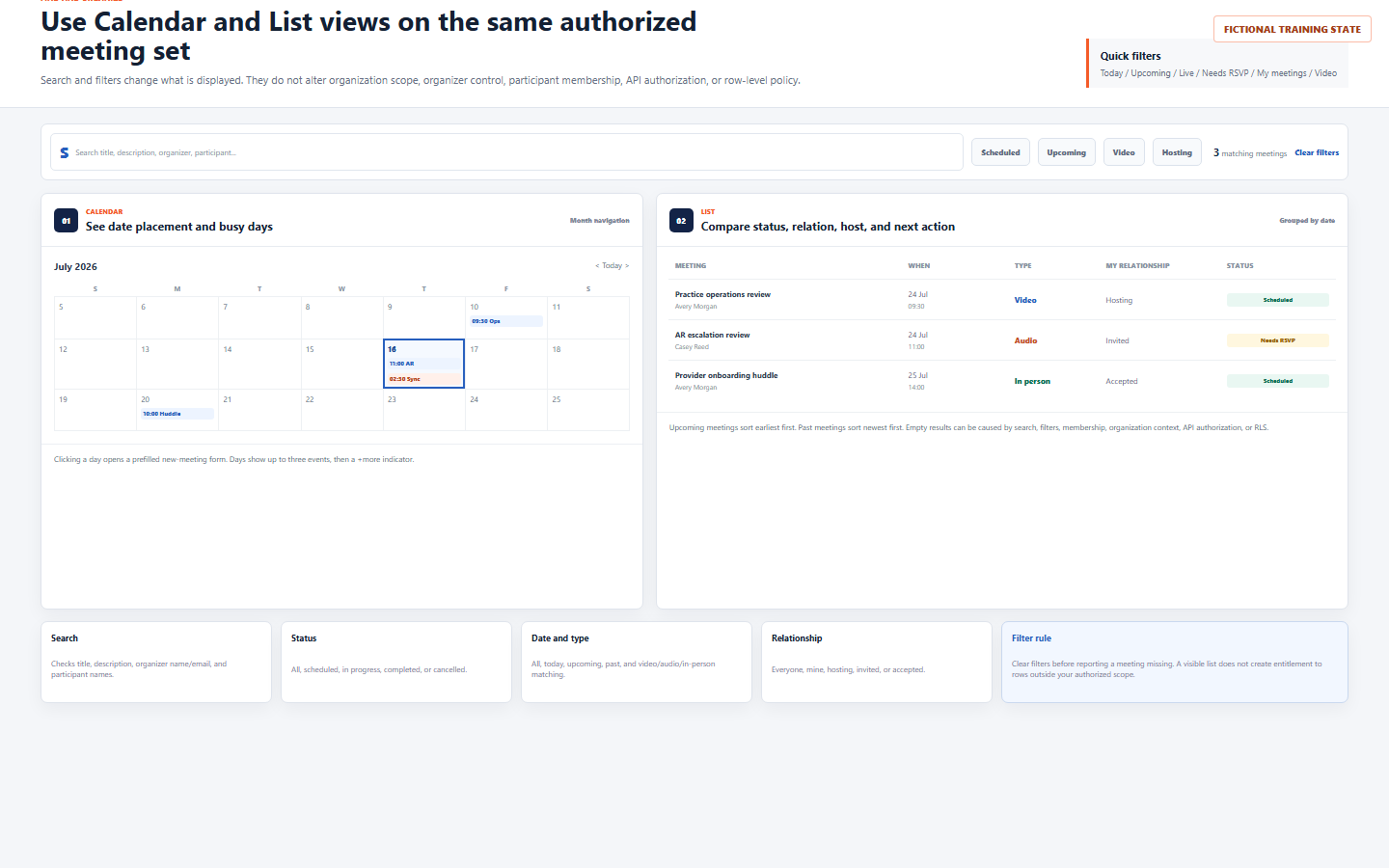
Use month navigation to understand date placement and busy days. Selecting a day opens the new meeting workflow with that date prefilled.
Each day shows up to three meeting items, then a +more indicator. Open the date rather than guessing from a crowded cell.
Use dense rows to compare title, date and time, type, organizer relationship, response state, and meeting status.
Upcoming meetings appear earliest first. Past meetings appear newest first. Clear filters before escalating an empty result.
07 / Schedule
Schedule a meeting with a clear date, type, host, and participant list
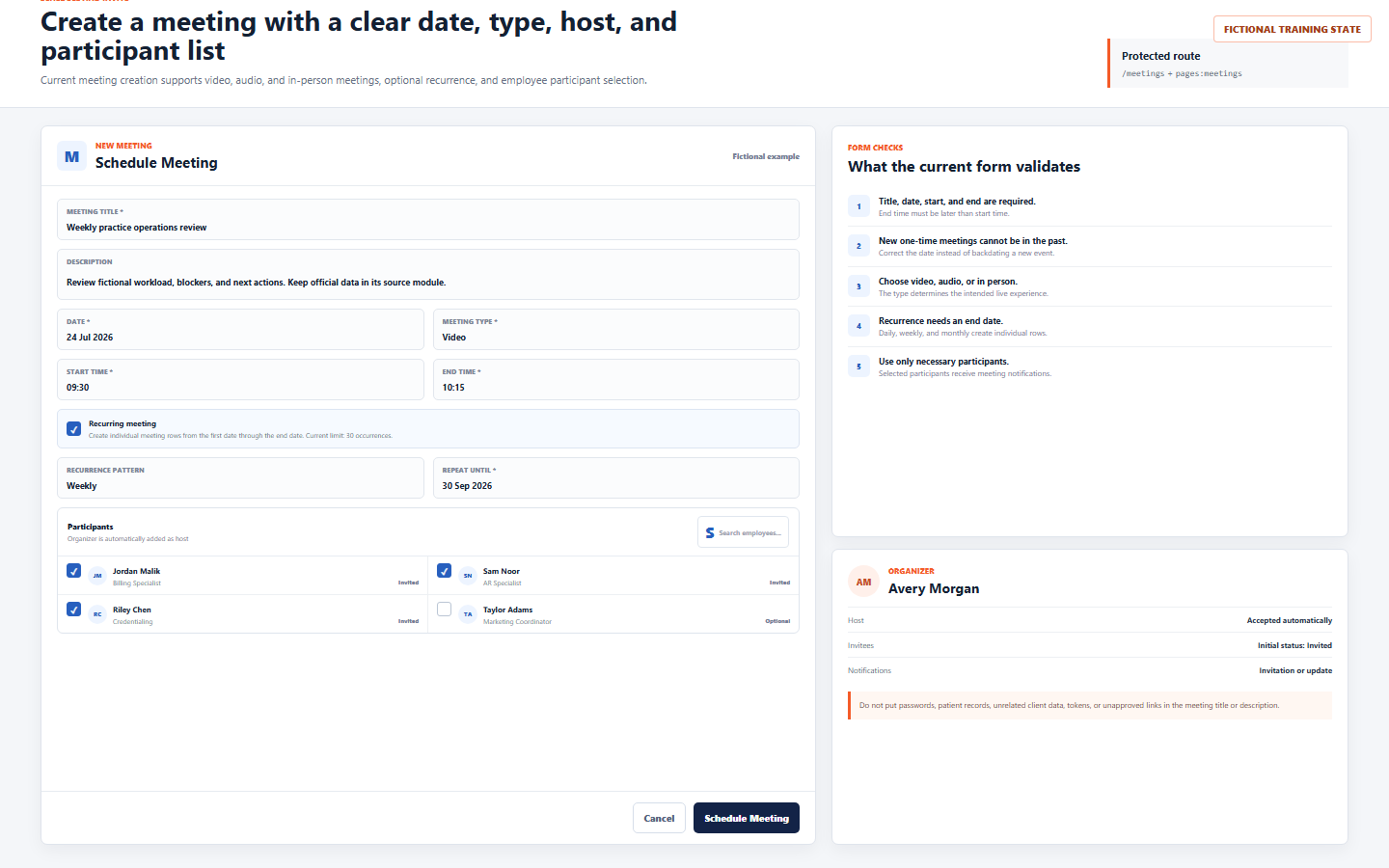
- Write a short operational title.Use a purpose such as “Weekly practice operations review” without sensitive facts.
- Add only necessary description context.Point to the authorized source record or workflow instead of copying confidential content.
- Choose date, start time, and end time.Title, date, start, and end are required. End must be later than start.
- Choose video, audio, or in person.Make the intended participation mode clear before invitation.
- Choose only needed participants.The organizer is included automatically as accepted host; selected participants begin invited.
- Save and verify.Open the current card and confirm title, date, time, type, organizer, participants, and status.
08 / Participants
Invite participants and understand host behavior
Use the participant search to select relevant employees. The organizer is added as an accepted host. Selected attendees are created with invited status and can respond later in their authorized meeting view.
| Participant behavior | Current result | Operator rule |
|---|---|---|
| Organizer | Added as host with accepted status when creating the meeting. | Keep organizer identity accurate before saving. |
| Selected employee | Added as invited participant and can receive invitation notification. | Invite only people required for the conversation or decision. |
| Update | Selected participants can receive a meeting-updated notification. | Recheck attendee list after every meaningful edit. |
| Removal | Meeting update replaces participant membership through the API workflow. | Do not assume an old notification or copied link keeps access valid. |
09 / Recurrence
Create recurring meetings carefully
When recurrence is enabled, choose Daily, Weekly, or Monthly and enter an end date no earlier than the start date. The current implementation creates individual meeting rows for each occurrence from the first date through the recurrence end date, up to 30 occurrences.
Confirm the meeting purpose, participants, time zone expectations, first occurrence, end date, and whether every session truly needs the same people.
Verify the first, a middle, and final occurrence in Calendar or List. Do not assume one edit creates a hidden series relationship beyond the current saved rows.
Editing a meeting updates that current record and its selected participants. Review resulting notices and dates carefully.
Cancel only the meeting record you intend to remove, and notify affected people through the approved workflow.
10 / Notifications
Review invitations, updates, and cancellations as alerts
When the current create or update flow saves selected participants, it creates meeting notifications. The delete flow also attempts to create a cancellation notification for meeting participants. Treat notifications as prompts to open and verify the current meeting, not as the authoritative record.
| Notification | What it indicates | Correct next action |
|---|---|---|
| Meeting Invitation | You were selected as a participant for a scheduled meeting. | Open the current meeting, review details, and RSVP if still invited. |
| Meeting Updated | The organizer saved a change for selected participants. | Recheck date, time, type, organizer, participant status, and source context. |
| Meeting Cancelled | The current delete workflow removed the meeting and participant rows. | Do not join from an old link. Confirm whether a replacement was scheduled. |
Missing, delayed, or duplicated notifications should be investigated with the current meeting record, selected participant identity, application notification result, and safe support context. Do not make attendance decisions from a notification alone.
11 / RSVP
Accept or decline an invitation from the current meeting state
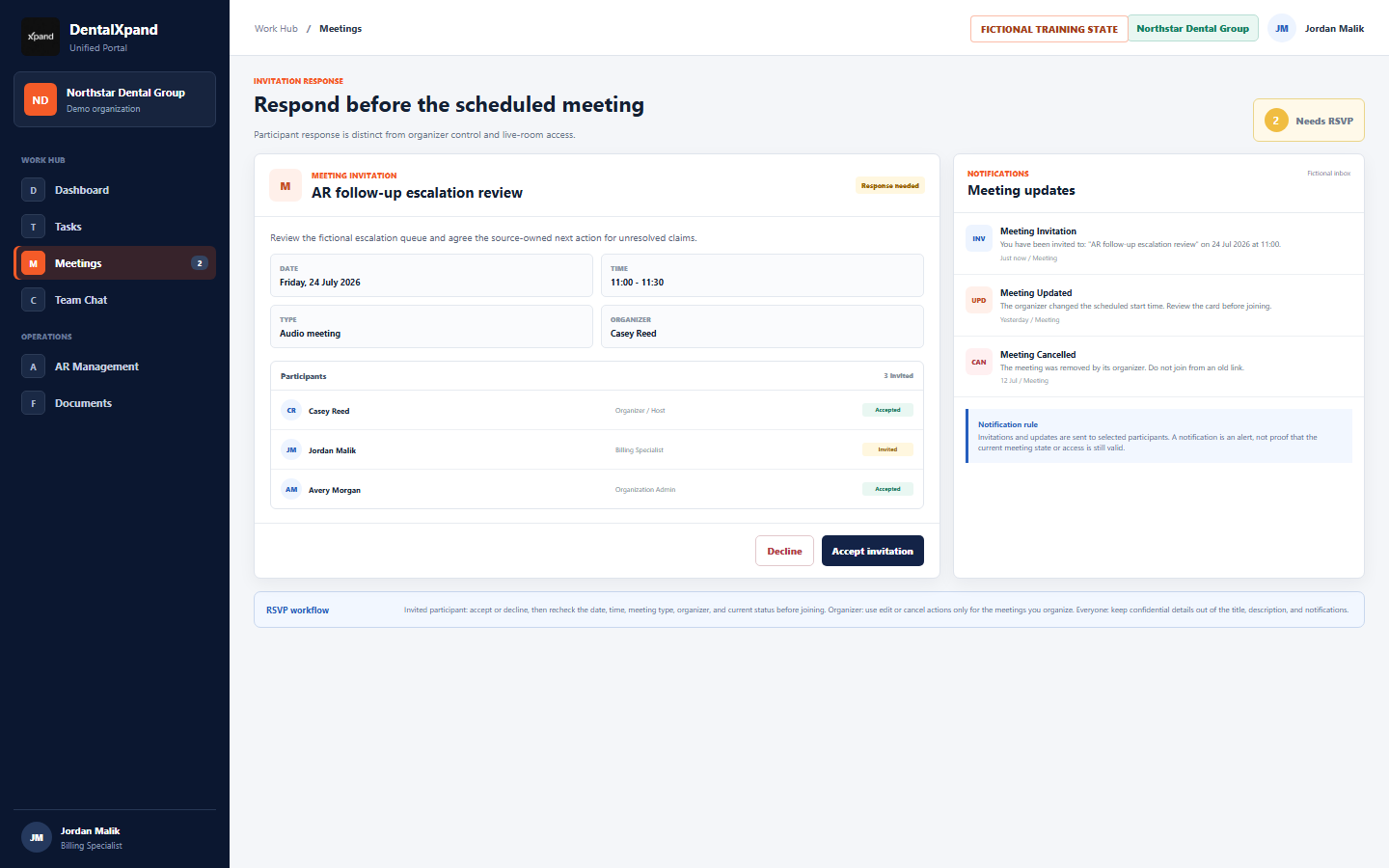
- Open the current invitation.Confirm organization, title, date, time, type, organizer, and participants.
- Respond while invitation status is current.Use Accept or Decline when shown for an invited participant.
- Recheck before joining.Calendar position, status, type, selected participants, and meeting time can change after an RSVP.
- Use the proper organizer path for changes.Participants should not treat RSVP as permission to edit or cancel someone else’s meeting.
12 / Organizer actions
Edit, cancel, and complete organizer-owned meetings carefully
The current meeting card shows edit and cancel controls to the organizer. The cancellation action calls the meeting deletion workflow, removes participant rows, and creates cancellation notifications where the notification call succeeds. Treat this as an impactful action, not routine cleanup.
| Action | Current behavior | Before using it |
|---|---|---|
| Edit | Organizer can open the meeting form with current title, times, type, recurrence fields, and participants. | Confirm the correct occurrence and review participants and notices after saving. |
| Cancel | Current UI uses the delete API workflow, then sends cancellation notices when possible. | Confirm the meeting is truly cancelled rather than completed or rescheduled. |
| Join | Joining updates meeting status to in progress before opening the overlay, subject to the API result. | Use the current eligible meeting; do not join a cancelled or completed record. |
| End live call | The organizer end handler marks the active meeting completed, then closes the overlay. | Make sure the intended meeting is ending and important outcomes are moved to their source workflows. |
13 / Join links
Join from a current card or join link without treating the URL as access
Meeting cards can show Join for scheduled and in-progress meetings. The live overlay can copy a join URL in the form /meetings/join/<meeting-id>. The application also recognizes a desktop deep link in the form dentalxpand://meetings/join/<meeting-id>.
- Start from the current meeting when possible.Open the card and verify status, title, organizer, and time.
- Use the current signed-in account.Do not borrow another person’s session or credentials.
- Copy only to a legitimate participant.Keep the recipient list aligned with the saved participant list and organization policy.
- Recheck access failures, do not bypass them.A failed join can indicate stale state, missing membership, authorization, or live-service setup.
14 / Live meeting
Use video and audio meetings safely
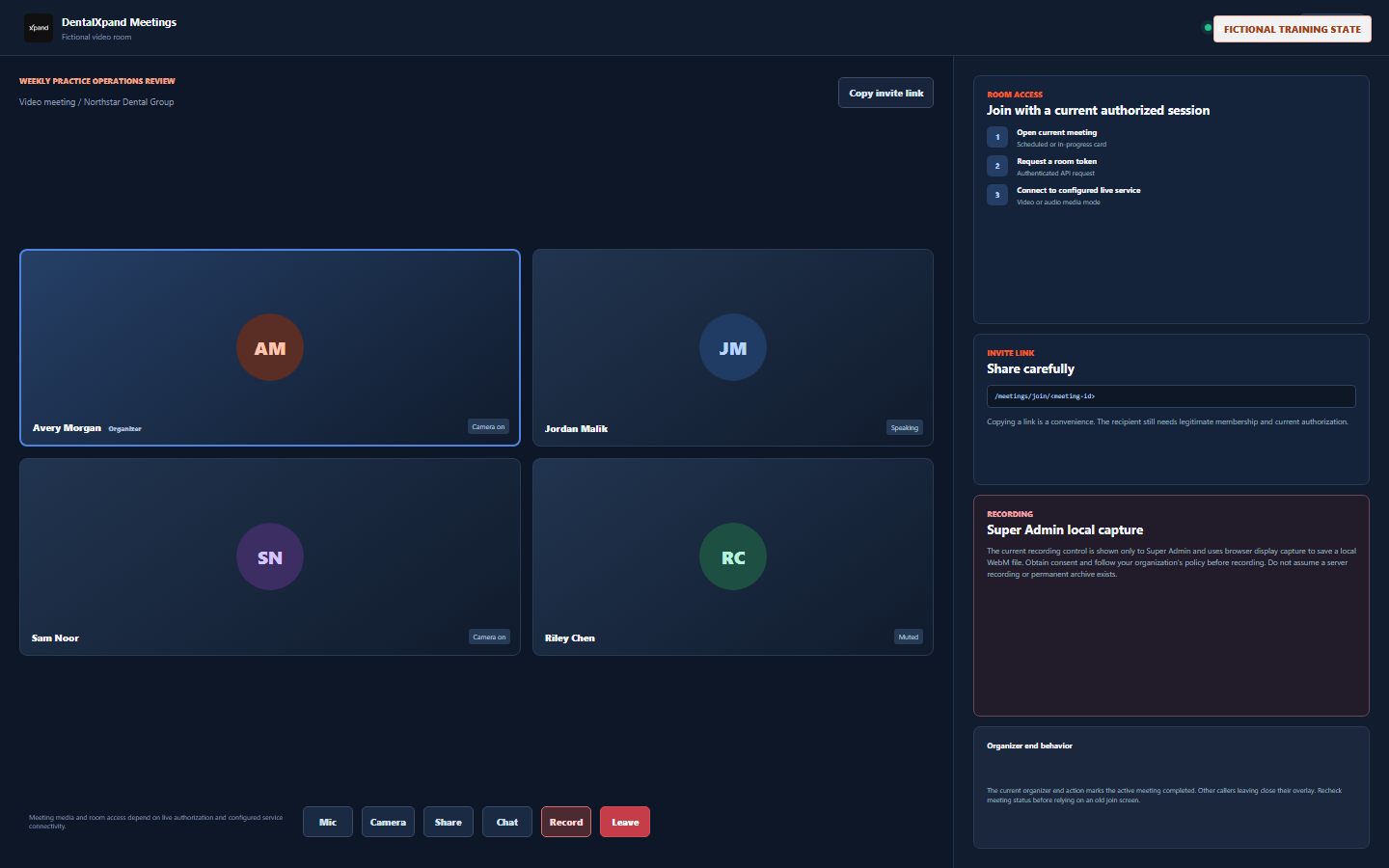
| Live element | Current implementation behavior | Safe use |
|---|---|---|
| Room token | The overlay requests a token from the configured application API using the current session before connecting to the configured live service. | Do not expose tokens, API errors containing secrets, or another user’s session detail. |
| Video or audio | Video is enabled for video meetings; audio is enabled for the live connection. | Use approved device permissions and avoid presenting protected information to unauthorized participants. |
| Invite link | The overlay can copy the current meeting join route and meeting details. | Share only with legitimate recipients; link possession must not be trusted as authorization. |
| Minimize and leave | Overlay provides a minimized state and a leave/end path. | Check the resulting meeting status before deciding the session remains active. |
Continue later with video, audio, and screen sharing for focused camera, microphone, screen-share, and call-safeguard training.
15 / Recording
Understand the current Super Admin recording control
The current live overlay conditionally shows a recording control for a Super Admin user. It uses browser display capture and MediaRecorder to download a local WebM file after device permission. It is not presented as a server-side meeting archive, a permanent record, or a general participant recording feature.
Browser or operating-system display capture permission can fail. Do not work around it with another person’s device or account.
The current flow downloads a local WebM file. Verify disposition and retention through the approved process rather than assuming central storage.
Visibility of a control is not permission to record every meeting. Use least privilege and explicit policy.
Share only the approved application or tab and close unrelated content before presenting.
16 / Realtime
Understand refresh and realtime behavior
The Meetings page fetches meetings and employees, then subscribes to changes in meetings and meeting participants. Realtime helps the screen refresh when relevant records change, but it does not replace the source record, authorization checks, tenant policy, or an intentional page refresh.
- When something changes, recheck the current card.Confirm status, title, times, organizer, and participant list before acting.
- When a meeting disappears, clear filters first.Then confirm organization, calendar month, membership, API result, and RLS scope.
- When a notification arrives, verify the saved record.Do not assume the alert text is the current state.
- When a live action fails, preserve the safe error context.Escalate without copying session tokens, credentials, protected data, or another tenant’s content.
17 / Follow-up
Move decisions into their owning workflows after the meeting
The current Meetings screen focuses on scheduling, participants, RSVP, live connection, and meeting state. It does not provide a formal agenda, minutes, attachment, decision-log, or task-creation editor in the page shown by the current application code. Keep follow-up work in the appropriate authorized source workflow instead of writing sensitive or unofficial records into a meeting description.
Create or update an authorized task with clear owner, due date, source context, and safe operational description.
Record only in the appropriate patient, payer, claim, verification, AR, credentialing, or other owning module.
Use the approved authorized message channel when a saved conversation is needed, while keeping sensitive information minimal.
Schedule a new meeting only when another conversation is necessary. Do not keep a cancelled or completed meeting as a placeholder.
Continue with tasks, assignments, steps, and timers and later team messages, conversations, and attachments to keep work ownership and communication in their intended places.
18 / Boundaries
Respect tenant, participant, API, and live-room boundaries
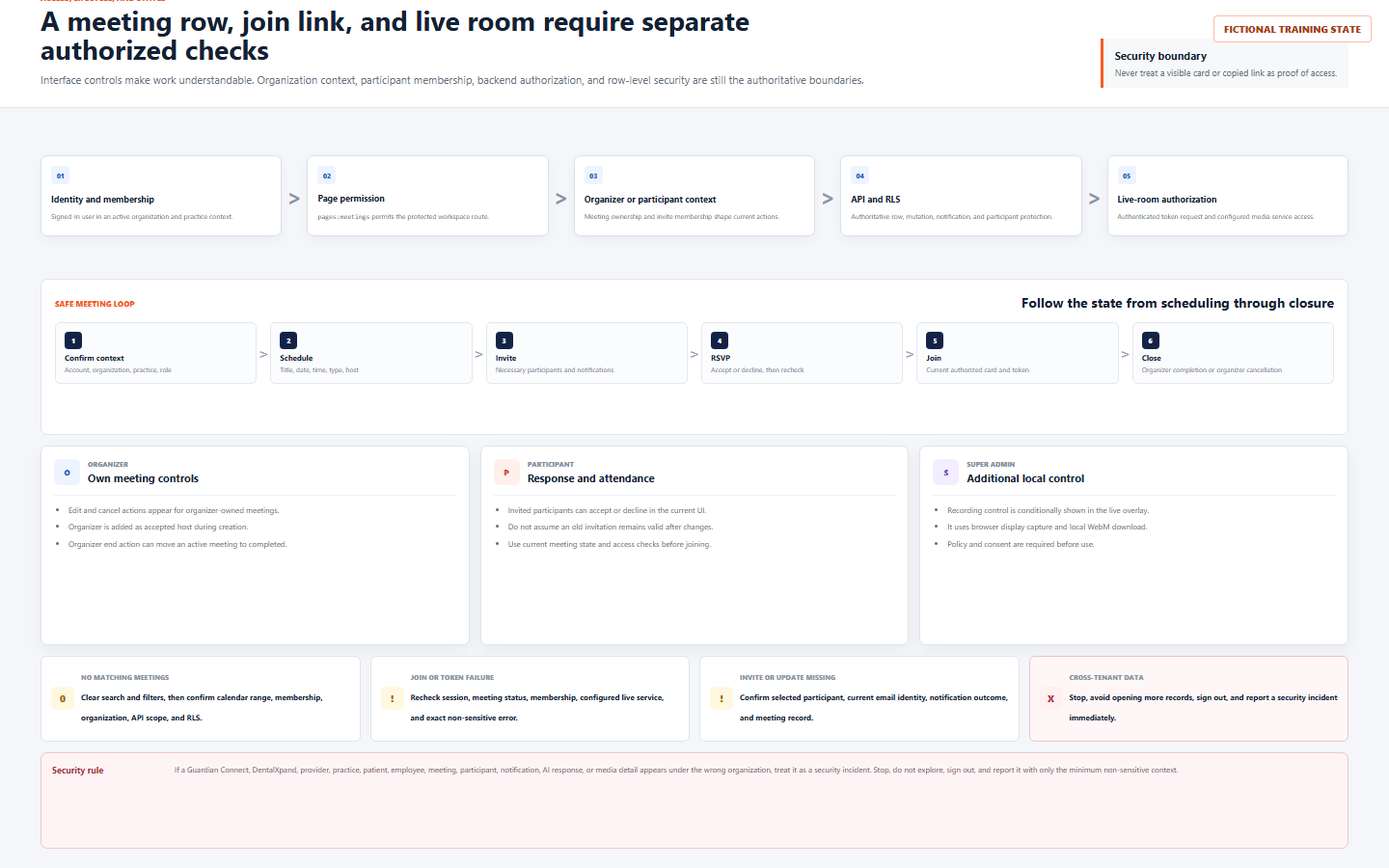
pages:meetings permits the protected workspace.19 / Troubleshoot
Troubleshoot expected states without guessing or bypassing access
| What you see | Possible reason | Correct first response |
|---|---|---|
| No matching meetings | Search, status, type, date, relationship filter, calendar month, membership, organization, API scope, or RLS. | Clear filters, confirm context and membership, then check the current source result. |
| Cannot schedule or edit | Missing page/action authority, current UI role behavior, backend denial, or row-level policy. | Confirm exact responsibility and request only the minimum justified access. |
| Invite or update missing | Participant was not selected, user identity differs, notification failed, or record changed. | Open the meeting and confirm saved participants and current meeting state. |
| RSVP action missing | Current user is not an invited participant, has already responded, or the record is no longer current. | Check organizer, participant ID, status, and selected organization. |
| Join or token failure | Expired session, no legitimate membership, meeting state, API authorization, or live-service configuration. | Recheck current session and eligible meeting status. Do not share a token or borrow access. |
| Recording unavailable | Not Super Admin, display-capture permission denied, browser limitation, or policy restriction. | Do not bypass the control. Confirm policy, consent, role, and approved recording process. |
| Other tenant data | Potential API, RLS, cache, search, link, notification, AI, or tenant-isolation failure. | Stop immediately, sign out, and report as a security incident. |
When escalation is necessary, send the page, active organization and practice, meeting title without sensitive details, approximate time, user role, expected result, actual non-sensitive text, and steps already tried to support@xpand.dental. Never include credentials, tokens, recordings, unredacted patient data, or other tenant data.
20 / Verify
Verify that meeting management is understood
Practical verification
- I can confirm my account, organization, practice context, and
pages:meetingsbefore using the workspace. - I understand the difference between authorized page access, organizer controls, participant RSVP, backend authorization, row-level policy, and live-room access.
- I can use search, status, date, type, relationship, and quick filters without assuming they change access.
- I can use Calendar and List views and understand that both show the same authorized meeting set.
- I can schedule a meeting with title, safe description, date, times, type, participants, and verification of the saved card.
- I understand organizer host behavior, selected participant invitations, and update or cancellation notifications.
- I can choose recurrence deliberately and verify individual created occurrences.
- I can accept or decline a current invitation and recheck before joining.
- I know organizer edit, cancellation, Join, and end behavior are meaningful state changes.
- I know a copied meeting URL is not a credential and does not replace authorization.
- I can explain the current video or audio token flow and the Super Admin local recording limitation.
- I know to move meeting decisions into Tasks or their owning source workflow.
- I can distinguish an empty, access-denied, notification, token, recording, and cross-tenant state.
Open the configured DentalXpand application and complete verification with your own authorized account and fictional or non-sensitive demonstration data.
Related lessons
Need workflow support?