
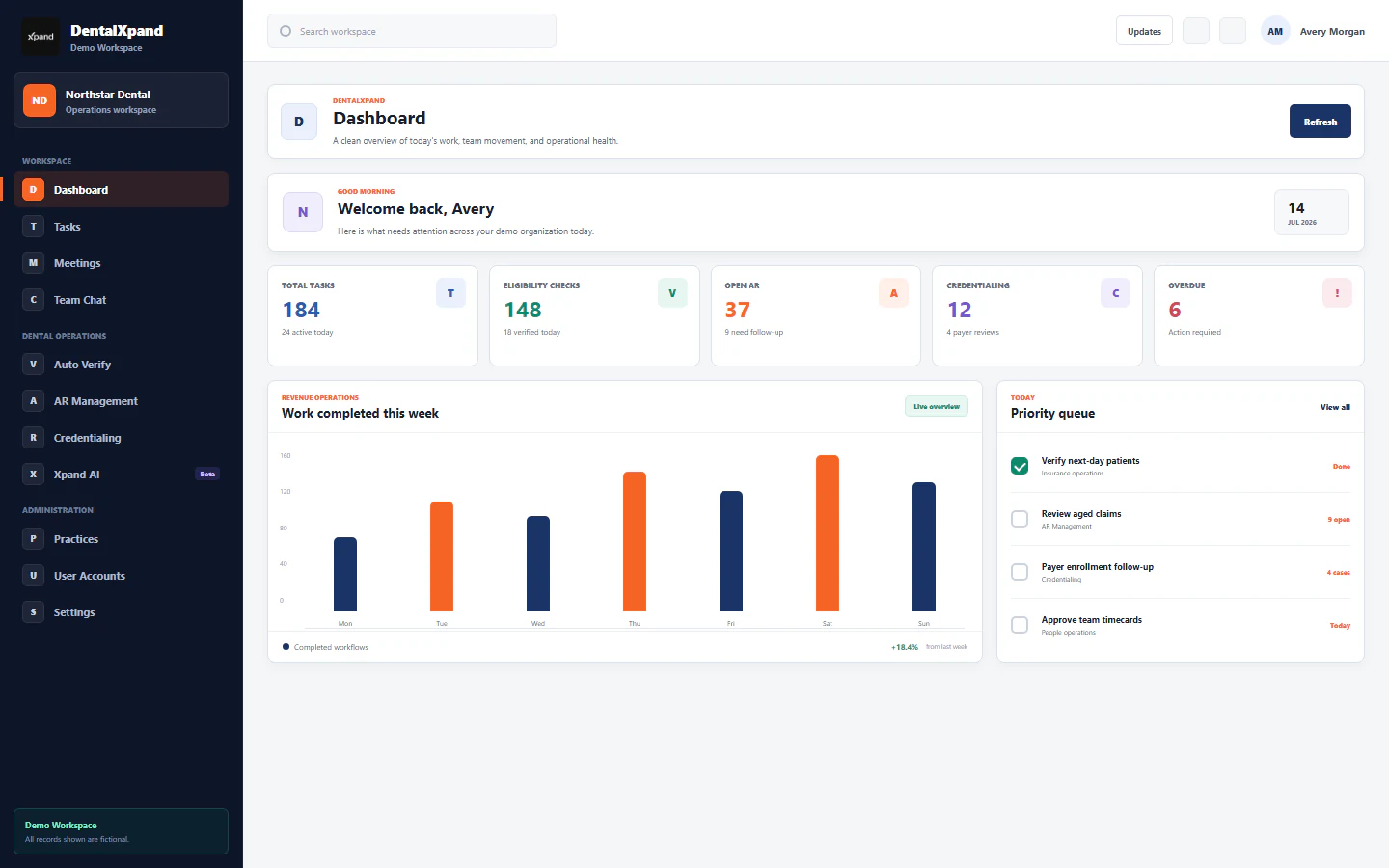
Use video, audio, and screen sharing
Use DentalXpand video and audio meetings safely: start from an authorized meeting, manage camera and microphone permissions, use available screen sharing carefully, minimize or rejoin, copy invitations, understand local recording safeguards, and resolve token or device states without bypassing access.
DentalXpand live communication starts from an authorized meeting record. Use the current Meeting card, your own authenticated account, the expected organization context, appropriate device permissions, and a minimum necessary participant set. This lesson covers the current Meeting live-room flow, audio behavior, available screen sharing, copy-link behavior, local recording safeguards, and safe troubleshooting. It does not authorize a user to view or share patient, provider, employee, financial, credential, or another tenant’s information.
1 / Purpose
Understand the live communication scope
The current Meetings page launches a configured LiveKit room from a current Meeting record. Video is enabled when the meeting type is video; audio is enabled for the live connection. The ready-made room interface supplies participant tiles, in-call controls, chat, connection state, and screen-share presentation where the configured component and browser make those controls available.
Use the Meetings record to join a scheduled or in-progress video or audio meeting with the current account and room connection.
Team Messages has a separate call overlay implementation with its own explicit camera, microphone, and screen-share controls. Do not assume its buttons exactly match the Meetings room.
Use the Meeting record for scheduling and participants. It does not create a live video or audio room.
Put operational decisions in Tasks and record patient, payer, provider, credentialing, financial, or clinical outcomes in their owning authorized module.
Review Schedule and manage meetings before using live communication. It explains meeting types, status, organizer controls, participant invitations, RSVP, and the meeting record lifecycle.
2 / Access
Confirm current access and meeting context before joining
| Check | What to confirm | Why it matters |
|---|---|---|
| Identity | Use your own signed-in account and current session. | Another person’s account, device session, or copied token is not an acceptable workaround. |
| Organization and practice | Confirm the expected tenant, practice, and working context before opening a meeting. | Meeting presence must not bridge separate organizations or Guardian Connect data. |
| Meeting record | Check title, date, time, organizer, type, status, and participant state on the current card. | Old notices and old links may not reflect the saved meeting state. |
| Role and membership | Confirm you are a legitimate organizer or participant for the action you need. | A visible page or card does not override server authorization or row-level policy. |
| Environment | Use a suitable network, device, and private location for the conversation. | Camera, microphone, display capture, and audio output are browser and operating-system permissions. |
3 / Join
Join a current meeting safely
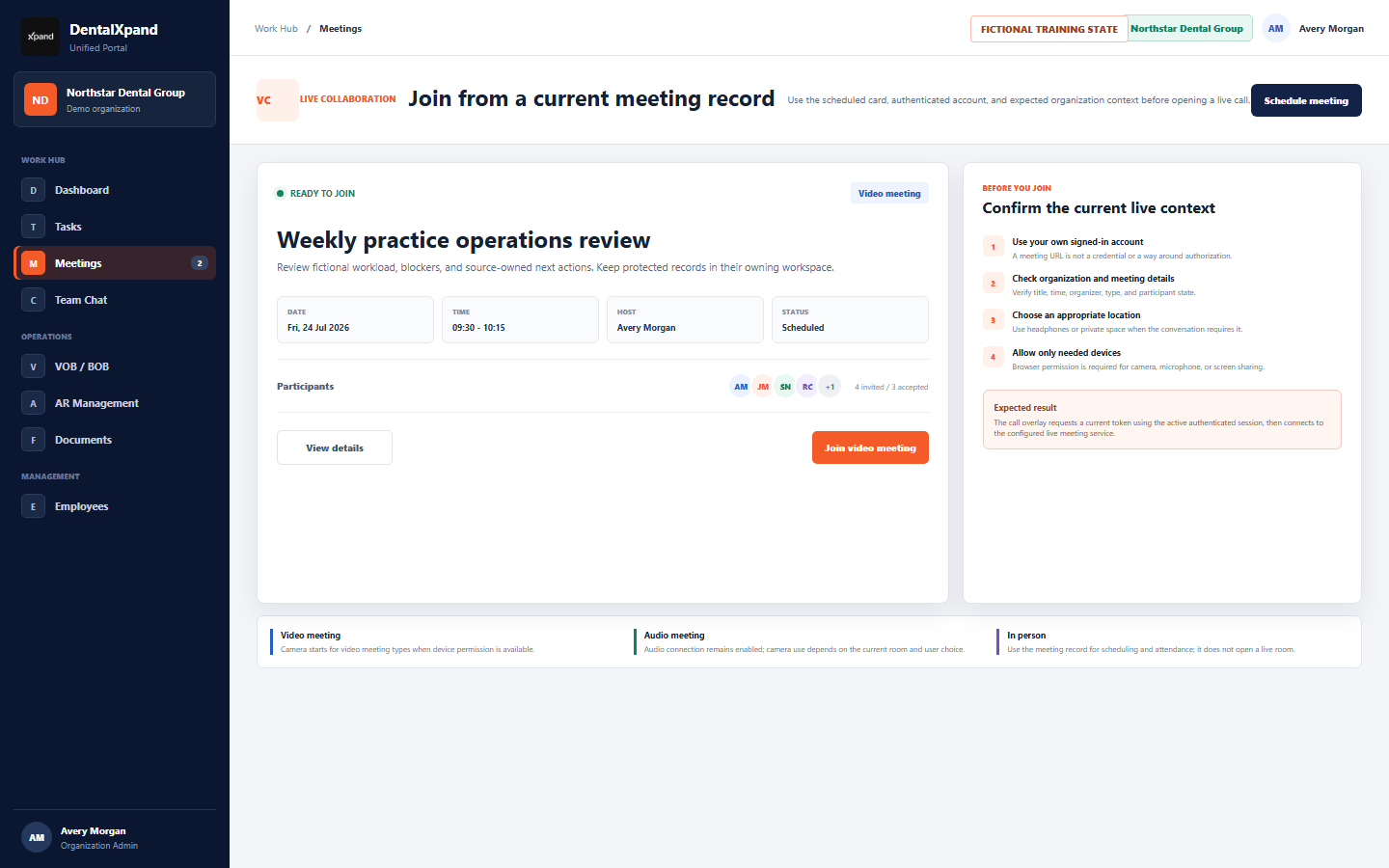
- Open Meetings from the authorized workspace.Confirm your account, organization, practice, and the current Meeting record.
- Open the card or detail view.Verify meeting title, type, date, time, organizer, participant state, and current status.
- Join only a scheduled or in-progress live meeting.Do not use a cancelled or completed card as an attempt to reopen a room.
- Allow only the required browser permissions.Use a known microphone, camera, and output device. Decline devices you do not need.
- Wait for the live-room connection state.If connection fails, use the safe troubleshooting path instead of sharing credentials or borrowing access.
The current application requests a live-room token using the active authenticated session, then starts the configured room. A token failure is an access or configuration state to resolve; it is not a reason to create a broad exception.
4 / Media
Use camera and microphone permissions deliberately
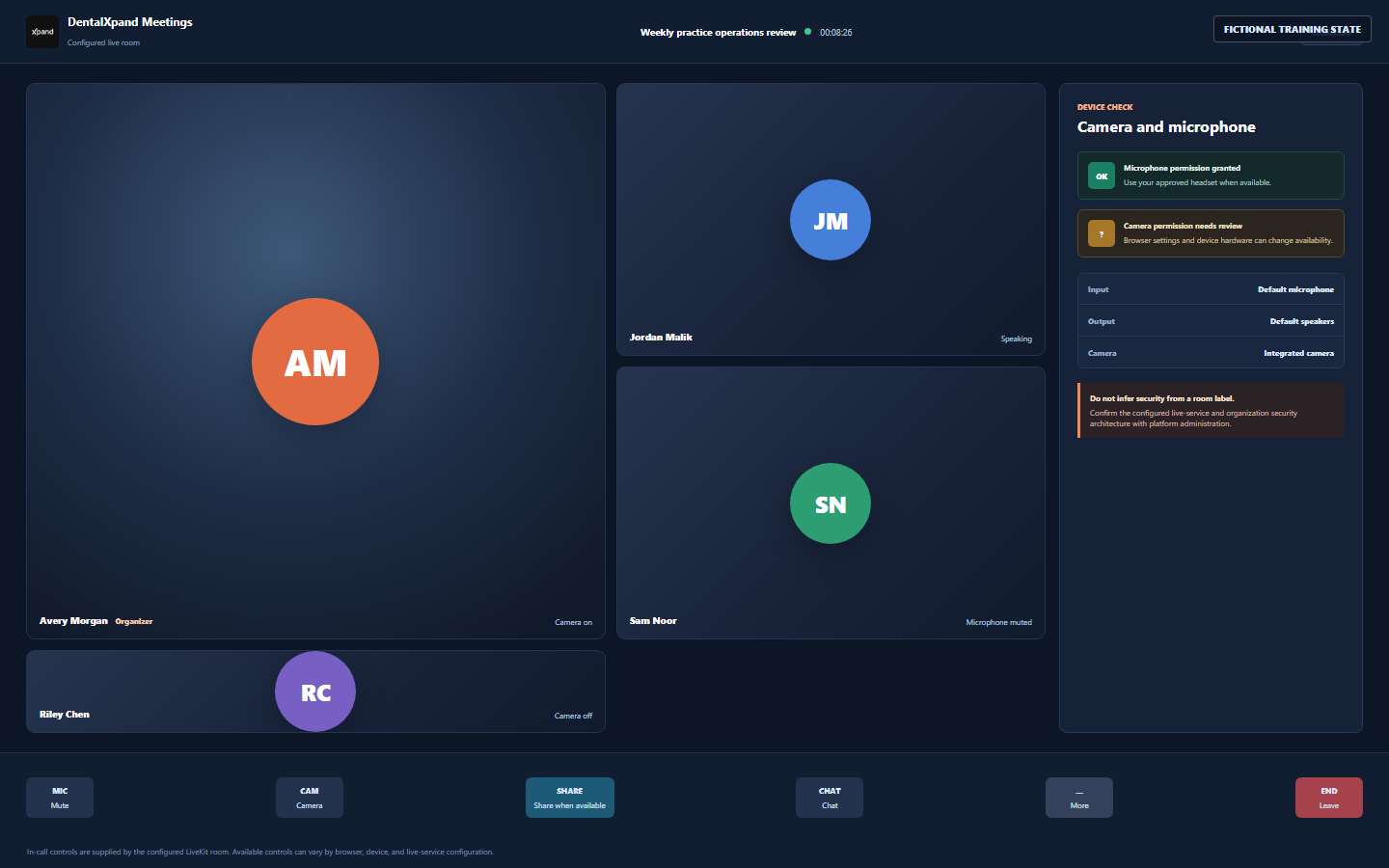
For a video meeting, the current live-room setup requests video and audio. Browser permission, device state, and user controls still determine whether media is actually available.
Audio remains enabled for the live connection. Treat microphone and output selection as intentional workspace decisions, especially in shared locations.
Check browser and operating-system permission, device availability, privacy controls, and whether another application is using the hardware.
The room may expose device settings depending on the configured component. Confirm available settings in the deployed browser instead of promising a control that is not visible.
5 / Screen sharing
Use screen sharing only when it is available and safe
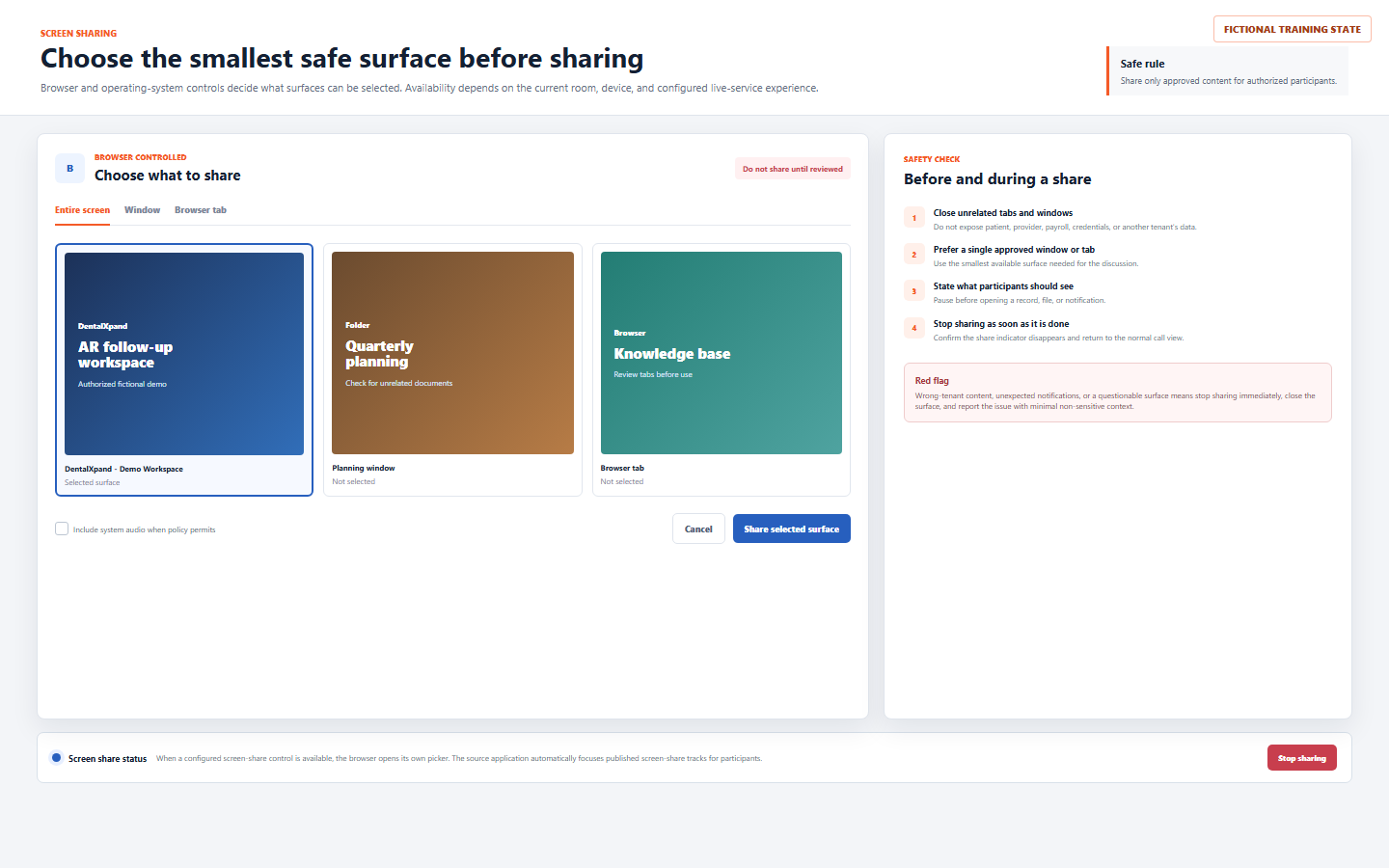
The current Meetings overlay renders the LiveKit VideoConference experience. That component can display published screen-share tracks and automatically focus a shared track for participants. The exact in-call share control is supplied by the configured component and live-service environment, so verify its visibility and behavior in the deployed browser before relying on it in a workflow.
| When the control is available | Safe practice |
|---|---|
| Before opening the picker | Close unrelated applications, browser tabs, chat popups, notifications, private documents, credentials, payroll, patient information, provider data, and anything from another tenant. |
| Choose a surface | Prefer one approved tab or window over an entire desktop. Share the smallest surface that answers the question. |
| During a share | State what you are about to open, pause before navigating, and confirm participant identity before showing a record. |
| When finished | Stop sharing immediately, verify the share indicator is gone, and return to the normal call view before opening other work. |
| Unexpected content | Stop sharing, close the surface, do not open more data, and report a possible privacy or tenant-isolation incident with minimum non-sensitive context. |
Messages uses a separate WebRTC call overlay with an explicit screen-share action. It likewise opens the browser display-capture picker and should be handled with the same minimum-surface and stop-sharing discipline. The control location and exact behavior can differ from Meetings.
6 / Audio and lifecycle
Use audio, minimize, leave, and rejoin deliberately
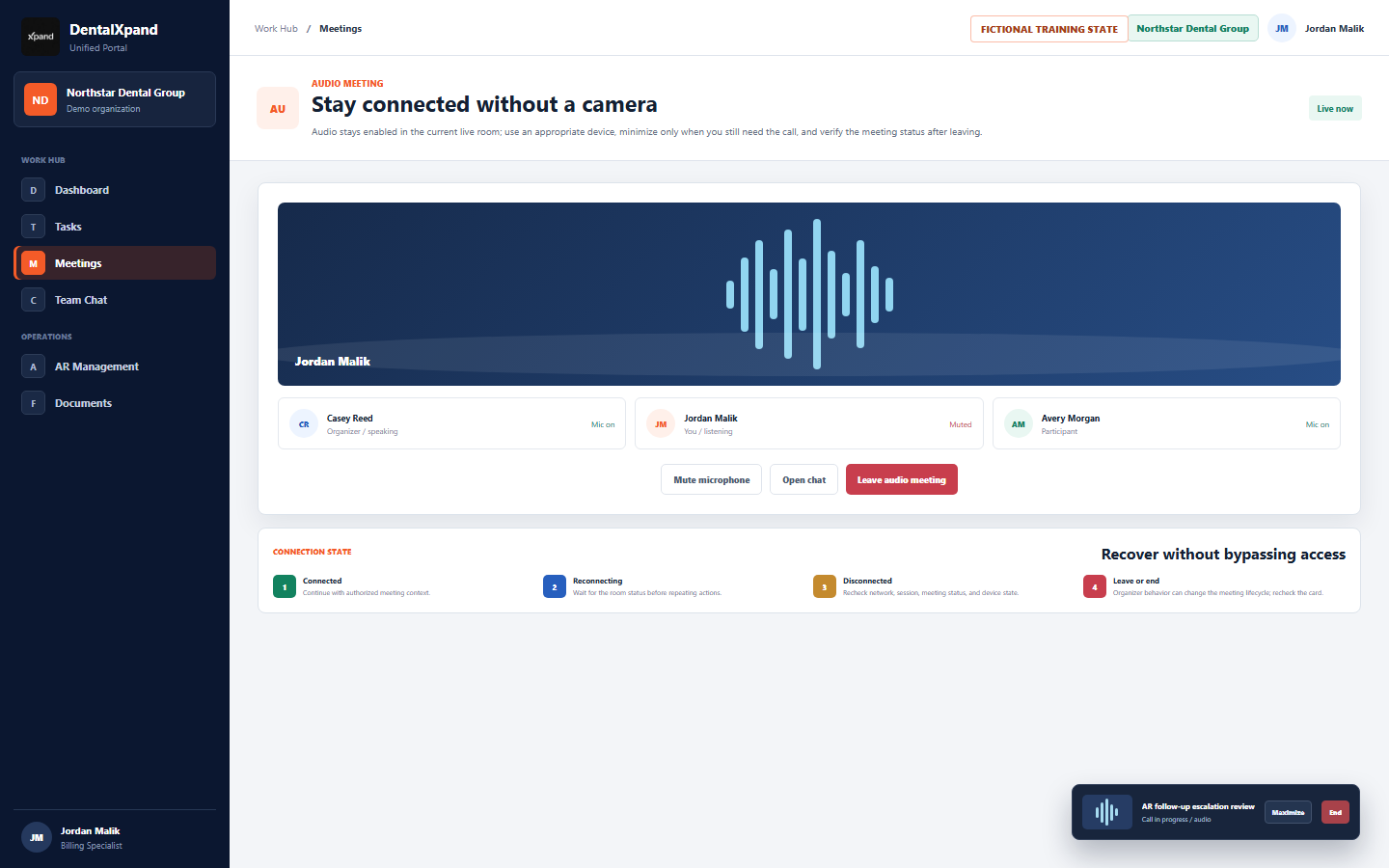
- Use audio when video is not necessary.Confirm microphone and output device, then mute when you are not speaking.
- Minimize only when you still need the ongoing call.Use Maximize to return to the room. Keep the meeting purpose and participant expectations in mind.
- Wait through a reconnecting state.Check network, current browser session, device permission, and meeting state before repeating actions.
- Leave intentionally.Return to the Meeting card and confirm its saved status after leaving or a disconnection.
Do not assume that opening the live room automatically produces an attendance audit. Confirm your organization’s deployed attendance, event, and retention setup before treating a join or leave action as a formal record.
7 / Invite link
Copy a current meeting invitation carefully
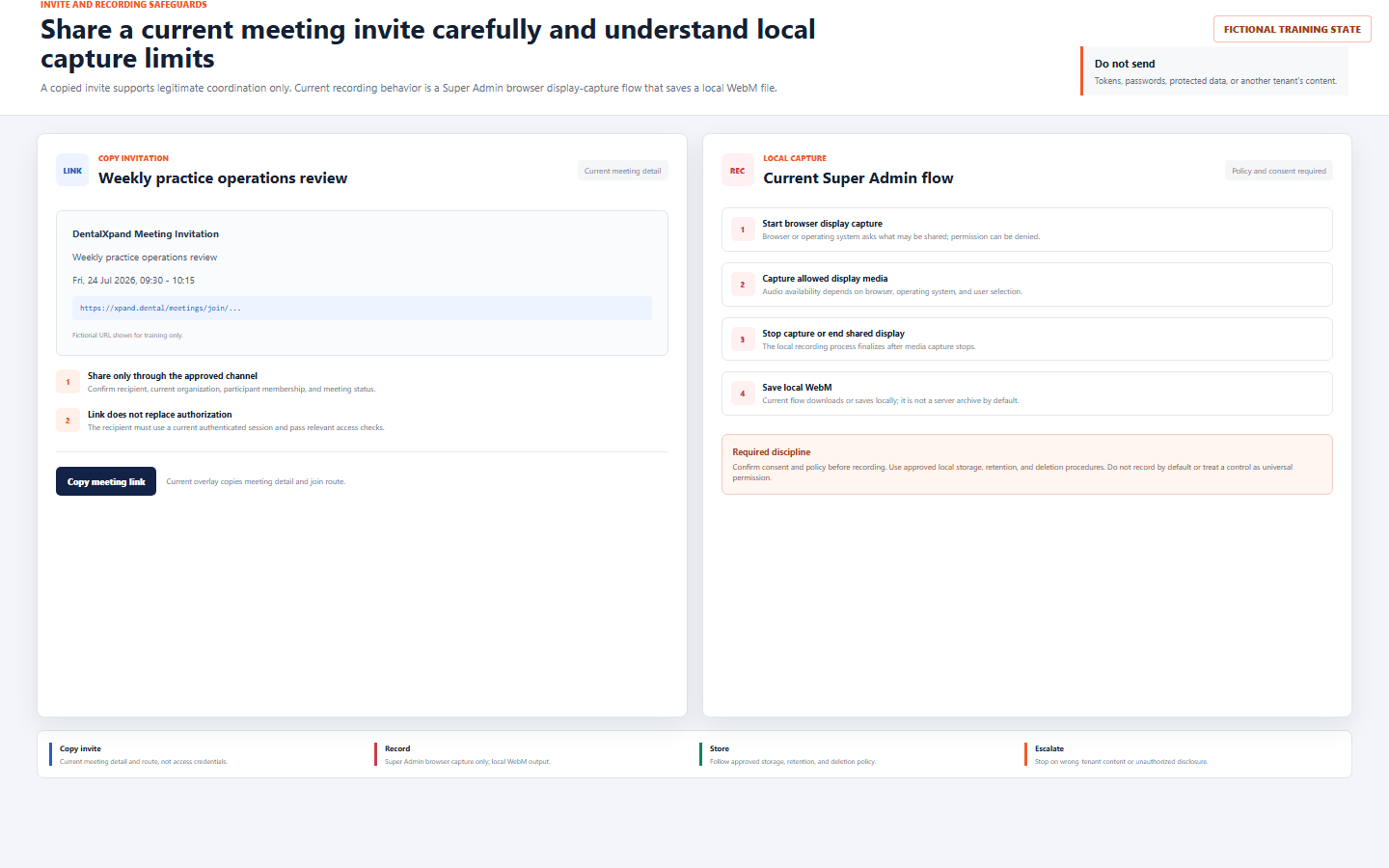
The current Meeting overlay can copy the title, scheduled time, and a route to the specific meeting. It uses the application origin, with the public DentalXpand domain as a fallback for file-based contexts. This is an invitation aid, not a password, token, bypass, or permanent entitlement.
Confirm the recipient, organization, participant membership, and current meeting status before sending an invite.
Never place passwords, API keys, session tokens, patient data, provider records, or internal links in the copied message.
The recipient must still use their own current authorized session and pass server-side and tenant-aware checks.
Do not rely on a copied invitation after a meeting is cancelled, completed, materially changed, or moved to another operating context.
8 / Recording
Understand current local recording safeguards
The current Meetings overlay conditionally shows a recording control to a Super Admin user. It uses browser display capture and MediaRecorder to create a local WebM file after permission. The current behavior is not a server-side meeting archive, permanent system record, universal participant feature, or replacement for a documented retention process.
| Current behavior | Operational safeguard |
|---|---|
| Super Admin visibility | Control visibility is not universal authorization to record. Confirm policy, consent, and a legitimate operational reason first. |
| Browser display capture | The browser or operating system asks what can be captured. Do not work around denied permission with another person’s device or account. |
| Audio request | The capture request can ask for audio, but actual audio availability depends on browser, operating system, and the surface selected by the user. |
| Local WebM output | Current output saves or downloads locally. Use approved storage, access control, retention, and deletion procedures; do not assume central storage. |
| Capture end | Stopping the recording or ending the shared display finalizes the local file. Review the output location and handling immediately. |
9 / Connection
Understand the current connection path without exposing secrets
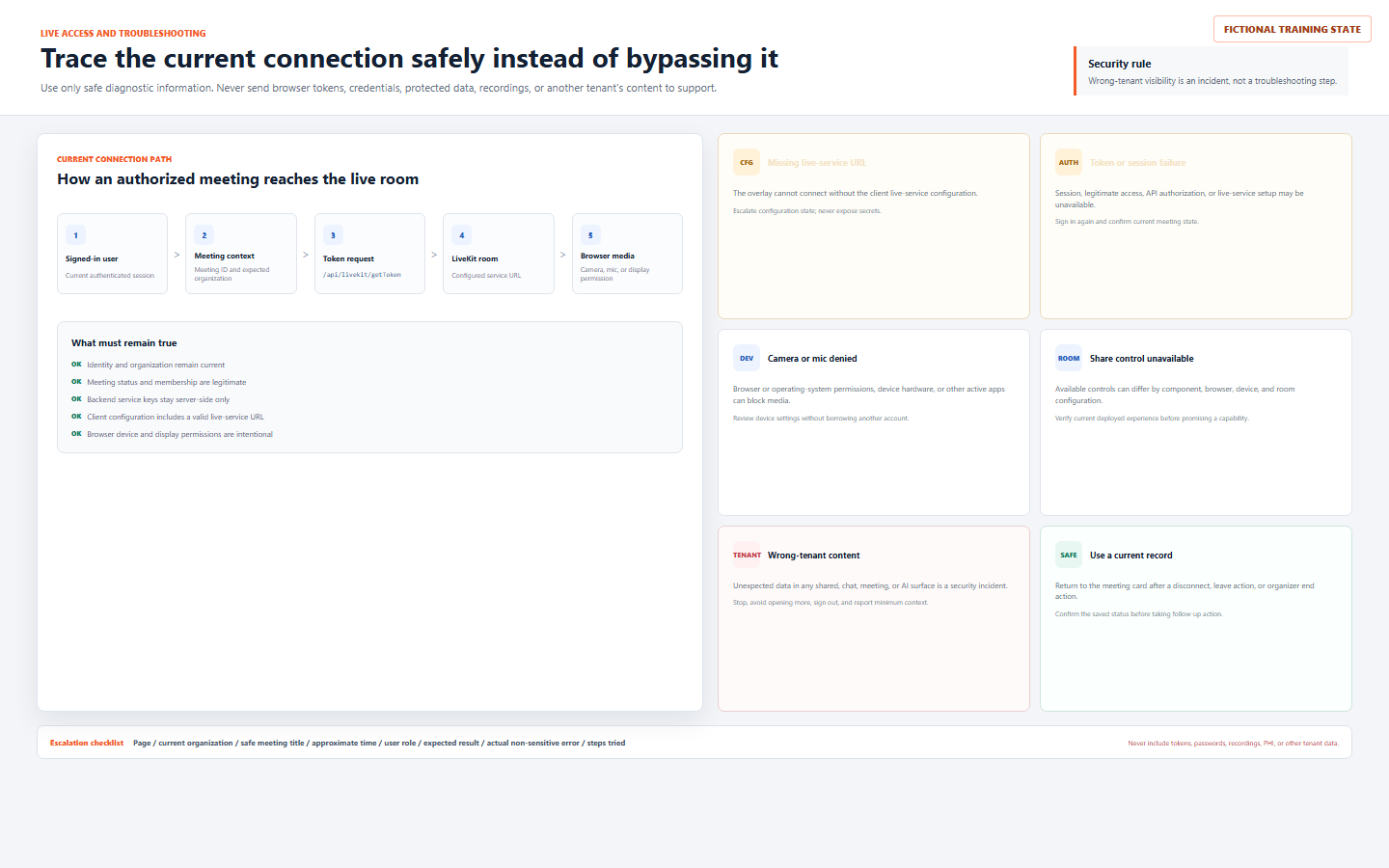
For the current application, the browser needs a configured VITE_LIVEKIT_URL value. The backend token endpoint needs server-side LiveKit API credentials. Never place server-side credentials in browser code, screenshots, PDF examples, support messages, copied invitations, or public WordPress content.
10 / Security and follow-up
Protect tenant and participant boundaries throughout the call
Use the narrowest legitimate attendee list. Do not add someone because they may be interested or because a live conversation is convenient.
Never use a Meeting, Team Message, recording, invitation, screen share, or AI response to bridge Guardian Connect, DentalXpand, provider, practice, client, or unrelated organization data.
Move decisions to Tasks or the owning clinical, payer, AR, credentialing, HR, financial, or operational module after the discussion.
Report only the safe context needed to investigate. Do not attach recordings, screenshots with sensitive information, browser tokens, credentials, or data from another tenant.
After a legitimate meeting, create or update an authorized task for operational follow-up and use team messages only for appropriate saved conversation. Do not use a meeting description or a recording as the system of record.
11 / Troubleshoot
Troubleshoot expected states without guessing or bypassing access
| What you see | Possible reason | Correct first response |
|---|---|---|
| Cannot join or no token | Expired session, invalid meeting state, membership issue, API authorization, or live-service configuration. | Confirm current sign-in, organization, meeting card, and safe error text. Do not share a token or borrow another account. |
| Missing live-service URL | Client configuration is incomplete or unavailable. | Report the configuration state to an authorized platform administrator without exposing environment values or secrets. |
| Camera or microphone blocked | Browser or operating-system permission, absent hardware, privacy setting, another application, or device selection. | Review local device settings and retry only with your own authorized session. |
| Screen-share control unavailable | Current browser, component, device, or configured room does not expose the control. | Verify the deployed experience. Do not promise or simulate a share capability that is not available. |
| Share picker shows an unsafe surface | Unrelated apps, tabs, notifications, or records are open. | Cancel the picker, close unrelated content, and use the smallest approved surface. |
| Meeting status changed after leaving | Organizer end behavior or a room disconnect reached the meeting end handler. | Return to the Meeting card, verify saved status, and schedule a new record when another conversation is required. |
| Recording unavailable | Current user is not Super Admin, permission is denied, browser support differs, or policy restricts capture. | Do not bypass the control. Confirm consent, policy, role, and approved recording process. |
| Other tenant data is visible | Potential API, row policy, cache, link, notification, screen share, search, AI, or tenant-isolation failure. | Stop immediately, avoid further access, sign out, and report as a security incident. |
When escalation is necessary, send the page, expected organization and practice, safe meeting title, approximate time, user role, expected result, actual non-sensitive error text, and steps already tried to support@xpand.dental. Never send tokens, passwords, environment values, recordings, unredacted screenshots, PHI, or another tenant’s data.
12 / Verify
Verify that live communication is understood
Practical verification
- I can explain why a Meeting record, signed-in account, organization, practice, legitimate participant membership, and current status are all checked before joining.
- I understand that a copied meeting link is an invitation aid, not a credential or access bypass.
- I know the current Meetings live room uses configured LiveKit controls and that available controls can vary by deployed browser, device, and service configuration.
- I can allow, deny, or correct camera and microphone permissions safely without borrowing another user session.
- I choose the smallest approved tab or window before sharing and stop sharing immediately when the purpose is complete.
- I understand the Meetings room and Messages call overlay are separate implementations and can expose controls differently.
- I can use audio, minimize, reconnect, leave, and recheck the saved Meeting status deliberately.
- I know an organizer leave or disconnect can have meeting lifecycle impact and must be verified on the current card.
- I understand the current Super Admin recording flow is browser display capture with a local WebM output, not a server archive by default.
- I know consent, policy, approved storage, retention, and deletion rules apply before any recording.
- I can identify safe troubleshooting information and keep API credentials, tokens, protected data, recordings, and other tenant data out of support messages.
- I know wrong-tenant visibility is a security incident that requires immediate stop, sign-out, and reporting.
Open the configured DentalXpand application and practice only with your own authorized account and fictional or non-sensitive demonstration data.
Related lessons
Need workflow support?