
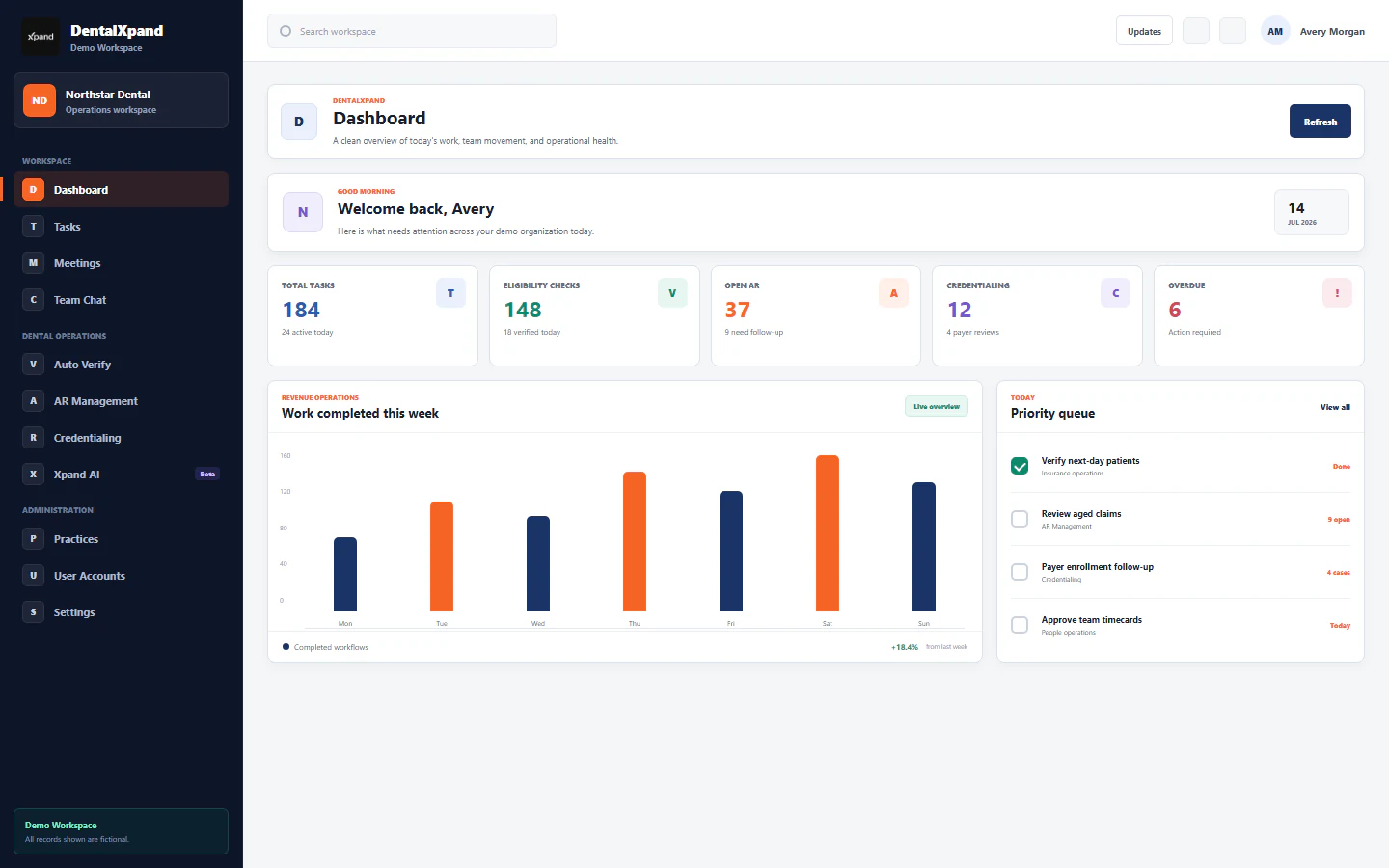
Manage tasks, assignments, steps, and timers
Manage DentalXpand tasks from access and assignment through progress steps, comments, client instructions, timers, Work Diary review, provider requests, troubleshooting, and secure completion.
The DentalXpand Tasks screen is the daily work hub for assigning operational work, tracking structured progress, discussing questions, attaching client instructions, timing effort, and closing work with a verified history. It is useful only when the current organization, client, owner, status, and source record are correct.
01 / Purpose
Understand what the Tasks screen is designed to do
Create a work item with a specific outcome, client context, task type, due date, priority, and starting status.
Route the work to a client, optional team, optional employee, and optional supervisor or manager.
Use attached instructions, structured progress fields, comments, timers, and task history while work is active.
Confirm the source record, saved progress, stopped timer, final status, and safe communication before closing work.
Tasks should answer who owns the work, what result is expected, what progress has been saved, and what needs attention next. They do not replace the source module, payer response, client instruction, report, or audit trail.
02 / Access
Confirm access and current role behavior
The protected application route is /tasks and it requires the pages:tasks page permission. The current interface also applies role-specific behavior on top of backend and database authorization.
| Account type | Current interface behavior | Important boundary |
|---|---|---|
| Admin, Super Admin, Manager | Can create and edit tasks in the current Tasks UI. Admin and Super Admin see the delete button; the API also supports manager-authorized deletion. | Must remain inside current organization and authorized rows. |
| Employee or internal operator | Works assigned scope: direct assignment, legacy assignee, supervised tasks, and tasks assigned to teams they belong to. | Current UI may not show the full create workflow even when role presets contain task permissions. |
| Provider, client, customer, practice, client-provider, external | Submits focused task requests and can add questions or notes on authorized progress. | No internal assignment, due-date, priority, supervisor, instruction, or status controls in the request form. |
Review roles, permissions, and access boundaries and organization and practice context before changing access for a user.
03 / Task record
Understand what a task contains
A complete internal task can include title, description, task type, required client/provider, assigned team, assigned employee, supervisor, due date, client instruction PDF, priority, status, progress steps, comments, time logs, and total time.
| Field | How to use it | Common mistake |
|---|---|---|
| Title | Short operational outcome. | Putting sensitive or unrelated record data in the title. |
| Description | Enough context for the assigned person to act. | Replacing the source record or instruction with a long informal note. |
| Client/provider | Required client context for internal tasks. | Selecting the wrong practice and spreading work to the wrong scope. |
| Task type | Controls structured progress fields. | Leaving it blank and losing the guided progress form. |
| Assignment | Team, employee, and supervisor ownership. | Assuming a task is visible to everyone in the organization. |
| Status and priority | Operational state and urgency. | Using priority as a substitute for a due date or escalation note. |
04 / Command center
Use the Tasks command center
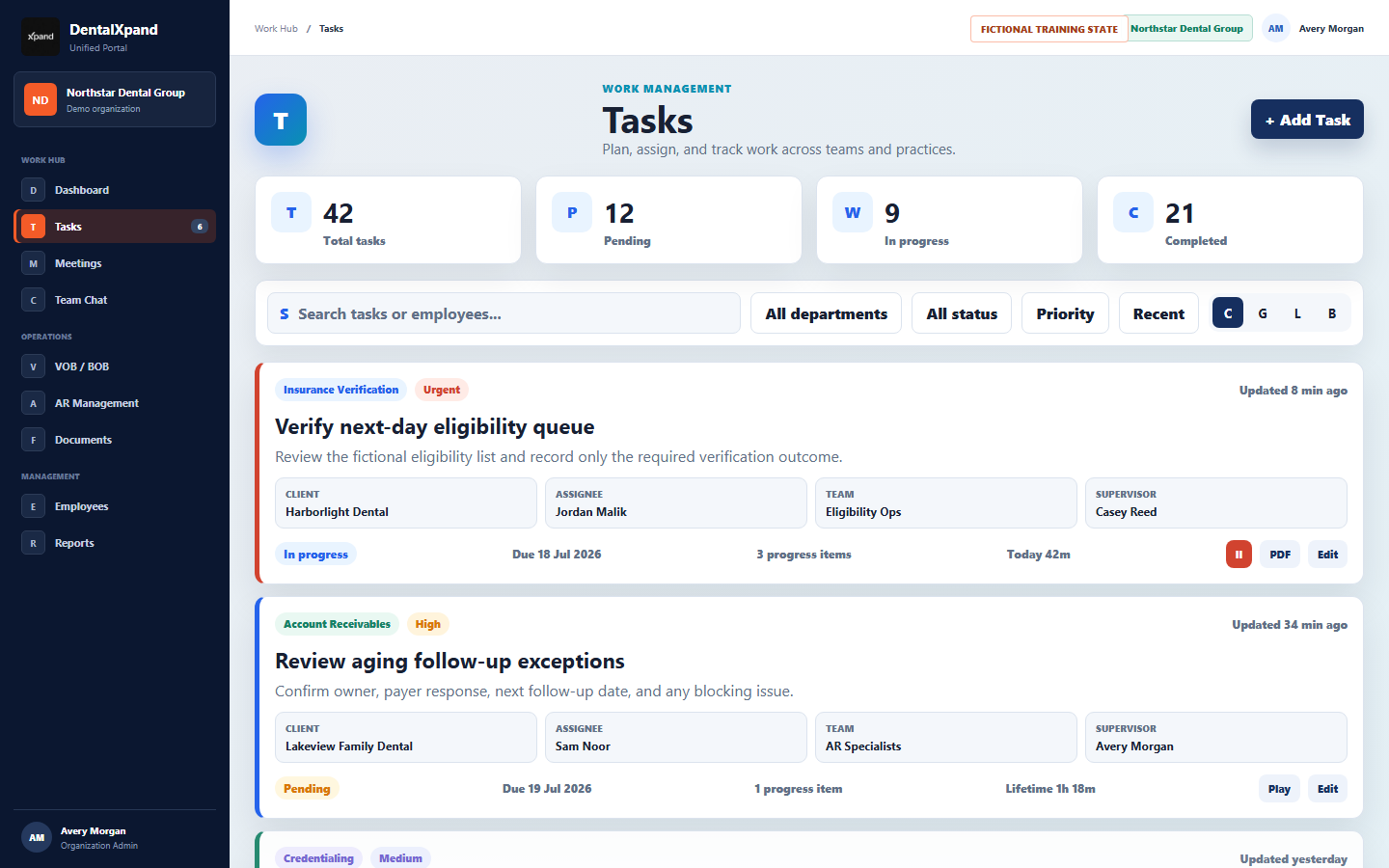
- Confirm organization and account.Do not continue if the active workspace is unexpected.
- Scan the summary cards.Total, pending, in-progress, and completed values are orientation signals.
- Search or filter.Narrow the authorized task set before opening a record.
- Read the task card.Confirm client, assignee, team, supervisor, due date, priority, status, progress count, and time.
- Open the task details.Use progress history, comments, instruction preview, and timer controls inside the task context.
05 / Find and filter
Find, filter, and sort tasks without losing context
Search checks task title, description, employee name, team name, and supervisor name. Filters include department, status, and priority. The visible sort options are Recent, Oldest, and Title A-Z.
| Control | Use it for | Before reporting a task missing |
|---|---|---|
| Search | Task text and assignment names. | Clear spelling, client shorthand, and old employee names. |
| Department | Assigned employee, supervisor, or team department matching. | Confirm the user is assigned directly, supervised, or on the task team. |
| Status | Pending, in progress, completed, cancelled. | Clear status filters when a completed task disappears from an active list. |
| Priority | Blocker, critical, urgent, high, medium, low, lowest. | Check exact saved priority rather than expected urgency. |
| Sort | Recent, oldest, or title order. | Use search if the list is long after sorting. |
06 / Views
Use Classic, Grid, List, and Board views
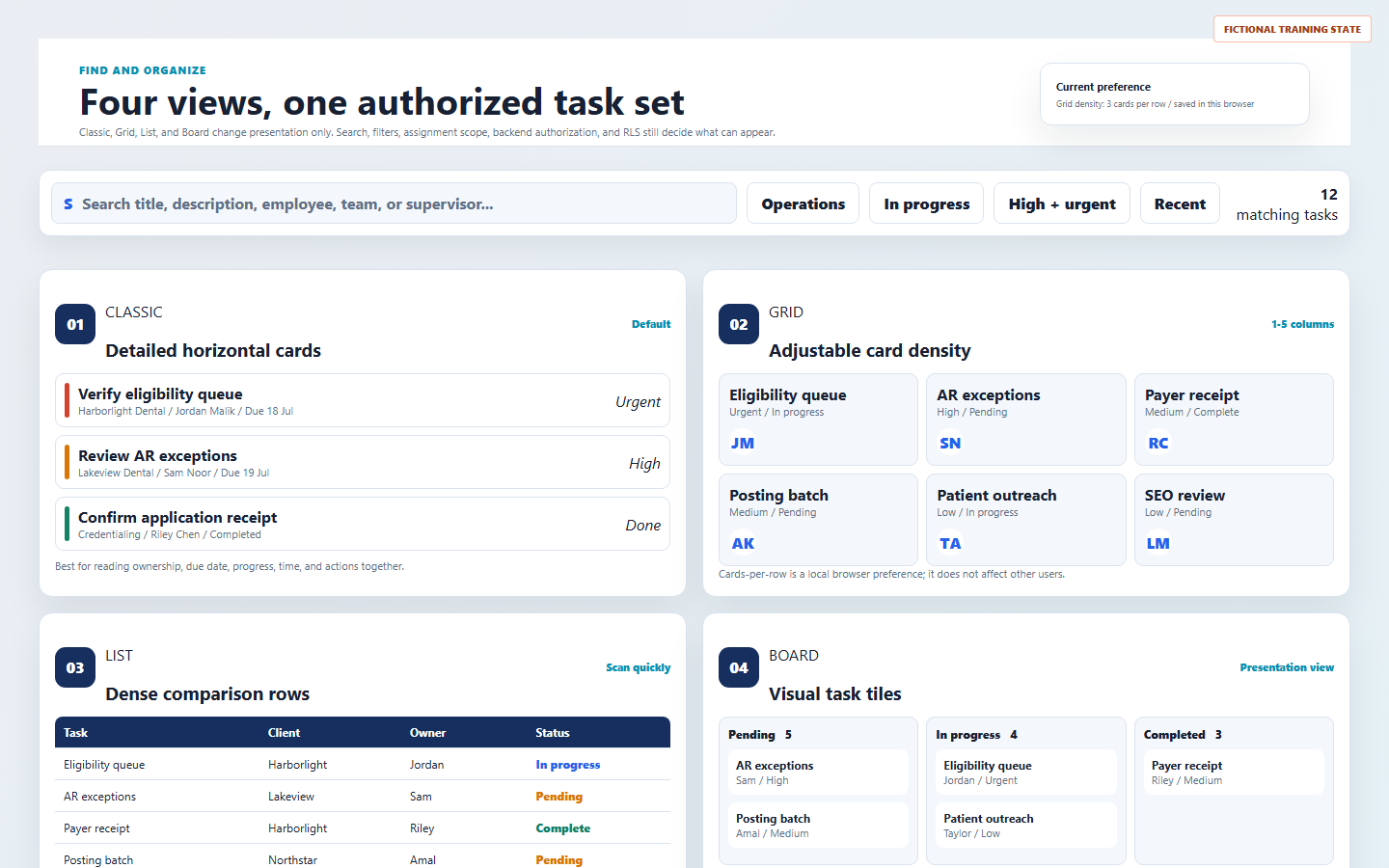
Best when ownership, due date, priority, status, progress, time, and actions need to be read together.
Best for scanning many cards visually. Cards-per-row can be set from 1 to 5 and is saved in the current browser.
Best for dense comparison across many tasks.
Current Board is a presentation view of filtered tasks. Use task controls for actual status changes.
07 / Create
Create a task with enough detail to complete it
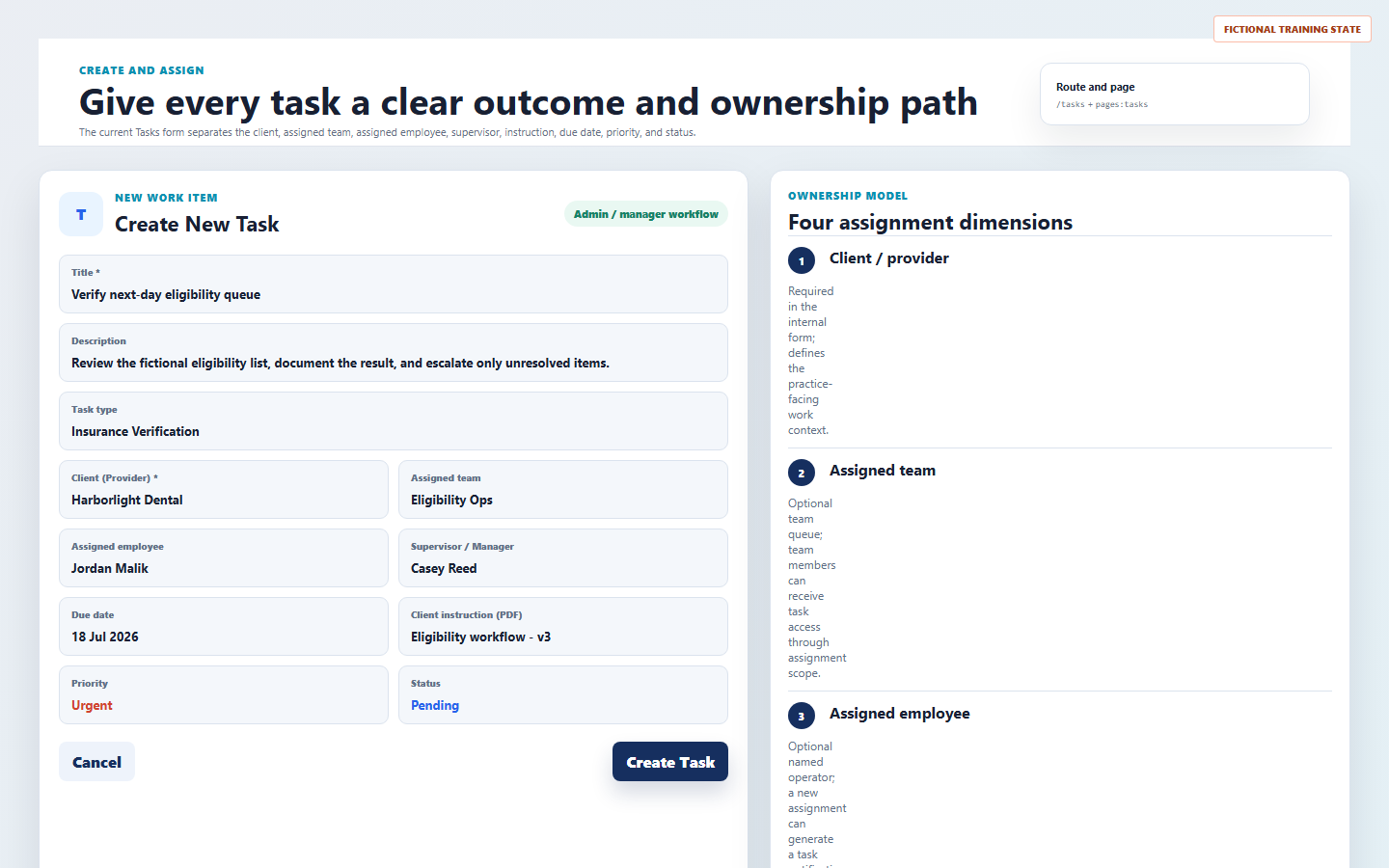
- Write the title as an outcome.Example: “Verify next-day eligibility queue.” Avoid patient or credential details.
- Add a concise description.Explain what must be completed and where the source record lives.
- Select the task type.This controls the structured progress form later.
- Select the client/provider.This is required in the internal form and should match the work source.
- Select optional team, employee, and supervisor.Use the narrowest useful assignment path.
- Add due date, instruction, priority, and status.Use the current approved workflow, not memory or assumptions.
08 / Assignment
Assign client, team, employee, and supervisor deliberately
A task can be visible through different assignment routes. A named assignee owns the work directly, a team assignment can expose it to team members, and a supervisor assignment creates oversight visibility. When assignment or supervisor changes, the app can send notifications to the new responsible person.
09 / Provider and client requests
Handle portal requests as review intake
Provider and client roles submit a focused request with entered title, entered description, selected task type, fixed pending status, medium priority, and review tags. They do not receive internal assignment, team, supervisor, instruction, due-date, priority, or status controls in the current request form.
| Portal request field | Current behavior | Admin response |
|---|---|---|
| Title and description | Entered by provider or client. | Review for clarity and sensitive data before assigning. |
| Task type | Selected by the requester. | Confirm it matches the workflow before progress begins. |
| Status and priority | Saved as pending and medium. | Adjust only after triage and source verification. |
| Tags | Marked for client request and pending approval. | Use as intake context, not proof that work is approved. |
Continue later with provider login and the client portal for the full portal workflow.
10 / Status and priority
Use status and priority correctly
Work is queued or waiting for an approved owner, prerequisite, or start.
Work has started. Starting a timer on a pending task can move it into this state.
Work is finished and verified in the source. Stop any active timer before closing.
Work should not continue. Add enough context so the cancellation is understandable.
Priority values range from blocker and critical through urgent, high, medium, low, and lowest. Priority tells attention level; due date tells time expectation; comments explain blockers.
11 / Task types
Choose task types and dynamic progress fields
The current task type list includes Payment Posting, Insurance Verification, Account Receivables, Prior-Authorization, Credentialing, Patient Communication, SEO / Social Media, Call Center, and Other. Rich dynamic progress fields exist for Insurance Verification, Payment Posting, Account Receivable, SEO, and Credentialing. Other workflows generally use remarks-style progress.
12 / Client instructions
Attach and preview the correct client instruction PDF
The instruction selector is filtered by the selected client. Attach only the current approved instruction for the client and workflow. In progress history, an attached instruction can be previewed before work is recorded.
Continue later with client instructions and workflow PDFs for versioning, review, and client-specific training.
13 / Progress history
Open progress history before changing a task
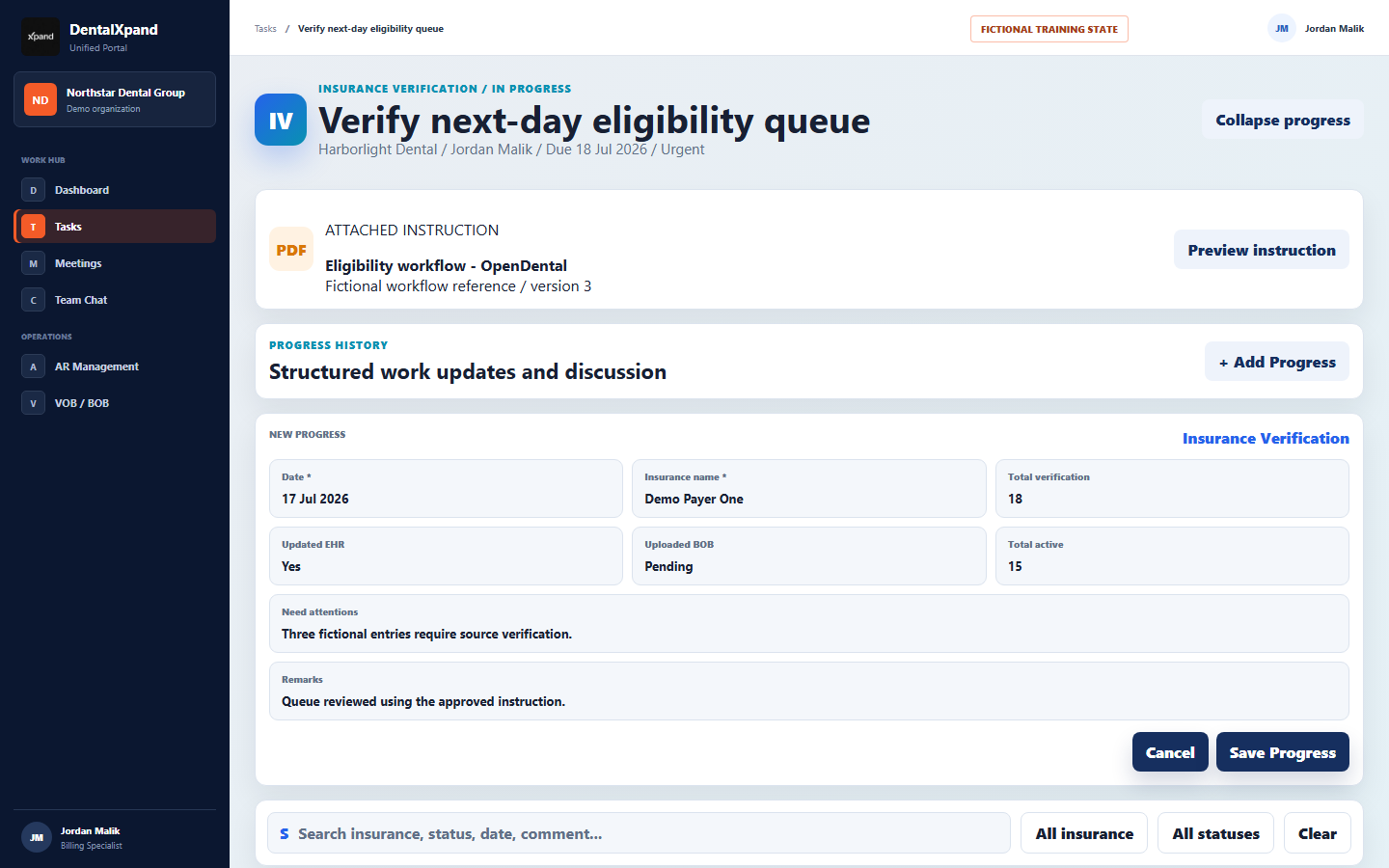
- Expand the task.Read task type, status, client, assignee, due date, and current context.
- Preview attached instruction when present.Use the current client workflow before saving progress.
- Search or filter history.Use insurance and status filters where available.
- Open the latest date group.The latest group is expanded by default; older history remains available.
- Read comments before adding progress.A comment may already contain the blocker or answer.
14 / Add progress
Add structured progress with source-backed values
Internal non-provider users can see Add Progress. The form changes by task type, and saved steps become the task’s progress history. Super Admin users can delete a progress step through the UI; deletion requires confirmation and should be treated as irreversible.
| Task type | Progress examples | Operator rule |
|---|---|---|
| Insurance Verification | Insurance name, verification totals, EHR update, BOB upload, active counts, attention notes. | Verify payer/source values before saving. |
| Payment Posting | Posting totals, batches, remarks, status-related details. | Use source payment records rather than copied estimates. |
| Account Receivable | Follow-up, payer response, status, next action, remarks. | Confirm claim/account state in the source module. |
| SEO / Social Media | Campaign progress, publication or review notes. | Keep client-approved content and channel context clear. |
| Credentialing | Payer/application status and follow-up notes. | Match the payer case and provider before saving. |
16 / Timer
Track task time without creating false records
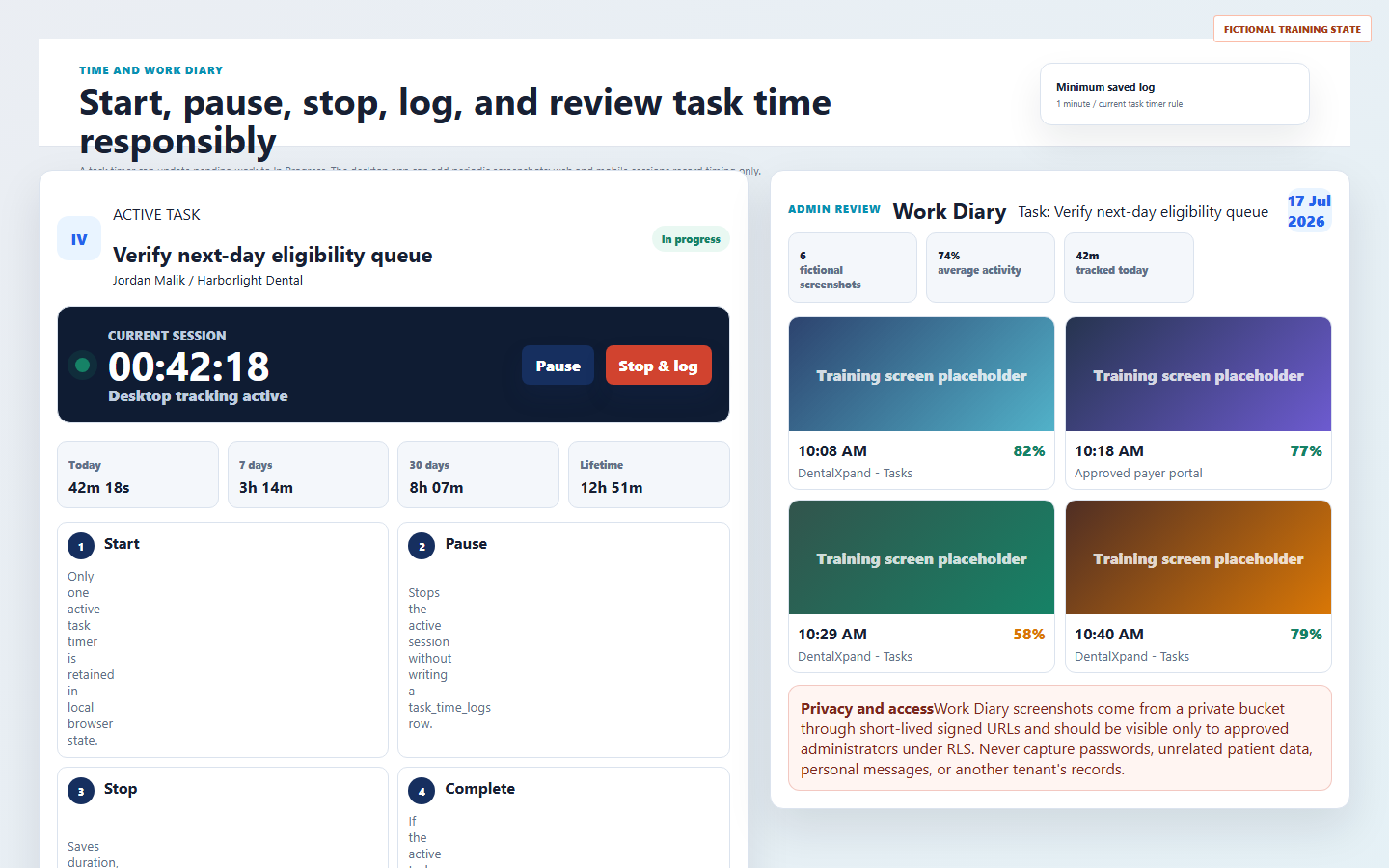
| Timer action | Current behavior | Correct use |
|---|---|---|
| Start | Stores one active task timer in the browser and can move a pending task to in progress. | Start only when beginning real work on that task. |
| Pause | Stops active state without writing a time-log row. | Use for short interruptions that should not be logged as completed work. |
| Stop | Writes task ID, employee ID, duration, start time, end time, and tries to increment total time when at least 60 seconds elapsed. | Stop before completing the task and before switching work. |
| Complete while active | The interface attempts to stop and save the timer first. | Confirm the time was logged before relying on reports. |
Provider and client users do not use the task timer in the current interface. Administrators and managers can review authorized logs; non-admin users see their own logs.
17 / Work Diary
Review Work Diary evidence with privacy discipline
The time-tracker heartbeat runs about every 45 seconds, marks idle after about five minutes, and captures desktop screenshots about every ten minutes with a small timing variation. Screenshot and active app/window/URL capture are desktop-app behavior; web and mobile timing are timing-only.
18 / Realtime
Understand realtime updates and refresh limits
The Tasks page listens for changes across tasks, task time logs, employees, teams, team members, providers, client instructions, and instruction versions. Realtime updates improve freshness but do not replace source verification, API authorization, or database policy.
If a task changes while the page is open, refresh or realtime behavior can update the visible list. Before deciding who changed it, inspect the task history, comments, and relevant source module.
19 / Boundaries
Respect access and data boundaries
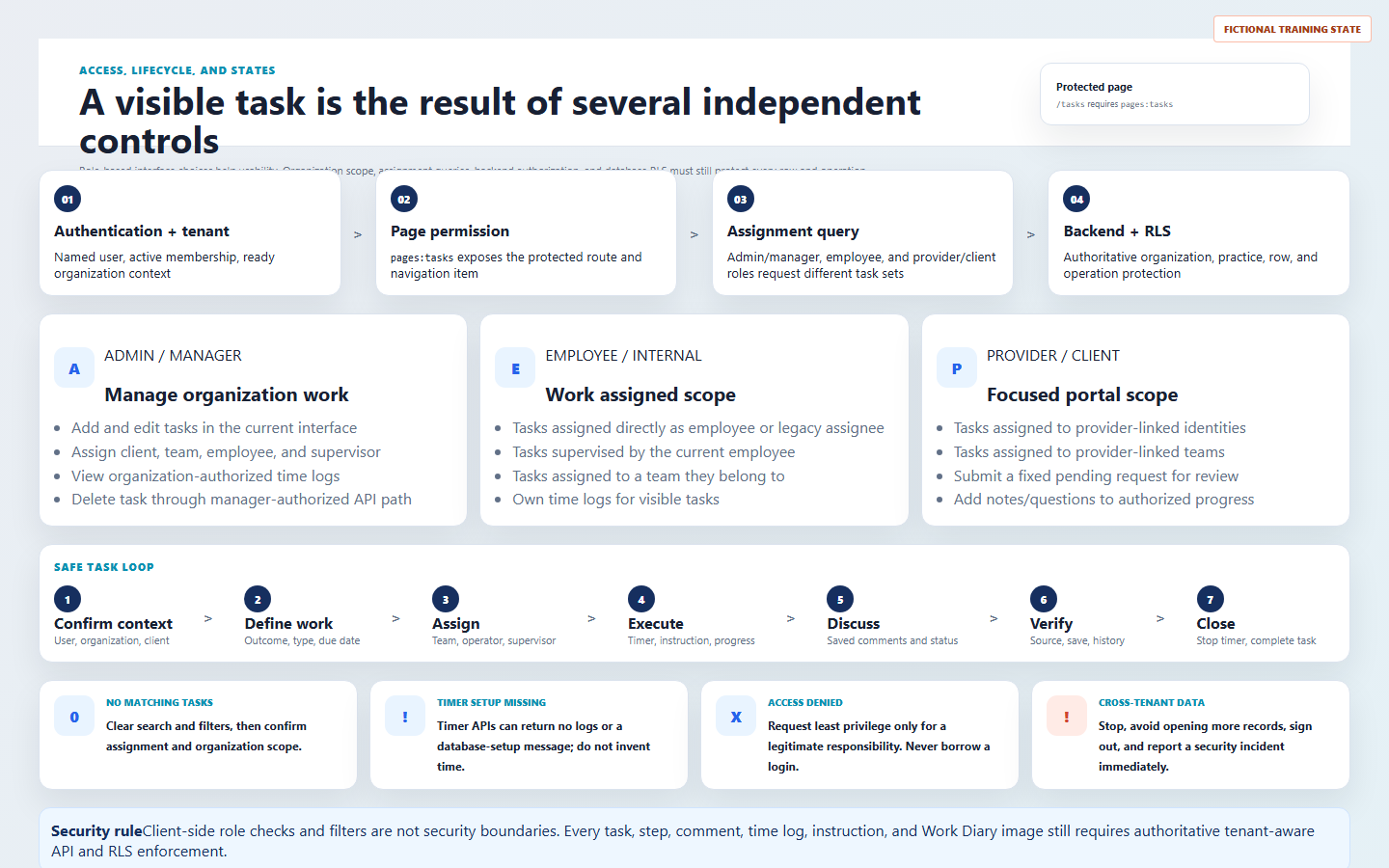
pages:tasks grants the route.20 / Lifecycle
Follow a safe task lifecycle
- Confirm context.Account, organization, client/provider, and source module.
- Define work.Outcome title, clear description, task type, due date, priority, and starting status.
- Assign ownership.Team, employee, supervisor, and instruction only when needed.
- Start work.Open the instruction, start timer if applicable, and verify source data.
- Record progress.Use structured fields and comments with safe operational detail.
- Discuss blockers.Ask questions inside the task without exposing unrelated sensitive data.
- Complete or cancel.Stop timer, verify source save, update status, and leave enough final context.
21 / Troubleshoot
Troubleshoot expected states without guessing
| What you see | Possible reason | Correct first response |
|---|---|---|
| No matching tasks | Search, filter, status, priority, assignment, organization, team, or RLS scope. | Clear filters, confirm assignment, then check source and access. |
| Cannot create | Current UI role gate, missing action approval, backend denial, or RLS. | Confirm exact role and least-privilege need; do not grant broad Admin automatically. |
| No dynamic progress fields | Task type is missing or unsupported. | Edit the task and choose the correct type when authorized. |
| Instruction missing | No instruction for selected client or wrong client selected. | Confirm client context and instruction version. |
| Timer setup warning | Time-log schema or setup is unavailable. | Report the setup message; do not invent time logs. |
| Provider cannot change status | Portal view intentionally supports questions/notes, not internal status controls. | Admin or manager triages and updates after verification. |
| Access denied | pages:tasks, assignment, API, or RLS rejected access. |
Return to an authorized page and request least privilege only if justified. |
| Other tenant data | Potential API, RLS, cache, search, AI, or tenant-isolation failure. | Stop immediately, sign out, and report as a security incident. |
When escalation is needed, send the page, organization, client/practice, task title without sensitive details, user role, approximate time, expected result, actual non-sensitive text, and steps already tried to support@xpand.dental.
22 / Deletion
Handle deletion and irreversible actions carefully
Task deletion and progress-step deletion should not be routine cleanup. The current UI shows task deletion to Admin and Super Admin users, while the API path also allows managers. Progress-step deletion is exposed to Super Admin in the UI and uses confirmation.
23 / Verify
Verify that task management is understood
Practical verification
- I can confirm account, organization, client/provider, and
pages:tasksbefore using the screen. - I understand current role behavior for admins, managers, employees, and provider/client users.
- I can create a task with title, description, task type, client, assignment, due date, priority, status, and instruction.
- I can explain the difference between direct assignee, team assignment, and supervisor oversight.
- I know provider/client requests are intake items with fixed pending and medium defaults.
- I can use search, department, status, priority, sort, and all four views without changing access.
- I know task type controls dynamic progress fields and missing type requires edit.
- I can preview the client instruction before saving progress.
- I can add structured progress with source-backed values.
- I understand comment history and provider discussion boundaries.
- I can start, pause, stop, and complete a task timer without creating false logs.
- I understand desktop Work Diary screenshots and privacy limits.
- I know realtime refresh is helpful but not the source of truth.
- I can distinguish no-match, missing-instruction, timer setup, access-denied, and cross-tenant states.
- I know deletion is exceptional and potentially irreversible.
Open the configured DentalXpand application and complete verification with your own authorized account and fictional or non-sensitive demonstration data.
Related lessons
Need workflow support?
15 / Comments
Use comments and provider discussion safely
Progress comments are saved with author name, email, role, and time in the step’s comment history. Provider and client users can ask questions or add notes on authorized progress, but the current interface does not show them internal Add Progress or internal status choices.