
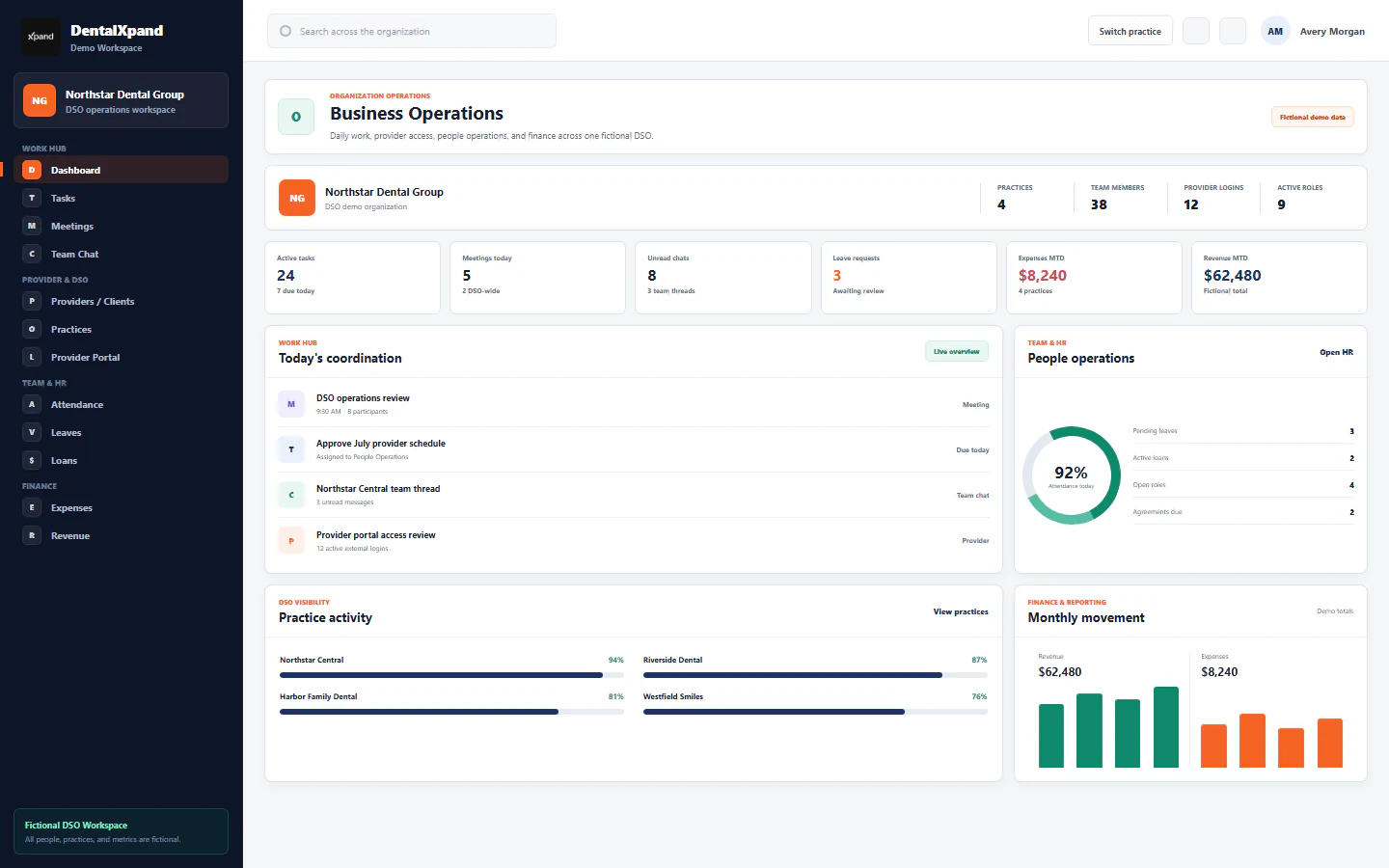
Understand roles, permissions, and access boundaries
Understand protected and custom roles, exact page and action permissions, authoritative per-user access, organization and practice scope, direct-route handling, and the backend and database controls behind the interface.
DentalXpand does not treat a job title, menu item, or hidden button as the complete security decision. Access is assembled from an authenticated account, active organization membership, role template, department, exact per-user permissions, organization or practice scope, route protection, API authorization, and database row policies.
01 / Authorization layers
Understand the complete access decision
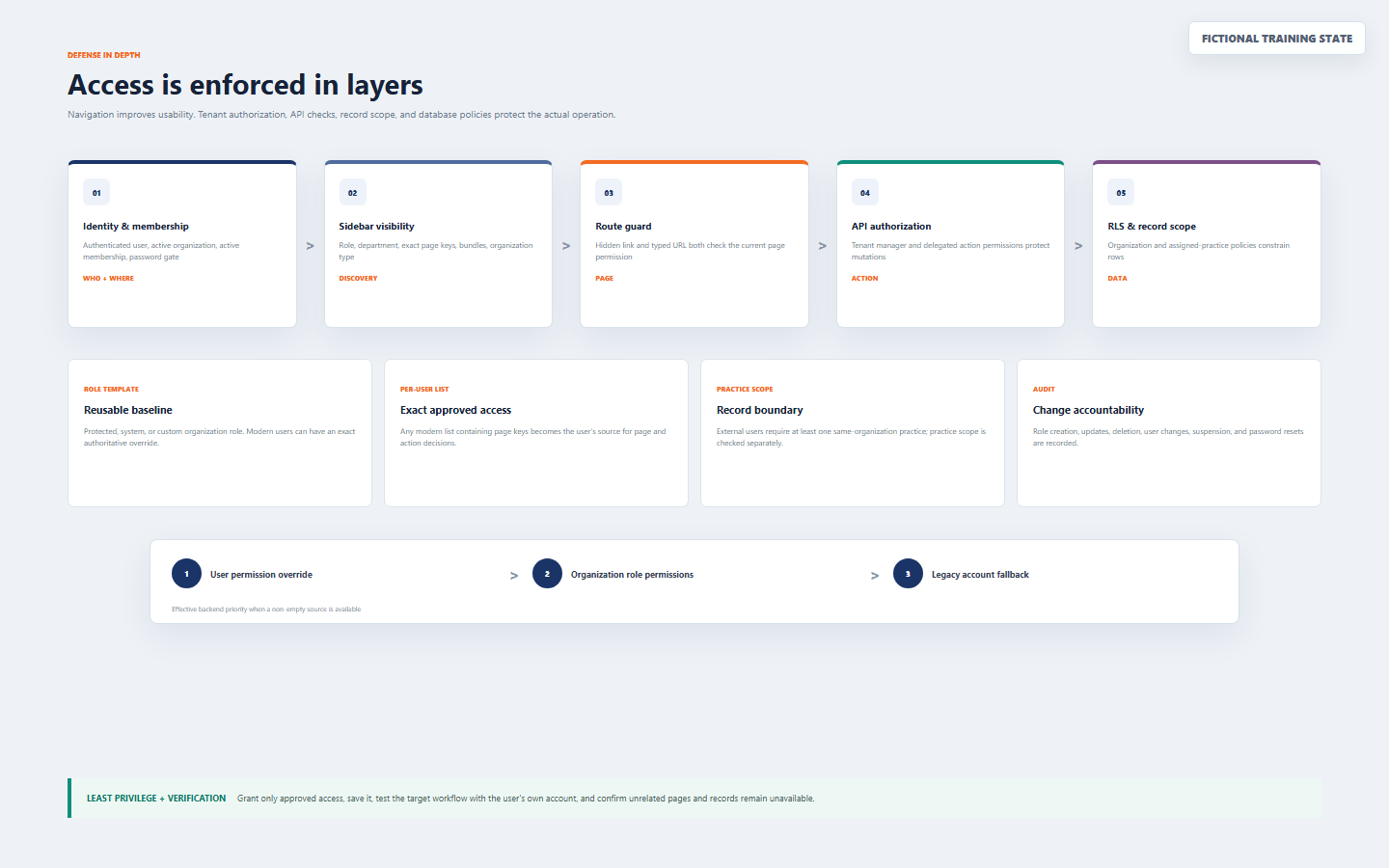
A user can legitimately open a page yet remain unable to approve, export, delete, or access records outside the permitted scope. This is expected defense in depth, not an inconsistency.
02 / Separate concepts
Separate role, department, designation, scope, and status
| Concept | What it controls | What it does not prove |
|---|---|---|
| Role | A reusable organization permission template and responsibility label | It does not automatically replace a modern user’s exact saved permissions |
| Department | Operational grouping; Billing & Operations, HR, or Marketing can qualify for related route families | It does not make every page or action in that department available |
| Designation | Job title or profile metadata such as Billing Specialist | It is not itself a security grant |
| Access scope | Organization-wide records or explicitly assigned practices | It does not grant a feature page or action |
| Membership status | Invited, pending password change, active, or suspended account state | An inactive membership cannot be repaired by adding page permissions |
| Platform or support context | Separate SaaS administration or explicit audited tenant support access | It is not a normal tenant role or informal account switch |
Review organization and practice context whenever the problem concerns the wrong company, practice, client, or membership rather than a missing feature.
03 / Role types
Know protected, system, and custom roles
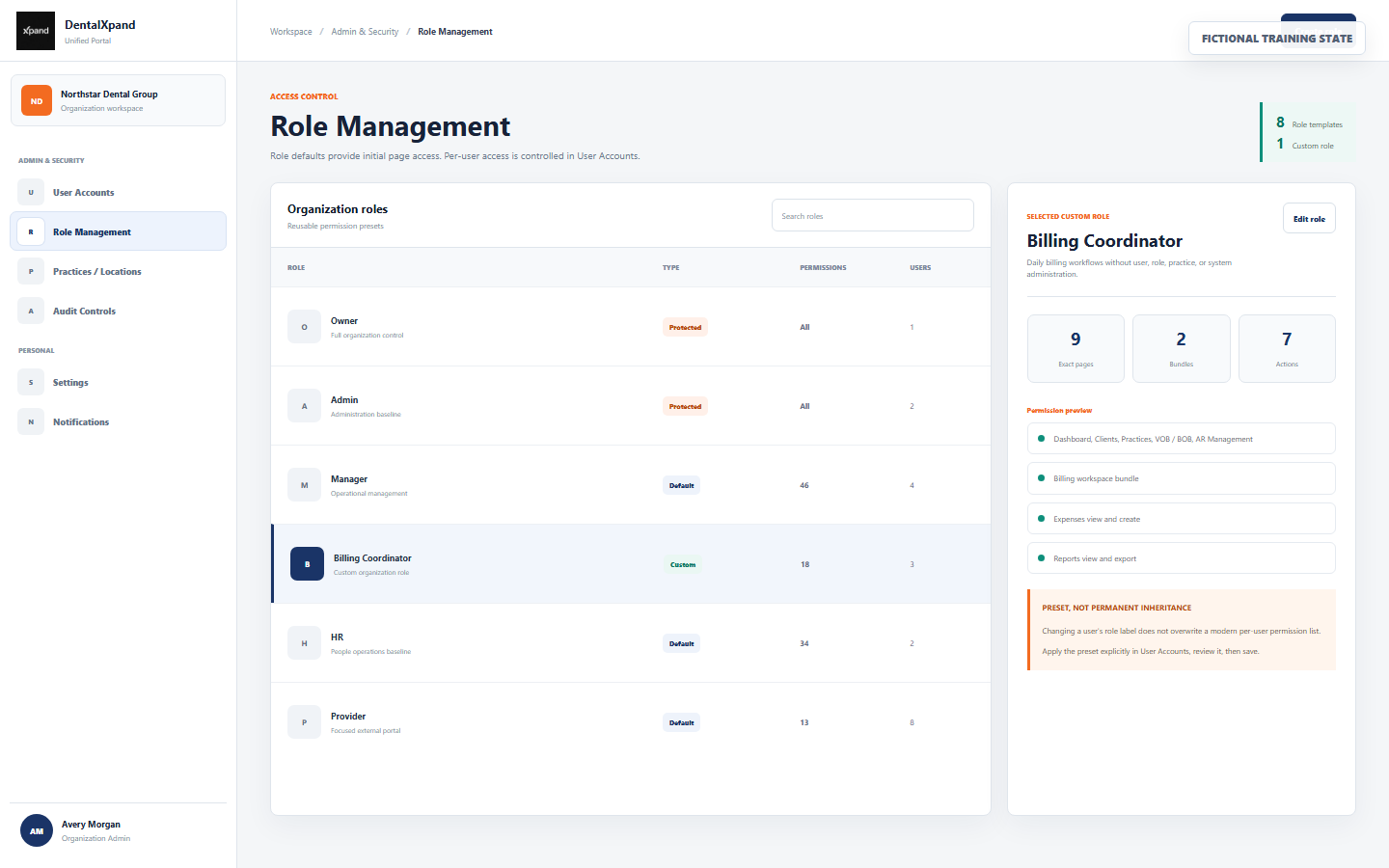
| Role type | Expected behavior | Administrative rule |
|---|---|---|
| Organization Owner | Protected full organization authority | Platform-provisioned; it cannot be assigned from ordinary tenant User Accounts |
| Admin | Protected privileged organization administrator | Use sparingly; ordinary operational access should not require Admin |
| Manager, HR, Finance, Employee, Provider, Guest | System or default responsibility templates and compatibility baselines | Review the actual per-user list instead of assuming the role name is the final answer |
| Custom organization role | Reusable tenant-specific preset such as Billing Coordinator | Can be created, reviewed, updated, and deleted by an authorized tenant manager |
| Platform administrator | Separate platform control role | Tenant tools require an explicit authorized support context |
04 / Permission types
Understand exact pages, workspace bundles, and actions
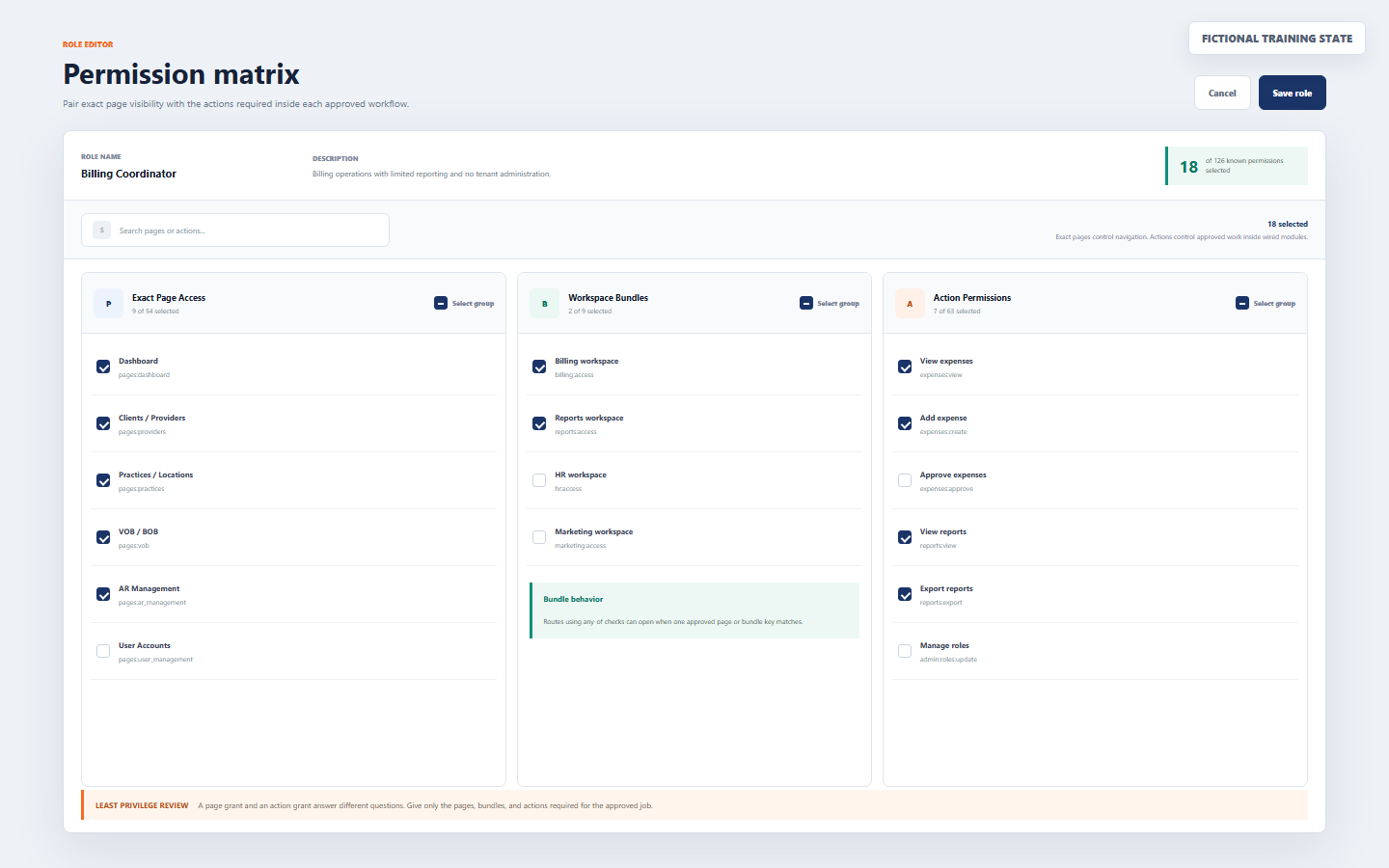
Keys such as pages:dashboard, pages:vob, or pages:roles control protected destinations and corresponding route checks.
Some route families accept any one of several page or bundle keys. A matching bundle can qualify the user without granting an unrelated administrator page.
Keys such as expenses:create, reports:export, or admin:roles:update describe operations inside an approved resource.
A protected full-access source can contain *. Do not use wildcard permissions for ordinary custom roles or individual operational accounts.
The matrix search can match a group, label, or permission key. Group checkboxes can select or clear the visible group, and an indeterminate state means only part of that group is selected.
05 / Normal user
Know what a newly created normal user starts with
A new DentalXpand user begins with the Employee role label and exactly four initial permission keys:
pages:profile supports the user’s own account and identity details.
pages:notifications supports personal operational alerts.
pages:settings supports permitted personal settings.
pages:xpand_ai is included in the initial list but still requires configured AI availability and correct data boundaries.
Profile, Notifications, and Settings have intentionally available personal routes for an authenticated user. Xpand AI remains page-guarded. Operational modules should be added only through an approved role preset or explicit exact selection.
07 / Review a role
Review a role before changing it
- Open Role Management.Confirm the active organization before reading or changing any role.
- Search by role name.Use the organization role list rather than relying on a user’s displayed job title.
- Read the role type.Identify Protected, Default or system, and Custom labels.
- Review permission counts.Counts help detect unexpectedly broad or empty presets, but they do not replace checking individual keys.
- Open the permission preview.Confirm pages, bundles, actions, description, and intended audience.
- Compare with affected users.Remember that a modern per-user permission list can override role defaults.
Record the business owner, reason, affected users, and intended verification before changing a shared custom role.
08 / Create a custom role
Create a custom organization role
- Select Create role.Use a concise responsibility name such as Billing Coordinator, not a person’s name.
- Write a scope description.State the job outcome and important exclusions, such as no user or role administration.
- Select exact pages.Choose only destinations required for that responsibility.
- Select qualifying bundles only when needed.Do not add broad bundles merely to make a page appear.
- Select required actions.Separate view, create, update, approve, export, delete, reset, and administrative operations.
- Review conflicts.Check that high-risk actions have the right business approval and separation of duties.
- Save the role.The role key is normalized for system use and the operation is audited.
- Test before broad assignment.Apply the new preset to one authorized test user with fictional or non-sensitive data.
09 / Edit a custom role
Edit a custom role without unintended expansion
Before saving
- Confirm the role is custom and belongs to the active organization.
- Compare current and proposed page, bundle, and action keys.
- Identify all users or memberships using the role.
- Obtain approval for high-risk actions and exports.
- Plan a least-privilege verification case.
Avoid
- Editing a shared role to solve one person’s exceptional need.
- Adding wildcard access to an ordinary custom role.
- Granting an action without the required page or workflow.
- Assuming every modern user’s exact override will inherit the edit.
- Testing with live sensitive records when fictional data is sufficient.
Because modern per-user permissions can be authoritative, editing a role is not a reliable bulk-update mechanism for every existing user. Review User Accounts and explicitly apply or adjust the intended exact lists.
10 / Delete or reassign
Delete a custom role safely
- Identify assigned memberships.The backend blocks deletion while users still reference the custom role.
- Choose a replacement.Select an approved existing role or create a narrower successor.
- Review each user’s exact permissions.Reassignment of the label does not automatically rewrite a modern authoritative list.
- Apply the intended preset when appropriate.Review every page and action, then save the account.
- Verify each affected user.Confirm required work succeeds and unrelated access remains unavailable.
- Delete the now-unused custom role.Protected and system roles remain undeletable, and the deletion is audited.
11 / Per-user authority
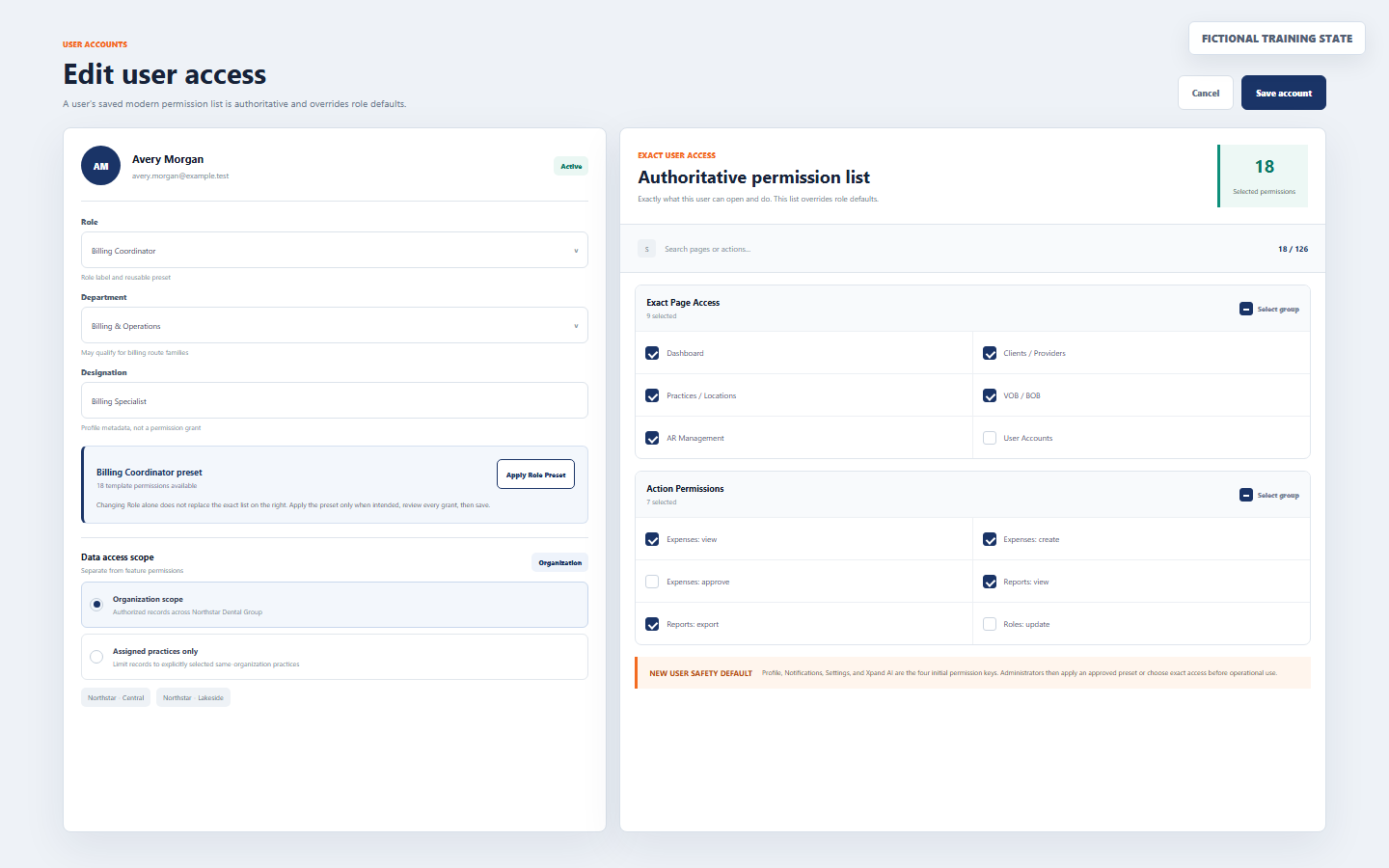
Understand the authoritative per-user permission list
| Saved account state | How DentalXpand resolves it | Administrator response |
|---|---|---|
Modern list contains at least one pages:* key |
The exact user list is authoritative; role defaults are not merged into it | Review and save the precise pages and actions the user needs |
| Legacy or partial list has no page keys | Compatibility logic combines the old grants with a role baseline | Review carefully; the next save creates a modern authoritative list |
| Protected full-access role | Wildcard or privileged role behavior can satisfy standard permission checks | Use only for approved Owner or Admin responsibilities |
12 / Apply a preset
Apply a role preset intentionally
- Open User Accounts.Confirm you have permission to update the user and manage permissions.
- Select the correct user.Verify name, email, status, organization, and current scope.
- Select the intended role.This updates the label only.
- Select Apply Role Preset.The selected role template and personal default permissions prefill the exact list.
- Review every selected page, bundle, and action.Remove unnecessary grants and add only approved exceptions.
- Review scope and practices.Feature access and record access are separate decisions.
- Save account.The prefilled list is not final until the account update succeeds.
- Verify through the user’s own account.Use a fresh sign-in when practical and test required and denied paths.
For a one-person exception, edit that user’s exact list instead of broadening the shared role for everyone.
13 / Page and action pairing
Grant the destination and only the required operations
| Business requirement | Typical page or bundle | Typical actions to review | Common overgrant |
|---|---|---|---|
| Enter expenses | Expenses page | View and create | Approve, delete, or export without responsibility |
| Approve expenses | Expenses page | View and approve | User or role administration |
| Read management reports | Reports page or approved reports bundle | View | Export when the user only needs on-screen review |
| Export reports | Reports destination | View and export | Broad finance administration |
| Manage roles | Role Management page | Create, update, or delete according to duty | Full Admin merely for one role operation |
| Reset a password | User Accounts page | Reset-password permission | User creation, deactivation, or permission management |
When a user can open a page but cannot complete one approved action, inspect that action’s permission and API authorization. Do not respond by granting every action in the group.
14 / Practice scope
Configure provider and client access to assigned practices
Provider, client, customer, practice, client-provider, and external role aliases use a focused portal model. They must have at least one valid practice from the same organization.
- Select an external role.DentalXpand changes the account toward practice-scoped portal behavior.
- Select one or more same-organization practices.Cross-organization practice identifiers are rejected.
- Review focused portal pages.Grant only relevant credentialing, AR, task, chat, AI, notification, profile, or settings destinations.
- Review actions.Page access does not automatically permit every upload, edit, export, or administrative operation.
- Save and verify each practice.Confirm assigned practices are visible and unassigned practices remain unavailable.
Continue later with Manage practices, locations, and assignments for the full assignment workflow.
15 / Unauthorized routes
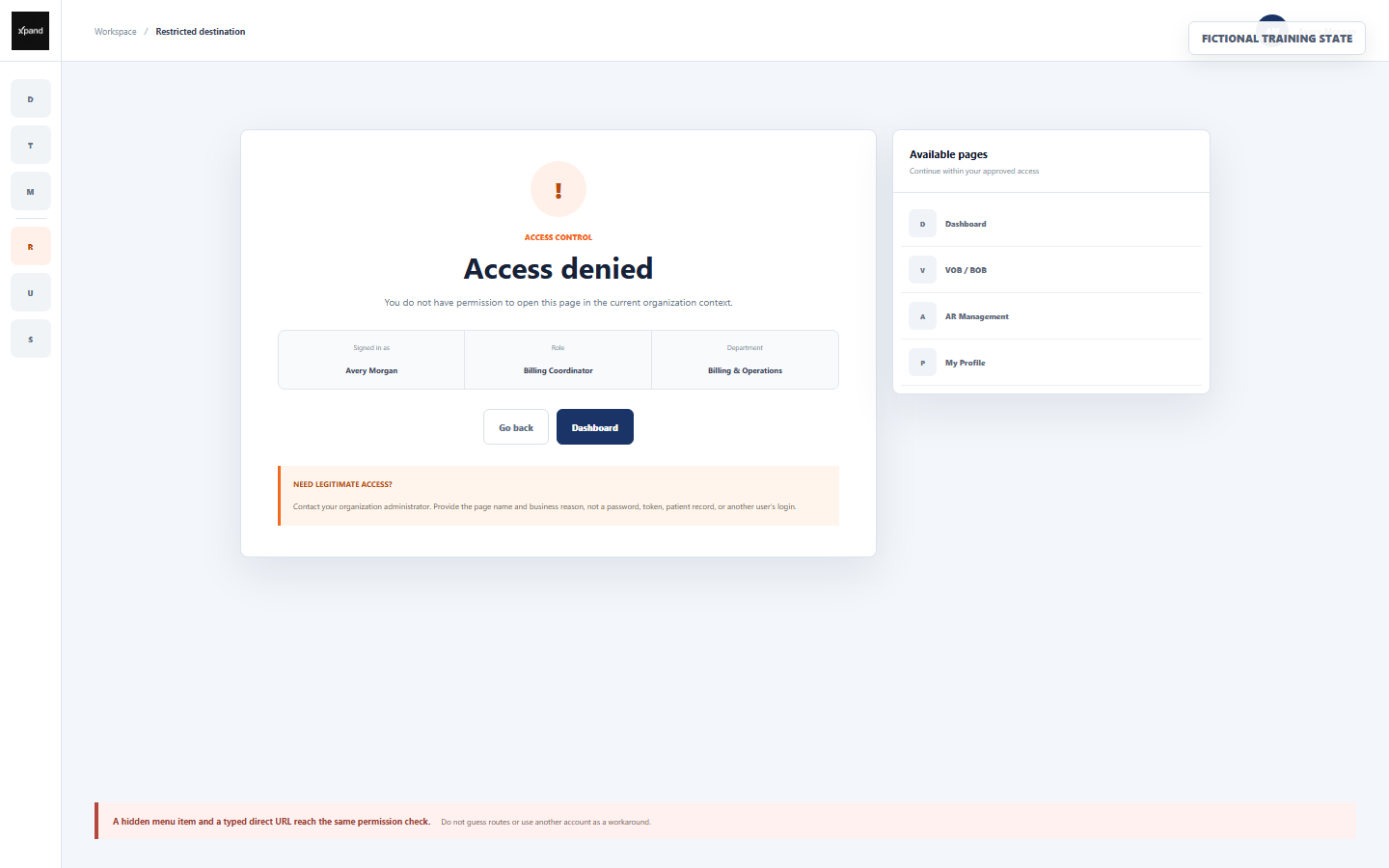
Handle a hidden destination or direct URL correctly
Correct response
- Read the page name and current organization context.
- Return to Dashboard, My Profile, or another available page.
- Ask an authorized administrator only when the work requirement is legitimate.
- Provide page name, business reason, and expected action.
- Re-test after the approved change.
Unsafe workaround
- Guessing or copying a hidden direct URL.
- Using another person’s login or administrator session.
- Editing browser storage to reveal a menu item.
- Requesting Admin for a single missing task.
- Sending a password, token, PHI, or sensitive screenshot to explain the issue.
Specialized route families can display a more specific reason such as Billing access required or HR access required. The response remains the same: return safely and request least-privilege review.
16 / Backend and database enforcement
Understand what protects the operation behind the page
| Layer | Key decision | Example protection |
|---|---|---|
| Tenant context | Is the organization membership active and password gate complete? | Suspended organization or membership blocks ordinary workspace access |
| Frontend page guard | Does the user have the exact page, accepted bundle, role, or department rule? | Unauthorized direct routes redirect safely |
| Tenant API | Does the user have tenant-manager authority or the delegated action key? | Create, update, delete, suspend, and password-reset operations are checked |
| Organization validation | Do the user, role, and practice belong to the active organization? | Cross-organization role or practice assignments are rejected |
| Practice scope | Is the record in an assigned practice when practice scope applies? | Unassigned practice rows remain unavailable |
| Row-level security | Does the database policy permit this table, action, tenant, and practice? | Direct database access through the application still respects row policies |
| Audit | Was the administrative change recorded? | Role, user, suspension, and password-reset events support accountability |
Effective backend permission sources prioritize a non-empty membership override, then organization role permissions, then the account’s compatible custom permissions. The visible User Account editor keeps the user and membership permission state aligned during normal administration.
17 / Apply and verify
Use a controlled permission-change procedure
- Document the request.Record requester, approver, business reason, organization, practices, pages, actions, start date, and review date.
- Inspect current access.Check role, department, status, exact permissions, scope, and existing assignments.
- Choose the narrowest change.Prefer a per-user exception for one user and a custom role only for a repeatable responsibility.
- Save once.Confirm the account or role update succeeds and avoid repeated conflicting edits.
- Refresh authorization state.DentalXpand refreshes role and permission profile after sign-in, on window focus, and periodically; a fresh sign-in is the clearest verification.
- Test allowed behavior.Use the target user’s own account and fictional or non-sensitive data to open the page and complete the approved action.
- Test denied behavior.Confirm unrelated pages, actions, organizations, practices, exports, and administration remain unavailable.
- Close the change record.Record the result, unexpected behavior, rollback, and next review date.
18 / Troubleshoot
Troubleshoot access without bypassing controls
| What you see | Likely reason | Correct response |
|---|---|---|
| Page missing from navigation | Exact page, qualifying bundle, role, department, portal, or organization rule does not include it | Confirm the business requirement and inspect the user’s authoritative list |
| Direct URL shows Access denied | The route guard rejected the current page decision | Return to an available page; do not guess routes or borrow an account |
| Role changed but menu did not | The modern exact per-user list was not overwritten | Apply the intended role preset, review exact permissions, save, and re-test |
| Preset applied but old access remains | The account was not saved, state has not refreshed, or an approved exception remains selected | Review the exact list, save, use a fresh sign-in, and test again |
| Page opens but action fails | Action permission, API authorization, record ownership, organization, or practice policy rejected it | Inspect the specific action and record scope; do not grant the whole group |
| Provider role cannot save | No same-organization practice was assigned | Select at least one approved practice and verify the practice belongs to the active organization |
| Custom role cannot be deleted | Users or memberships still reference it | Reassign and verify every affected user before deletion |
| Protected role cannot be edited or deleted | Owner or another protected system role is backend-protected | Use a custom role or escalate through the authorized platform process |
| User has the wrong practice data | Scope or practice assignment is incorrect, or there is a security issue | Stop, avoid opening more records, sign out, and report immediately |
| User remains suspended | Membership status is a separate gate | Use the authorized lifecycle workflow; page permissions alone cannot reactivate it |
| Only Profile is the landing page | Dashboard is not available to this user | Confirm this is intended before granting Dashboard |
| Action behavior differs by module | The specific control or API may use a different wired permission | Test the exact workflow and report the page, action, and non-sensitive error text |
Contact support@xpand.dental when an administrator cannot resolve a valid request. Never send passwords, setup links, tokens, patient data, or unredacted sensitive screenshots.
19 / Verify
Verify that roles and permissions are understood
Practical verification
- I can explain the difference between role, department, designation, scope, and membership status.
- I know why Owner and Admin are protected and why ordinary users should not receive them for convenience.
- I can distinguish exact pages, workspace bundles, action permissions, and wildcard access.
- I know the four default permission keys assigned to a new user.
- I understand that a modern list containing a
pages:*key is authoritative for that user. - I know that changing the role dropdown alone does not rewrite exact access.
- I can apply a role preset, review every grant, save the account, and verify the result.
- I can pair a required page with only the required actions.
- I can configure same-organization practice assignments for an external user.
- I know how to respond to Access denied without bypassing controls.
- I understand that API authorization, practice scope, RLS, and audit remain behind the interface.
- I can test both approved behavior and intentionally denied behavior after a change.
Open the configured DentalXpand application and complete verification with your own authorized account and fictional or non-sensitive demonstration data.
Related administrator lessons
Need workflow support?