
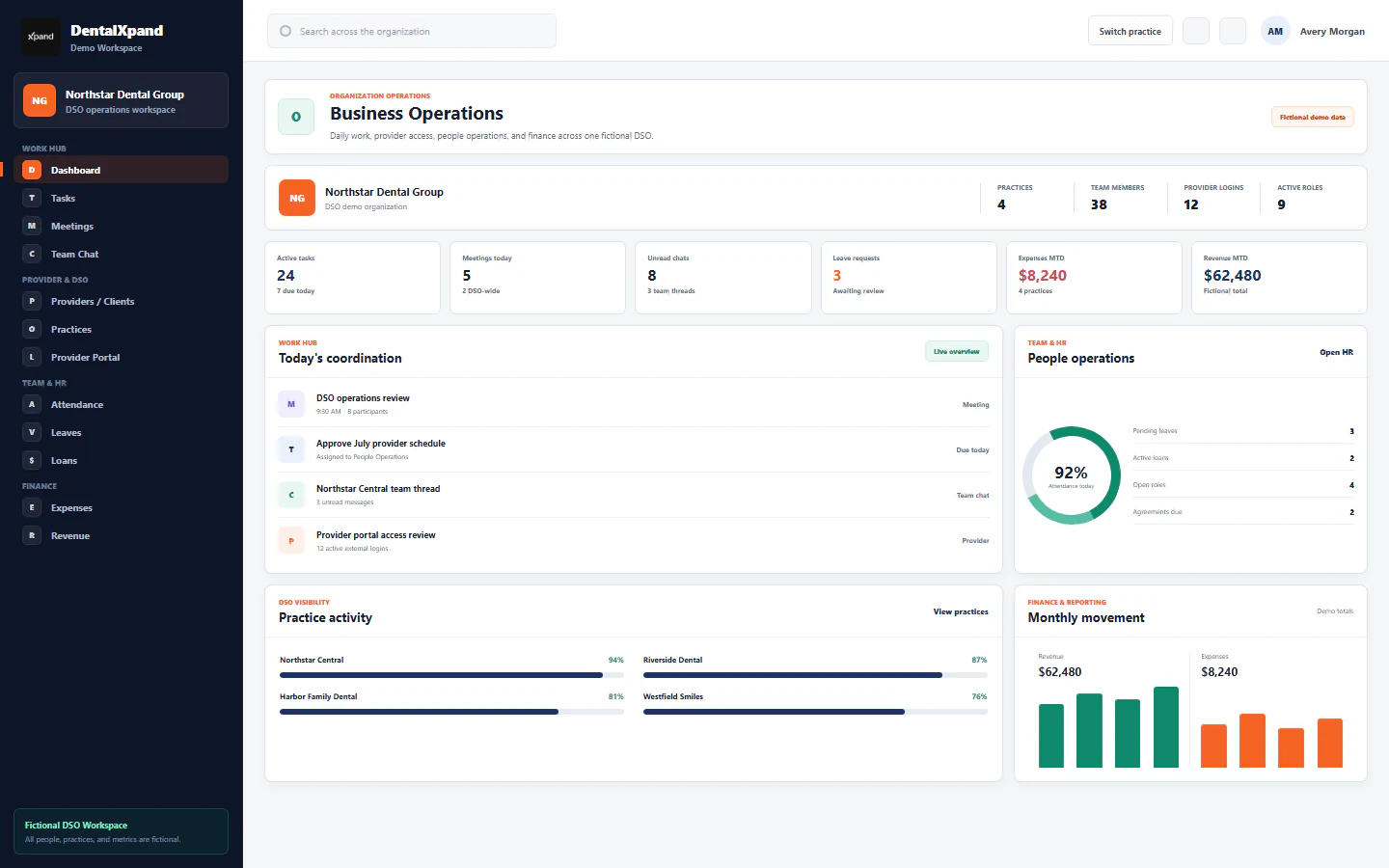
Set up, reset, and change a password
Create a first password, replace a temporary credential, change your own password, recover from failed attempts, and complete authorized administrator resets safely.
Use this guide to choose the correct password workflow, complete it without exposing a credential, and verify that the account returns to the intended organization and least-privilege workspace.
01 / Choose
Choose the correct password workflow
The safest path depends on whether the user has a valid session, knows the current password, received an invitation, or needs an authorized administrator.
| Situation | Correct workflow | Who acts |
|---|---|---|
| New account received a Create password email | Open the newest one-time setup link and create the first password | Invited user |
| New or reset account received a temporary password | Sign in, complete Create your password, then sign in again | User |
| Signed-in user knows the current password | Open My Profile or Settings, then Security, and change it | User |
| User forgot the password or is persistently blocked | Use an authorized administrator reset or send a new approved setup flow | Authorized administrator |
| Organization owner needs recovery | Platform administrator sends the owner password-setup email | DentalXpand platform administrator |
| User sees another organization or unexpected records | Stop, sign out, and report a tenant-context incident | User and security administrator |
Review sign-in and account access before changing credentials
02 / Create
Create a secure password
DentalXpand currently requires at least eight characters in the supported setup and reset workflows. Treat eight as a technical minimum, not a recommendation for a weak password.
Use
- A unique password used only for DentalXpand.
- A long passphrase or password-manager-generated value.
- Your organization’s stronger length or complexity policy when one applies.
- An approved password manager on a private or managed device.
- A different value from the temporary or current password.
Avoid
- Names, birthdays, practice names, phone numbers, or email fragments.
- Reusing an email, banking, social, PMS, or another workplace password.
- Predictable changes such as adding a number to an old password.
- Saving credentials in notes, spreadsheets, screenshots, or task comments.
- Typing a real password into a training or support screen.
03 / Invite
Use a one-time Create password link
- Confirm the message.Use the newest invitation sent to the exact account email. Confirm the expected DentalXpand application address before opening it.
- Open the link yourself.Do not forward it, paste it into chat, or ask another person to test it.
- Wait for secure validation.DentalXpand checks that the recovery session, user, and one-time grant belong together.
- Finish within the active window.The current setup grant is valid for 10 minutes after the secure link is opened.
- Enter and confirm a new password.Use at least eight characters and enter the same value in both fields.
- Return to normal sign-in.Successful setup ends the recovery session. Sign in with the account email and new password.
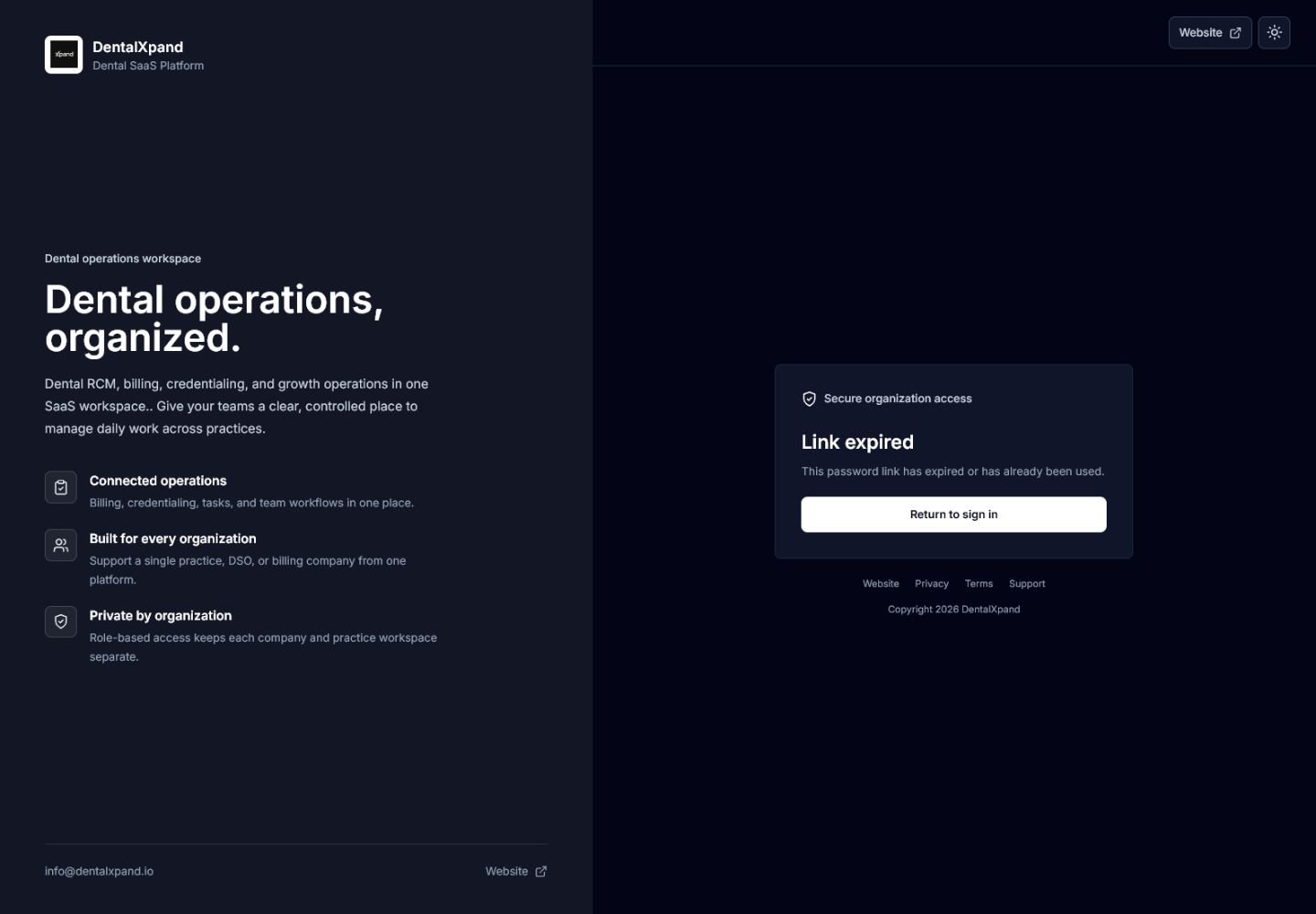
When the link fails
- Select Return to sign in.
- Close every old invitation and recovery tab.
- Request one new setup email from the correct administrator.
- Open only the newest message and complete it once.
- Do not manually edit callback parameters or reuse a copied URL.
04 / Replace
Replace a temporary password before workspace access
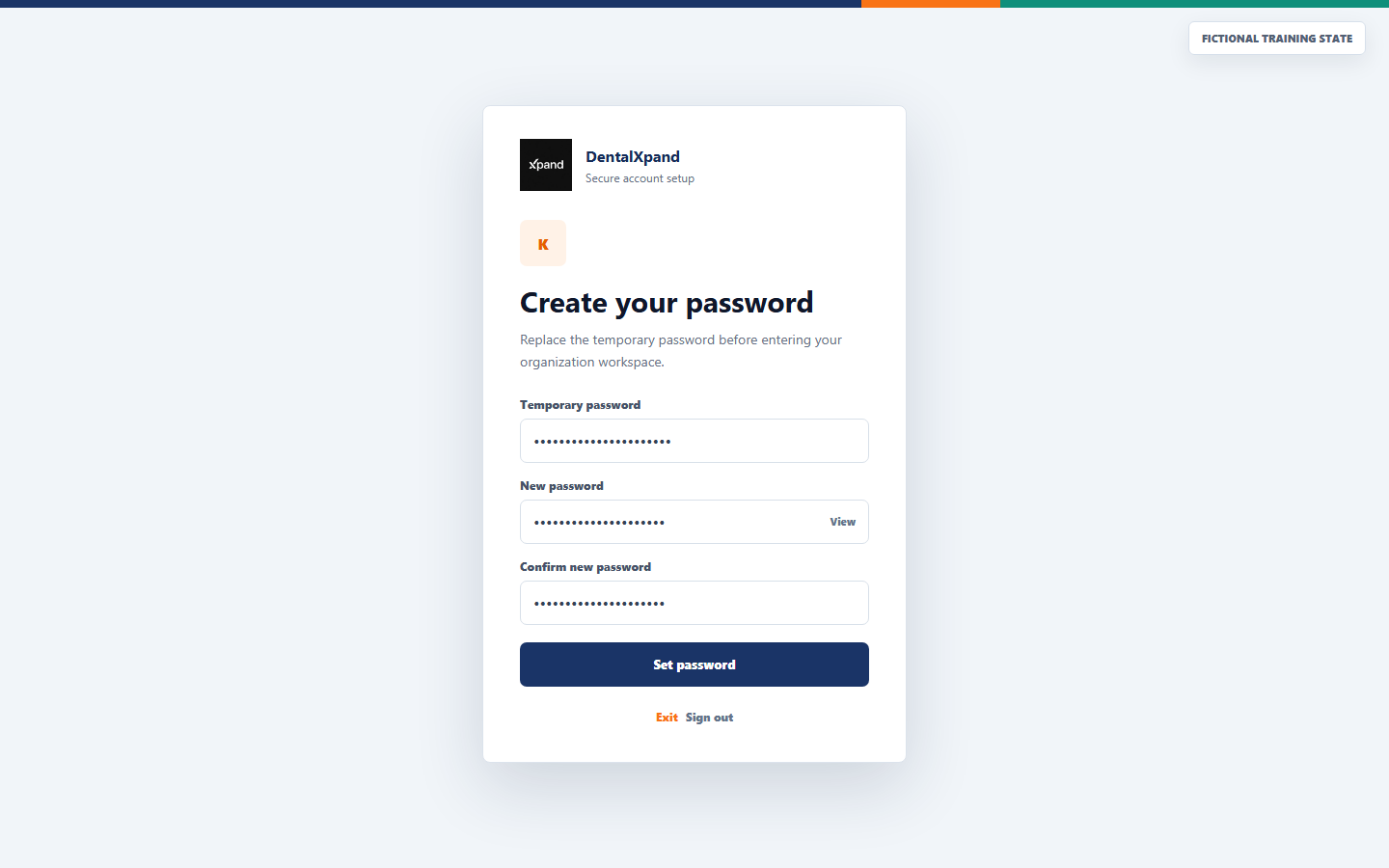
- Enter Temporary password.Use the one-time value supplied through the approved onboarding or reset channel.
- Enter New password.Use a different value with at least eight characters and follow any stronger organization policy.
- Confirm new password.The confirmation must match exactly, including capitalization and symbols.
- Select Set password once.Wait for the result instead of submitting repeatedly.
- Sign in again.Successful change activates the membership, clears the required-change flag, signs the current account out, and expects the new password.
05 / Self-service
Change your own password while signed in
Use this path only when you can sign in and know the current password. DentalXpand verifies the current credential and prevents this endpoint from changing a different user’s account.
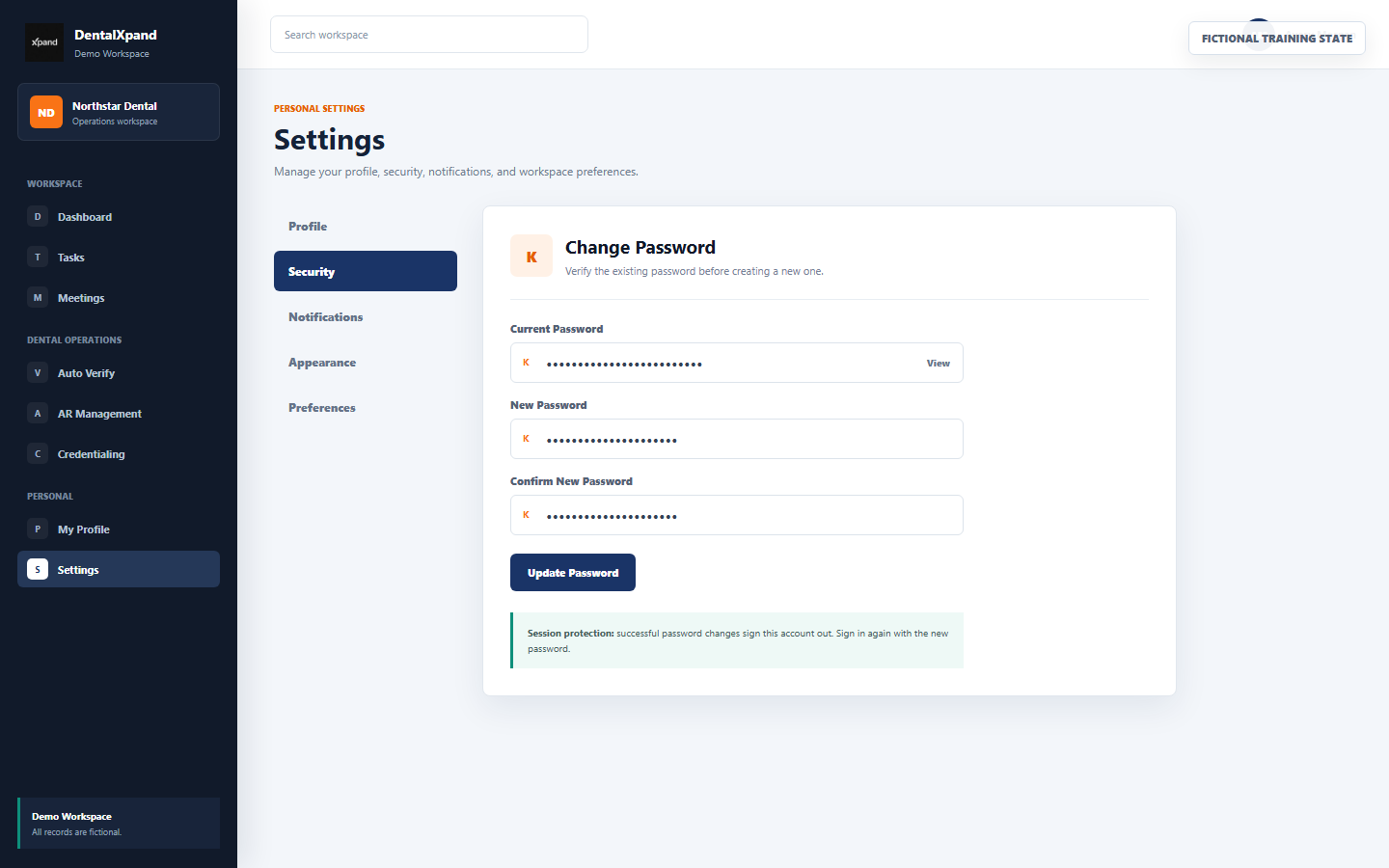
- Open My Profile or Settings.Select the Security area available to your account.
- Enter Current Password.This is verified against the authenticated account email.
- Enter New Password.Use at least eight characters and a value not used elsewhere.
- Enter Confirm New Password.Correct any mismatch before submission.
- Select Update Password.A wrong current password is rejected. A successful change clears local authentication state.
- Sign in again.Use the new password and verify the correct organization, role, and permitted destination.
06 / Session
Understand sign-out and account status changes
07 / Admin create
Create a user with the correct onboarding method
Only administrators with User Accounts creation permission should initialize identities. Creating a login, granting pages, assigning a role, and assigning practice scope are separate decisions.
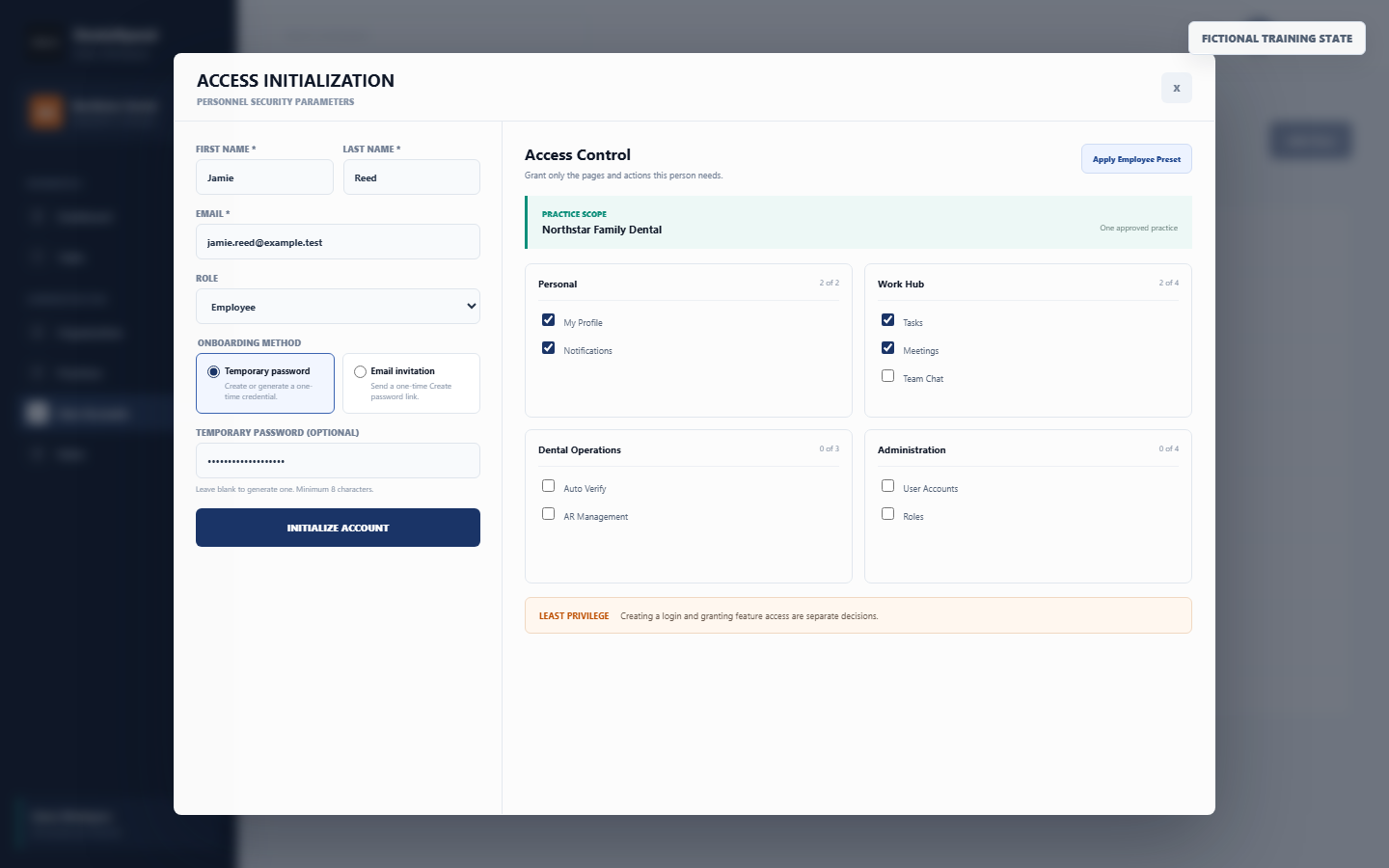
| Method | Use when | Result |
|---|---|---|
| Temporary password | An approved administrator will securely deliver a one-time credential | Account is pending password change; user must replace the credential at next sign-in |
| Email invitation | The user controls the invited inbox and should create the first password directly | A one-time setup email is sent; no temporary password is displayed |
Administrator checklist
- Confirm first name, last name, and the exact individual email.
- Search for an existing application or authentication account before creating a duplicate.
- Select the correct organization role without using a role as a shortcut for broad permissions.
- For provider, client, or external accounts, assign at least one valid practice.
- Grant only required pages and actions, then review the permission matrix.
- Select the onboarding method and initialize the account once.
- Verify the resulting status, practice scope, and user destination.
08 / Deliver
Deliver a one-time credential safely
When a temporary password is generated, DentalXpand displays it once. It is not retained for later display. Record and deliver it only through the organization’s approved secure onboarding procedure.
Confirm the intended person and exact account email through an approved identity check.
Use the organization’s secure credential-delivery method, not a task, comment, normal chat, or screenshot.
Do not place the account address, temporary password, and application link together in an unprotected message.
Ask the user to complete Create your password and confirm successful sign-in.
Remove local notes or messages according to policy after activation.
Do not reuse a viewed, forwarded, misplaced, or uncertain temporary credential.
09 / Admin reset
Reset an organization user’s password
The administrator must have User Accounts password-reset permission. DentalXpand verifies that the target belongs to the same organization and prevents tenant administrators from resetting the organization owner.
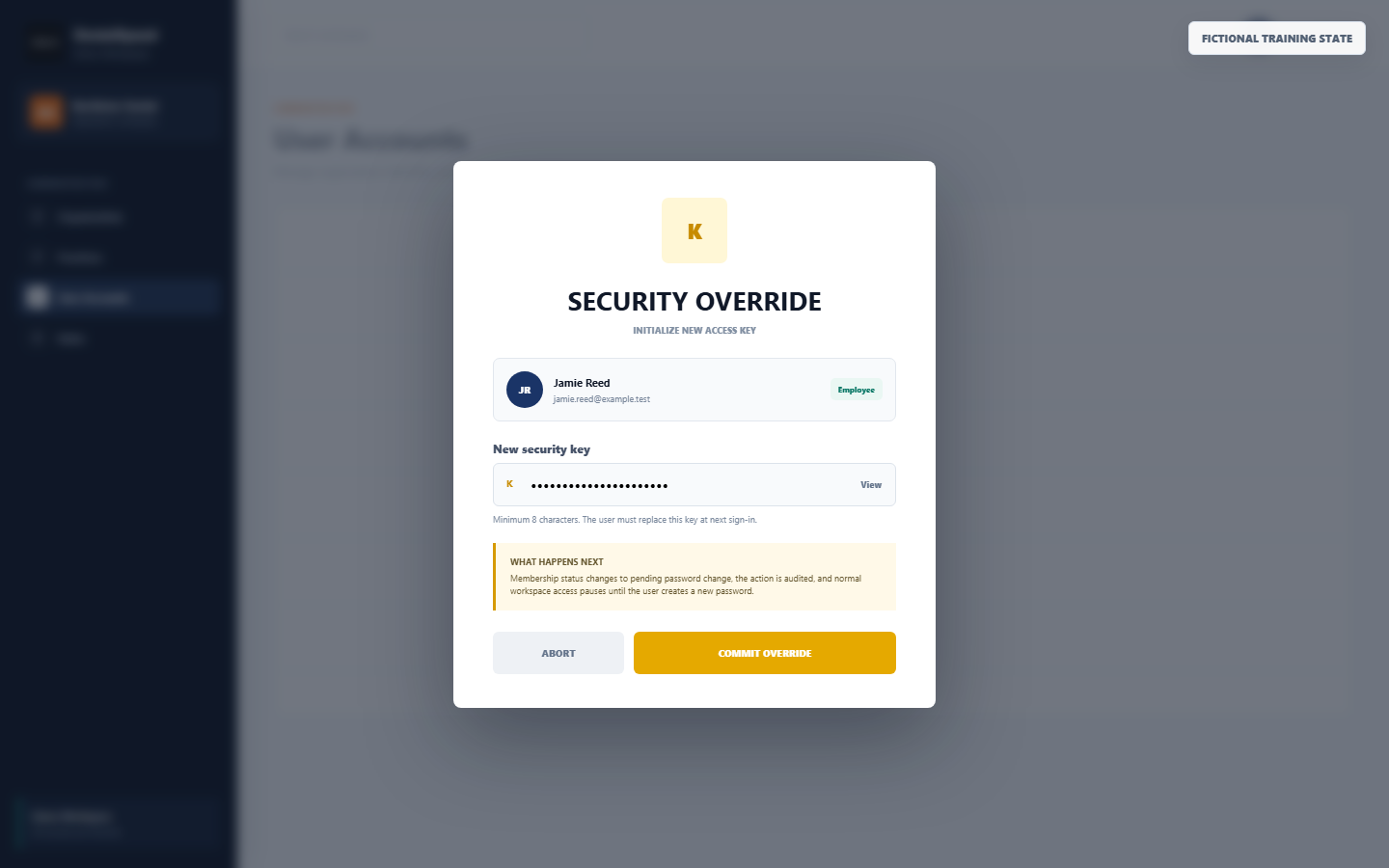
- Verify the request.Confirm the user’s identity, organization, account email, and reason without asking for the old password.
- Open User Accounts.Find the existing user in the current organization and select the reset action.
- Confirm the selected account.Check name, email, role, and organization before entering a new security key.
- Create a temporary value.Use at least eight characters and treat it as a one-time credential.
- Commit the override once.The authentication password updates, membership becomes pending password change, and the action is audited.
- Deliver it securely.Use the approved identity and credential channel.
- Verify activation.The user replaces the temporary value, signs in again, and reaches only the expected workspace.
10 / Account types
Handle employee, provider, external, and owner accounts correctly
| Account | Authorized path | Important boundary |
|---|---|---|
| Employee with an existing login | Employee account reset permission or User Accounts reset permission | Use at least eight characters even if an older employee dialog displays a shorter placeholder |
| Employee without a login | Create the login from Employee or User Accounts with approved account-create permission | Creating the account does not justify additional feature permissions |
| Provider, client, or external user | Create or reset through the tenant user workflow | At least one valid practice is required at creation; a reset must not alter practice scope |
| Organization administrator | A different authorized same-organization administrator can reset the account | The requester still needs explicit reset permission |
| Organization owner | Platform administrator sends the owner a password-setup email | Tenant administrators cannot edit or reset owner access |
| Platform administrator | Use the platform’s approved identity-security procedure | Do not use tenant impersonation or client support sessions as a password workaround |
11 / Recover
Recover from failed sign-in attempts
Stop and verify the intended account. Do not keep testing variations.
Wait for the complete countdown, currently shown as a short timed pause, before any approved retry.
Contact an authorized administrator for a reset rather than clearing browser security state or creating a duplicate user.
Request one new invitation and discard every older link.
Password change is not an activation shortcut. An administrator must resolve account or membership status.
Stop immediately, sign out, and report the tenant mismatch without opening or changing records.
Correct response
- Read the exact message.
- Check email spelling and keyboard state once.
- Wait for the full pause.
- Use one approved reset path.
- Verify fresh sign-in and organization context.
Do not
- Try repeated password guesses.
- Use another person’s account.
- Bypass the pause with storage or browser changes.
- Create a duplicate identity.
- Share the error with credentials or setup URLs visible.
12 / Secure
Apply security, least-privilege, and audit controls
User responsibilities
- Use an individual account and unique password.
- Protect password-manager, device, and email access.
- Sign out of shared or reassigned devices.
- Report suspected exposure, unexpected resets, or wrong-organization access immediately.
- Never approve an unsolicited password request by email, phone, or chat.
Administrator responsibilities
- Require explicit create or reset permission and confirm the current organization.
- Verify the target identity and reason through an approved process.
- Never retrieve, request, log, or retain a user’s current password.
- Keep reset audit entries free of credentials and sensitive records.
- Confirm owner operations remain platform-managed.
- Review roles, pages, actions, and practice scope independently from password state.
- Escalate suspicious activity according to the organization’s security and incident procedure.
13 / Troubleshoot
Troubleshoot password setup, change, and reset
| What you see | Likely cause | Correct action |
|---|---|---|
| Password must be at least 8 characters | New or temporary value is too short | Create a longer unique password; follow any stronger organization policy |
| New passwords do not match | New and confirmation fields differ | Clear both fields and enter the same value carefully |
| Choose a different password | New value equals the temporary or current password | Create a new unique value |
| Current password is incorrect | Self-service verification failed | Stop guessing; use administrator-assisted reset if the current value is unknown |
| Link expired | Invitation is old, used, incomplete, timed out, or session-mismatched | Request and open only one new setup email |
| Authentication account already exists | Administrator attempted a duplicate user creation | Locate the existing user and use update or reset |
| Permission denied for reset | Requester lacks the reset action | Use an authorized administrator; do not broaden access casually |
| Owner can only be managed by the platform | Tenant administrator selected the organization owner | Use the audited platform owner setup-email workflow |
| Account is inactive | User or membership status blocks access | Resolve status through authorized account administration |
| Password changed but sign-in fails | Old password, wrong email, stale page, or wrong application address | Close old recovery tabs, open approved sign-in, and use the exact email and new password once |
| Unexpected workspace after success | Organization, practice, role, or tenant context is wrong | Stop, sign out, and report immediately |
For support, include the date, time and time zone, application address, account email, expected organization, exact non-sensitive message, and completed steps. Never include credentials, setup URLs, tokens, PHI, or unredacted records. Contact support@xpand.dental.
14 / Verify
Verify that the password workflow is complete
User verification
- I used the correct invitation, temporary-password, or self-service workflow.
- I created a unique password and did not disclose it.
- I can sign in with the exact account email and new password.
- The old or temporary password no longer provides expected access.
- I reach the correct organization, practice scope, role, and permitted destination.
- I know how to report failed attempts or unexpected access safely.
Administrator verification
- The target was the intended same-organization user and the requester had explicit authority.
- The reset did not change permissions, practice assignments, or tenant scope.
- The user replaced any temporary credential at first sign-in.
- The reset or setup action is auditable without containing a password.
- Any suspected exposure or tenant mismatch was escalated.
Need workflow support?