
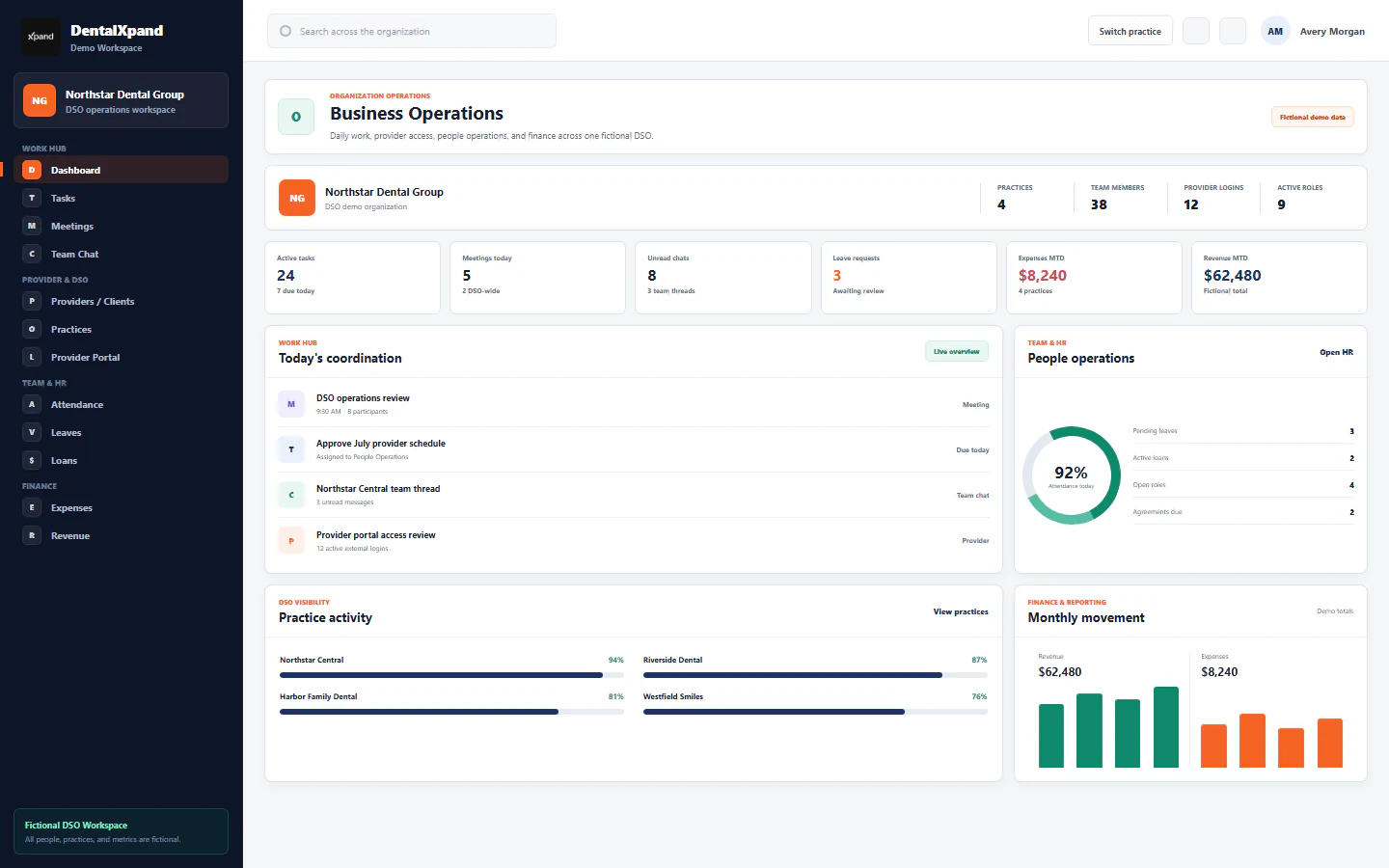
Understand organization and practice context
Confirm the active organization, understand organization-wide and assigned-practice access, prevent cross-tenant work, respond to unavailable workspaces, and use audited platform support context correctly.
Use this guide before feature-specific work. It explains how DentalXpand combines an authenticated identity, organization membership, practice scope, role permissions, and account status to decide which workspace and records a user may reach.
01 / Access model
Understand the layers behind every workspace decision
Authentication proves which account signed in. It does not, by itself, grant access to every organization, practice, page, action, or record.
02 / Organization
Confirm the active organization after every fresh sign-in
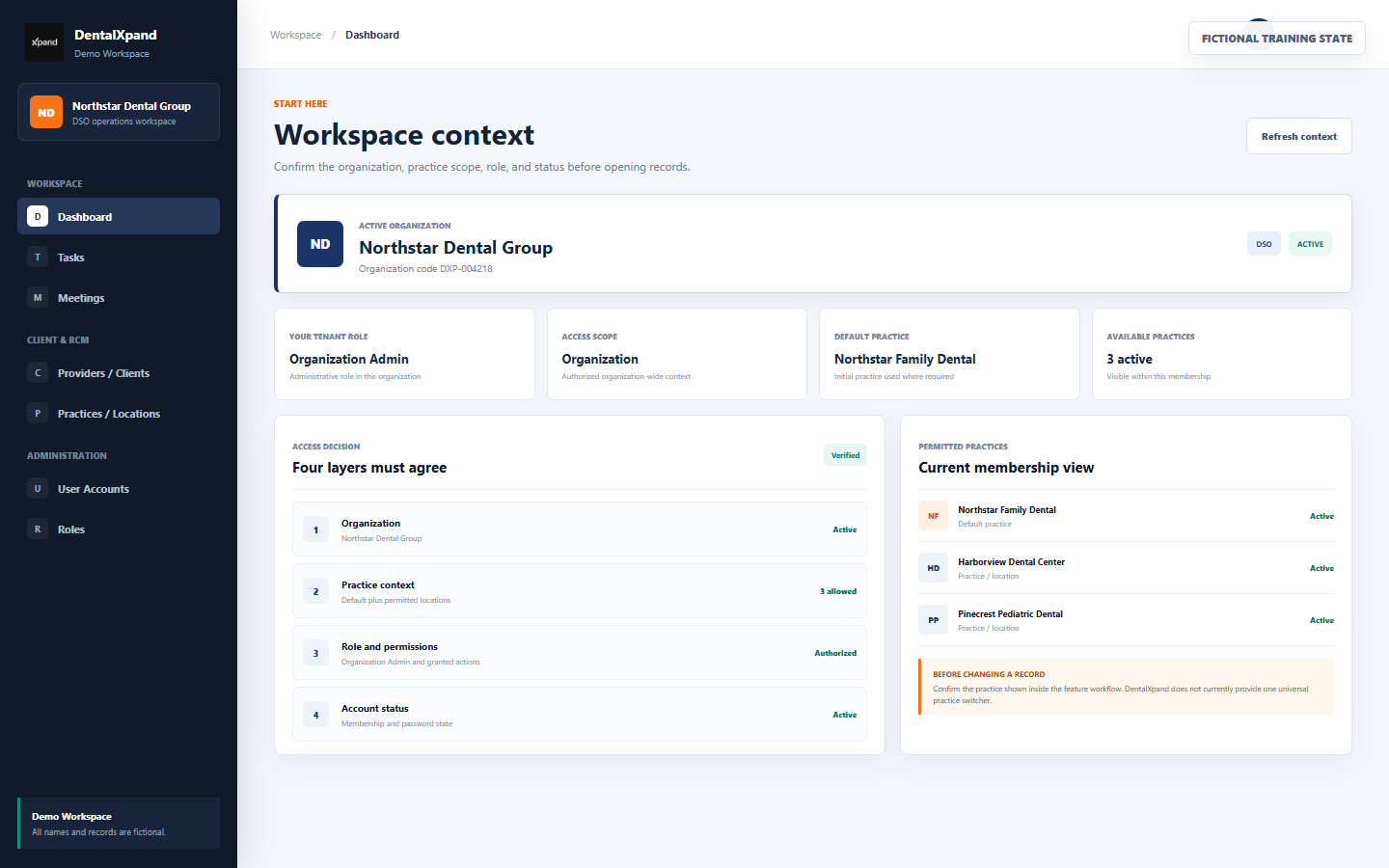
- Read the organization name.The expanded sidebar account area displays the organization loaded for the signed-in membership.
- Confirm the workspace purpose.Check whether this is the expected single practice, DSO, or billing-company workspace.
- Confirm the user identity.Use the individual account intended for the work. Do not share or borrow a login.
- Check the permitted destination.A dashboard, My Profile, or another page may be the correct first page depending on page permissions.
- Stop on any mismatch.Sign out before opening records. Report the expected and displayed organization names through the approved support path.
03 / Organization types
Understand the three supported organization models
| Organization type | How practices are represented | Navigation label | Typical context |
|---|---|---|---|
| Single practice | One default organization-owned practice record, with expansion subject to plan and administration | Practice | One operating location or business entity |
| DSO | Multiple practices or locations inside one organization tenant | Practices / Locations | Shared leadership with location-specific operations |
| Billing company | Client practices represented as organization-owned practice records | Clients / Practices | RCM teams serving multiple client practices |
The organization is the top-level tenant boundary. A practice is a location or client record inside that organization; it is not a second independent DentalXpand organization.
04 / Practice context
Understand default, allowed, and feature-specific practice context
When tenant context loads, DentalXpand selects the first allowed default practice when one exists; otherwise it uses the first allowed practice. Practice-scoped members receive only their assigned active, non-archived practices in the tenant-context response.
The organization-owned practice marked as default and preferred for initial context when accessible.
The practice records returned for the current membership or active platform support session.
A feature may provide its own practice field or filter for the record being created, viewed, reported, or exported.
A user limited by explicit rows that connect the membership to one or more practices in the same organization.
05 / Access scope
Compare organization-wide and assigned-practice access
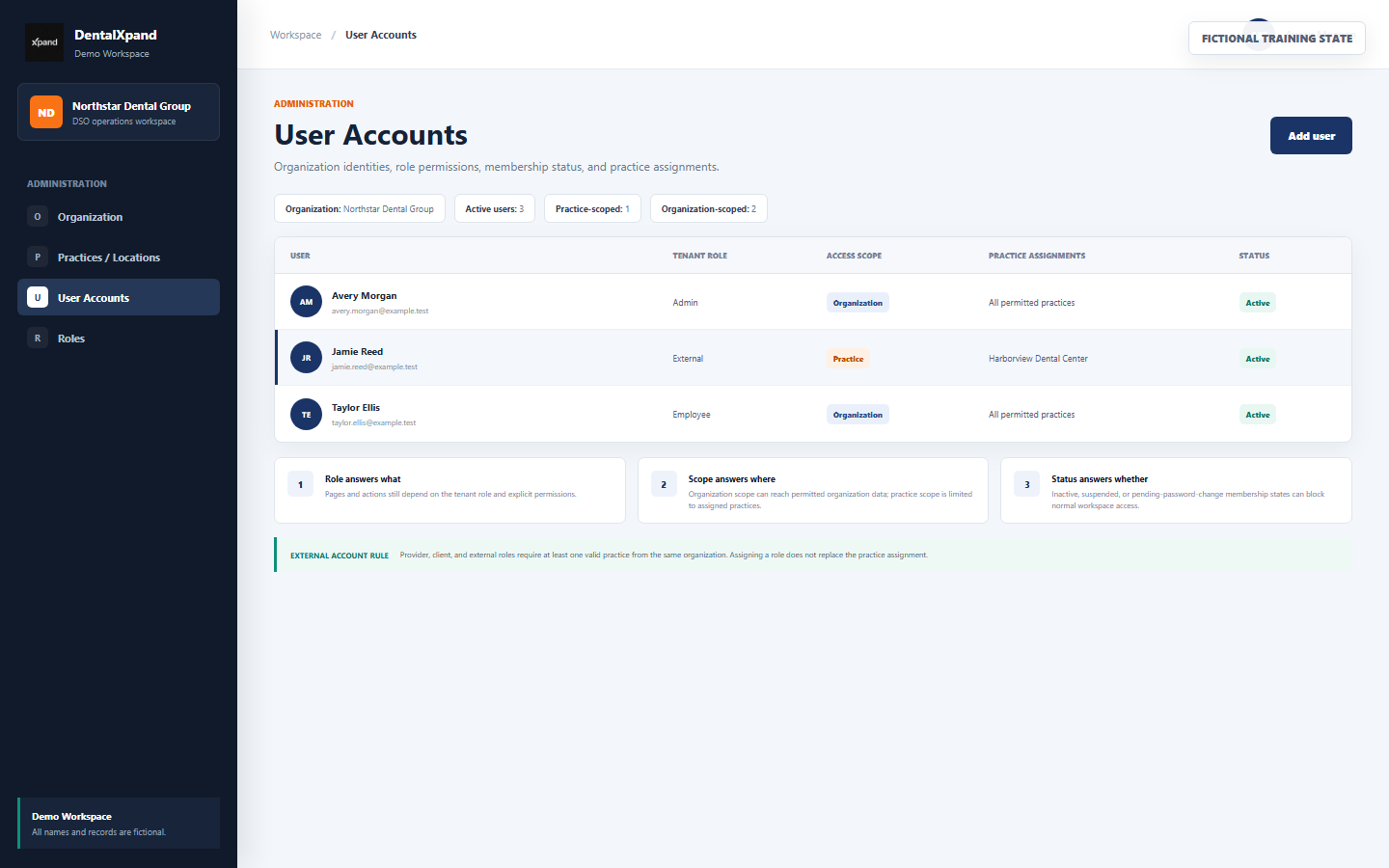
| Scope | Practice visibility | Common account use | Important limit |
|---|---|---|---|
| Organization | Active practices permitted through the organization context | Owner, administrator, employee, manager, or other internal role | Page and action permissions still apply; organization scope is not automatic full administration |
| Practice | Only practices explicitly assigned to the membership | Provider, client, or external account | At least one valid same-organization practice is required for supported external account creation |
A user may have multiple assigned practices while remaining practice-scoped. The assignment list must never contain a practice from another organization.
06 / Pre-action check
Complete a context check before sensitive work
Is the displayed organization the one named in the authorized request or assignment?
Does the record, form, queue, report, or export show the intended practice or client?
Are you signed in as yourself, with a role appropriate for this workflow?
Is the intended view, create, update, approve, delete, upload, or export action granted?
Does the record belong to the expected organization and practice rather than merely having a similar name?
Will the file, message, integration, AI request, or report stay inside the approved tenant context?
Repeat the check when
- You signed out, changed account, refreshed authentication, or opened a new browser profile.
- You followed a bookmark, notification, email, task, meeting, or shared deep link.
- You start a bulk edit, report, CSV/PDF export, file upload, external integration, or AI-assisted action.
- You move from organization-level reporting to a practice-level record.
- A name, logo, count, provider, client, practice, or record looks unexpected.
07 / Practice directory
Manage practices, locations, and client records inside one organization
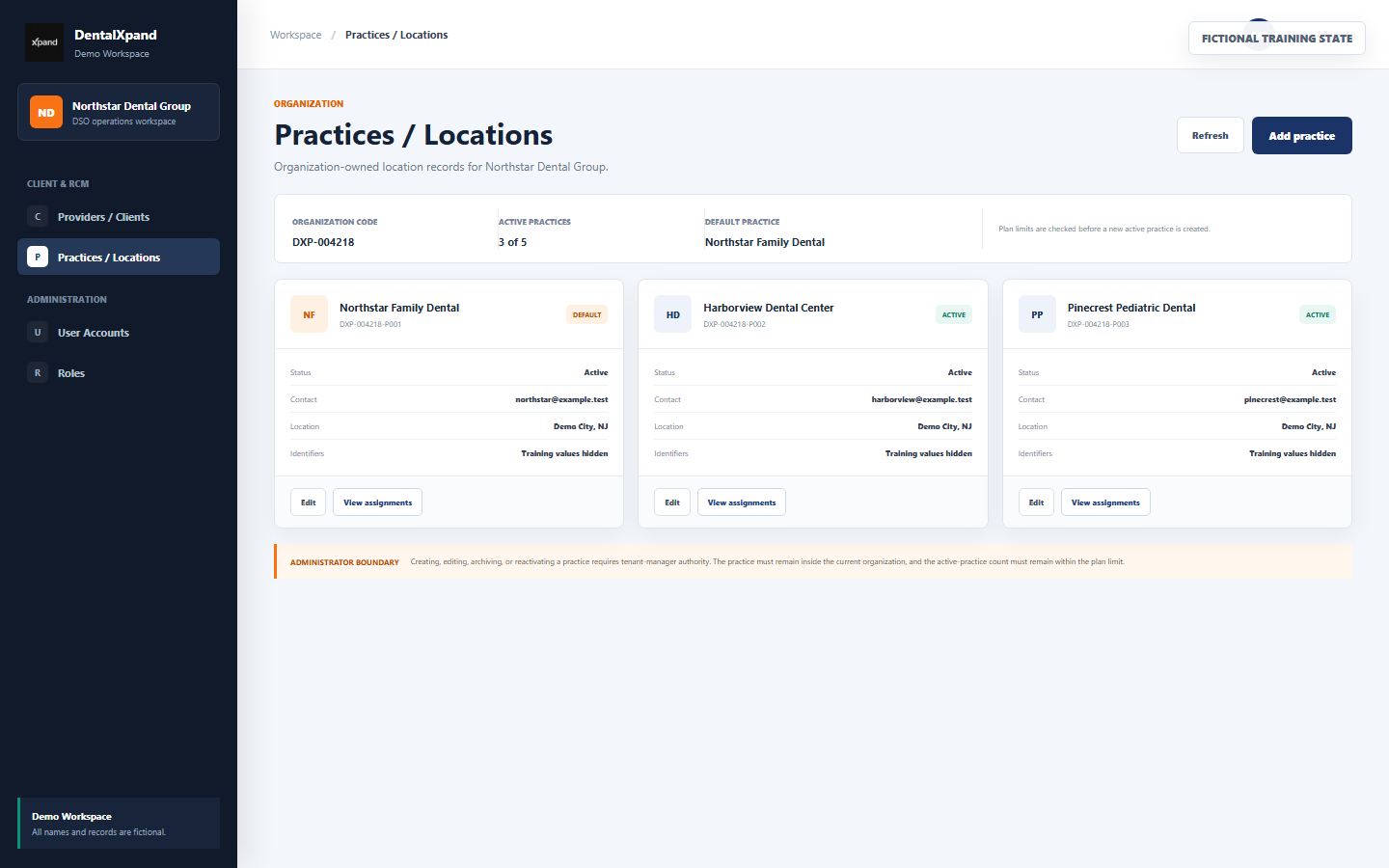
Administrator workflow
- Confirm the organization.Read the organization name and code before adding or editing a practice.
- Review the active count.DentalXpand checks the plan limit or subscription override before creating another active practice.
- Open the intended record.Use the generated practice code and exact name to avoid editing a similarly named location.
- Maintain permitted fields.Name, legal name, contact, identifiers, status, and address remain organization-owned practice data.
- Handle status deliberately.Archive or reactivate only under an approved operating procedure and review dependent user/provider assignments.
- Verify the result.Refresh the directory and confirm count, status, default marker, organization, and related assignments.
Continue to the detailed practices, locations, and assignments guide
08 / User assignments
Assign each account to the least-privilege tenant scope
| Account decision | Administrator check | Enforced outcome |
|---|---|---|
| Internal role | Confirm the role and only required page/action permissions | Organization access scope; page permissions still limit tools |
| Provider, client, or external role | Select at least one active practice from the current organization | Practice access scope with explicit assignment rows |
| Change external assignments | Validate every selected practice before saving | Existing mappings are replaced with the approved same-organization list |
| Change external to internal role | Review the broader business need and permissions | Scope changes to organization and obsolete practice mappings are removed |
| Suspend a user | Confirm target identity, organization, reason, and downstream sessions | Membership status becomes suspended and normal tenant access is blocked |
| Organization owner | Use platform owner-management workflow | Tenant administrators cannot assign or manage the protected owner role |
09 / Authorization
Separate role, permission, scope, and status
A protected or custom organization role such as owner, admin, employee, provider, client, or external.
Role permissions, wildcard access, or explicit membership overrides that allow pages and actions.
Organization or practice boundary applied independently from the role’s feature permissions.
Invited, pending password change, active, or suspended state for this organization membership.
DentalXpand uses permission-aware navigation and route guards. Hiding a sidebar item is a usability cue; direct application URLs are also checked before protected pages render.
Correct reasoning
- Role: what responsibility does this person hold?
- Permission: which pages and actions are required?
- Scope: in which organization or practices?
- Status: should access work right now?
- Verification: what does a fresh sign-in actually show?
Unsafe shortcuts
- Making every user an administrator.
- Using organization scope to solve a missing page permission.
- Adding all practices because one assignment failed.
- Using another person’s login to test access.
- Treating a hidden menu item as the only security control.
10 / Tenant isolation
Understand the safeguards that keep organizations apart
The current DentalXpand tenancy foundation applies several controls together. No single user-interface label is treated as the complete boundary.
Loads the active organization, membership, role, permissions, subscription, branding, and allowed practices for the authenticated account.
Tenant routes scope organizations, users, practices, and assignments to the active organization or audited support session.
Tenant-owned records carry organization identifiers; practice-specific tables also carry practice context.
Database policies evaluate organization, practice, role, permission, membership status, and password-change state.
Relationships such as membership-to-organization and practice-to-organization are constrained against cross-tenant combinations.
Database tests cover same-tenant reads, guessed cross-tenant IDs, practice assignments, pending-password users, and independent tenants.
11 / Files and integrations
Keep storage, exports, integrations, and AI inside the active context
DentalXpand’s tenant-aware storage helper prefixes paths with the current organization and practice and rejects a requested path when its organization or practice conflicts with the loaded user context.
| Operation | Context to confirm | Do not assume |
|---|---|---|
| File upload or download | Organization, practice, bucket/path, record, and recipient | A filename or folder label proves tenant ownership |
| CSV or PDF export | Filters, organization, practice, date range, included rows, and destination | The previous filter survived a new session |
| Email, claim, eligibility, PMS, or webhook integration | Tenant configuration, practice credentials, endpoint, request payload, and response ownership | One shared integration credential is safe for every tenant |
| Xpand AI or another AI service | Tenant ID, practice scope, source collection, retrieval filters, prompt context, output, logs, and retention | The application’s visual context automatically isolates an independent external AI store |
12 / Incident response
Respond safely when the wrong organization or practice appears
Include in the report
- Date, time, and time zone; application address; account email; browser or desktop app version.
- Expected organization and practice names, and the unexpected organization or practice label only.
- The route or workflow where the mismatch appeared and the last safe action taken.
- Whether any record was opened, changed, uploaded, downloaded, exported, messaged, or sent to AI.
- A non-sensitive error message or redacted screenshot only when approved by the incident team.
Do not include
- Passwords, temporary credentials, session links, recovery URLs, access tokens, API keys, or cookies.
- Patient names, dates of birth, member IDs, claim details, clinical information, provider identifiers, employee records, or complete unredacted screens.
- Copied unexpected records submitted merely to prove the mismatch.
- Speculation presented as confirmed impact; preserve facts, logs, and timestamps for investigation.
Contact support@xpand.dental through the approved support or security process.
13 / Unavailable access
Handle a suspended, inactive, or unverifiable workspace
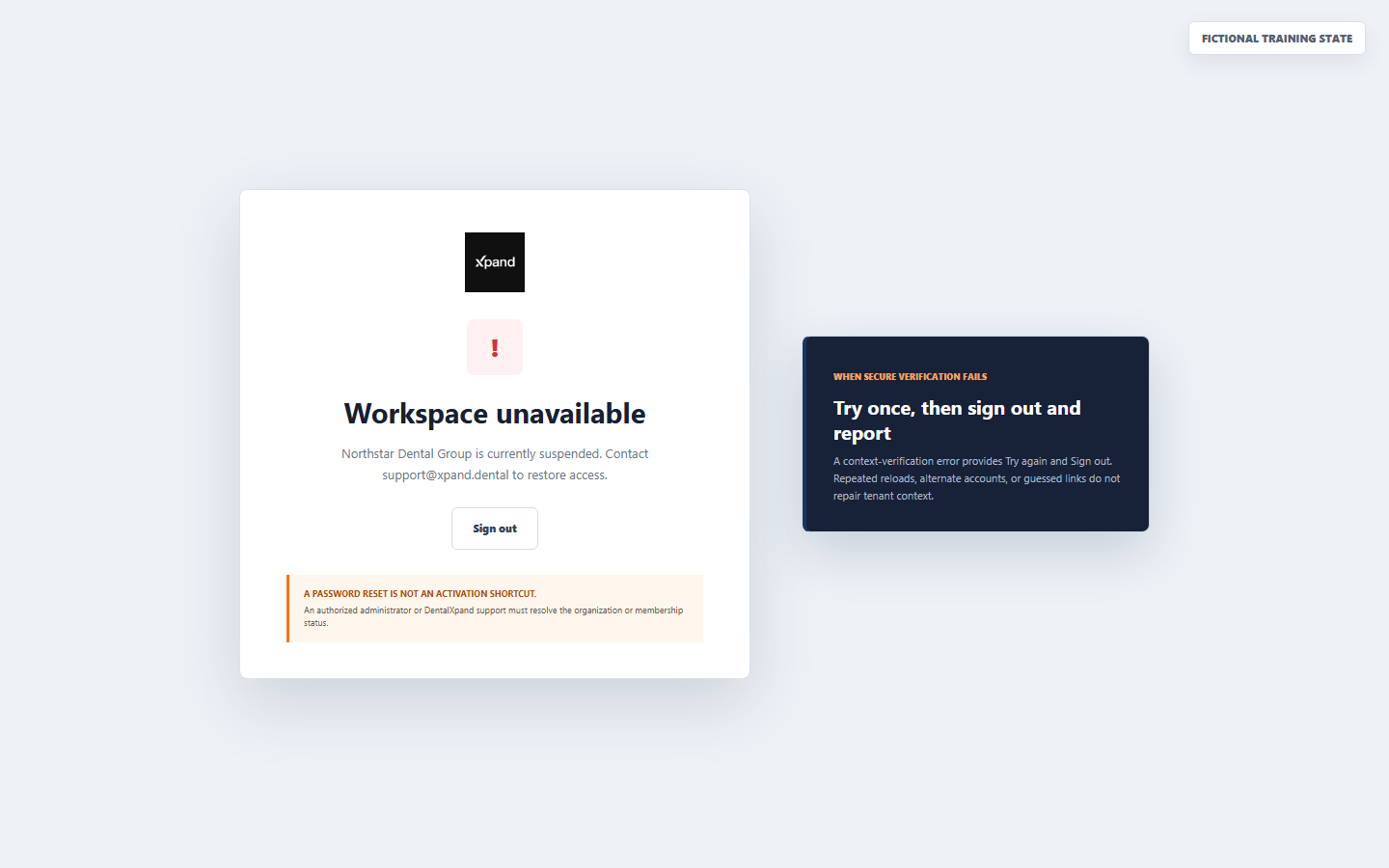
| State | What DentalXpand does | Correct user response |
|---|---|---|
| Secure context could not be verified | Shows Workspace unavailable and offers Try again plus Sign out; one automatic retry is attempted | Try once, then sign out and report if verification still fails |
| Organization inactive or suspended | Blocks normal tenant routes and names the organization status | Sign out and contact the authorized administrator or DentalXpand support |
| Membership suspended | Blocks normal tenant access even if the organization itself is active | Ask an authorized same-organization administrator to review membership status |
| Pending password change | Routes the user to the required password-change workflow before tenant data | Complete the approved temporary-password process, then sign in again |
14 / Administration
Verify and correct organization access without broadening it casually
- Confirm the target identity.Match the exact application user, authentication email, and organization membership. Do not ask for the password.
- Confirm organization status.Review active, suspended, or other lifecycle state plus the subscription and enabled plan context.
- Confirm membership status.Review invited, pending password change, active, or suspended state and the must-change-password flag.
- Confirm the role.Use the intended protected or custom role and review its current permissions.
- Confirm the access scope.Check organization versus practice and list every assigned practice for a practice-scoped member.
- Validate practice ownership.Every assignment must reference an active practice inside the same organization.
- Review downstream links.Check provider linkage, files, integrations, AI source configuration, and open sessions when relevant.
- Make the smallest authorized correction.Change only the incorrect status, role, permission, or practice mapping and preserve the audit reason.
- Require user verification.After a fresh sign-in, the user confirms the expected organization, practice set, navigation, and record boundaries.
15 / Platform support
Use time-limited, audited support context
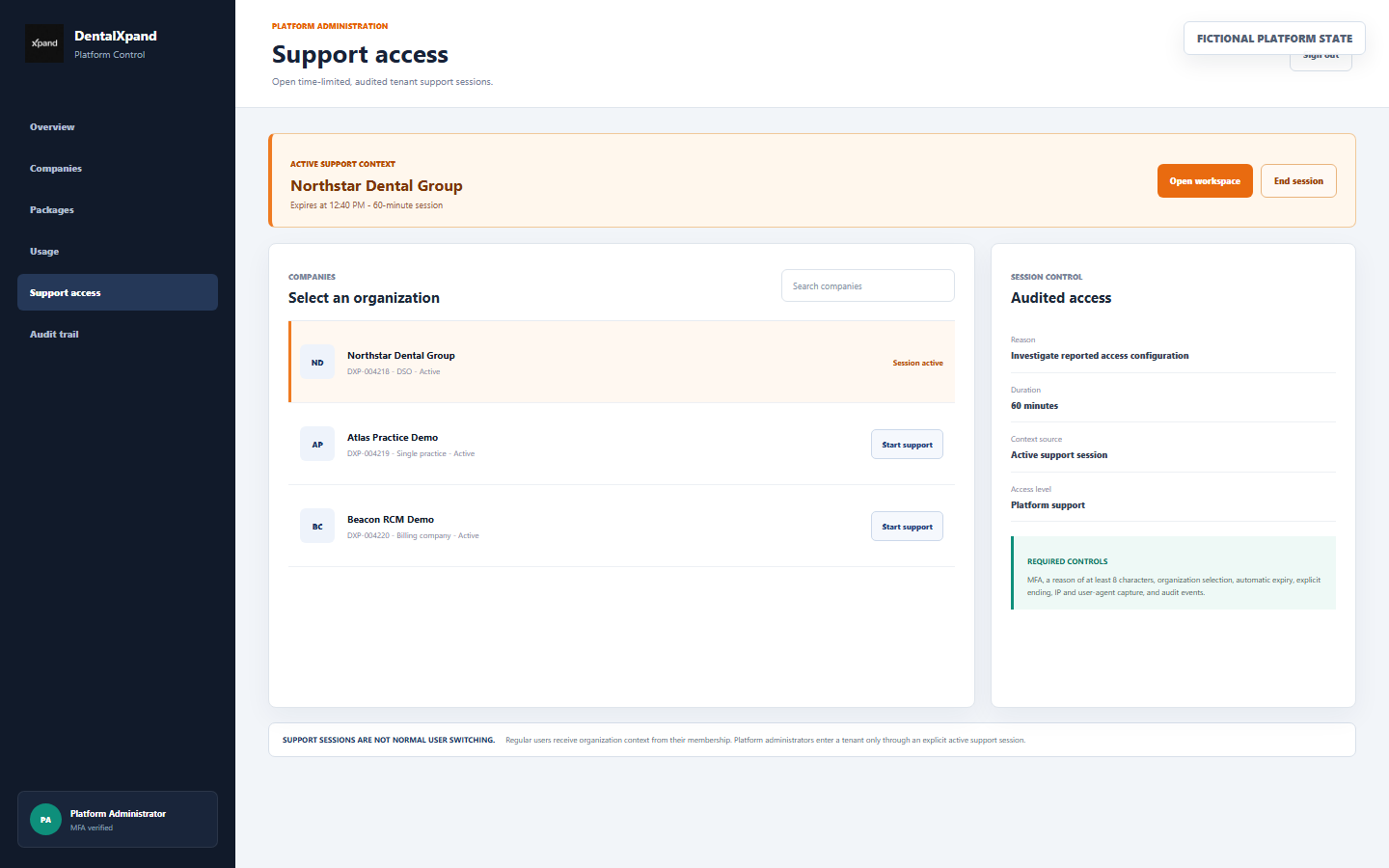
- Verify platform identity and MFA.Platform company, plan, support, and audit tools require the approved platform administrator context and MFA where configured.
- Select the exact organization.Confirm organization name and code before requesting support access.
- Enter a meaningful reason.The current workflow requires at least eight characters; use a specific non-sensitive operational reason.
- Start the session.Any prior active session for that platform administrator ends and a new 60-minute session is created.
- Open only the required workspace.The active support organization becomes the tenant context and support permissions are privileged.
- Minimize access.Inspect or change only what is required for the approved support purpose.
- End the session explicitly.Do not rely only on automatic expiry; return to Platform and select End session when work is complete.
Audited controls
- Platform administrator identity and organization target.
- Reason, start time, expiry time, end time, and session status.
- Starting IP address and user-agent metadata.
- Support-session identifier on supported audit events.
- Explicit platform support started and ended events.
16 / Troubleshoot
Troubleshoot organization and practice context
| What you see | Likely context | Correct action |
|---|---|---|
| Wrong organization name after sign-in | Unexpected membership, session, account, or support context | Stop, sign out, and report before opening records |
| Expected practice is missing | Practice-scoped membership lacks assignment, practice is archived/inactive, or context is stale | Administrator validates same-organization assignment and status |
| Unexpected extra practice appears | Overbroad organization scope or stale/incorrect assignment | Do not inspect it; report and review membership scope immediately |
| Page is absent from the sidebar | Role, page permission, organization type, or provider-focused navigation | Confirm business need and permission; do not guess a direct URL |
| Direct URL is blocked | Route guard rejected the page permission or tenant state | Use an authorized administrator; do not broaden access just to remove the error |
| Workspace unavailable | Secure verification error, inactive organization, or suspended membership | Try once when offered, sign out, and resolve the underlying status |
| Required password screen appears | Membership is pending password change | Complete the approved temporary-password workflow |
| Practice limit reached | Active practice count equals the plan or subscription limit | Review plan, existing practice status, and approved commercial change |
| External user cannot be created | No valid same-organization practice selected | Assign at least one intended practice; do not change to an internal role as a workaround |
| File path or upload is rejected | Organization or practice path conflicts with the current user context | Stop and correct the record/context; do not remove path validation |
| AI or integration shows another tenant’s data | External source, credential, index, retrieval filter, or tenant mapping is shared or wrong | Disable the affected workflow, contain access, and treat it as a security incident |
| Support context remains active | Platform support session has not been ended or expired | Return to Platform, end the session, and verify the support banner disappears |
17 / Verify
Verify that organization and practice context is understood
All-user verification
- I can identify the organization loaded after sign-in and know when to stop.
- I understand the difference between an organization tenant and its practices, locations, or clients.
- I know that role, permissions, access scope, and status answer different access questions.
- I verify the feature-specific practice before opening, changing, uploading, exporting, messaging, or using AI.
- I know how to report an unexpected organization or practice without disclosing sensitive data.
- I understand that password recovery does not repair a wrong or suspended tenant context.
Administrator verification
- Every user has the intended organization membership, role, permissions, access scope, status, and practice assignments.
- Provider, client, and external accounts have at least one valid same-organization practice and no unrelated practices.
- Practice records, provider links, files, exports, integrations, and AI sources preserve tenant context.
- Suspension, required-password, direct-route, and cross-tenant tests behave as expected.
- Platform support access is MFA-protected where configured, justified, time-limited, minimized, ended, and audited.
- Any tenant mismatch is handled through the approved security-incident process.
Need workflow support?