
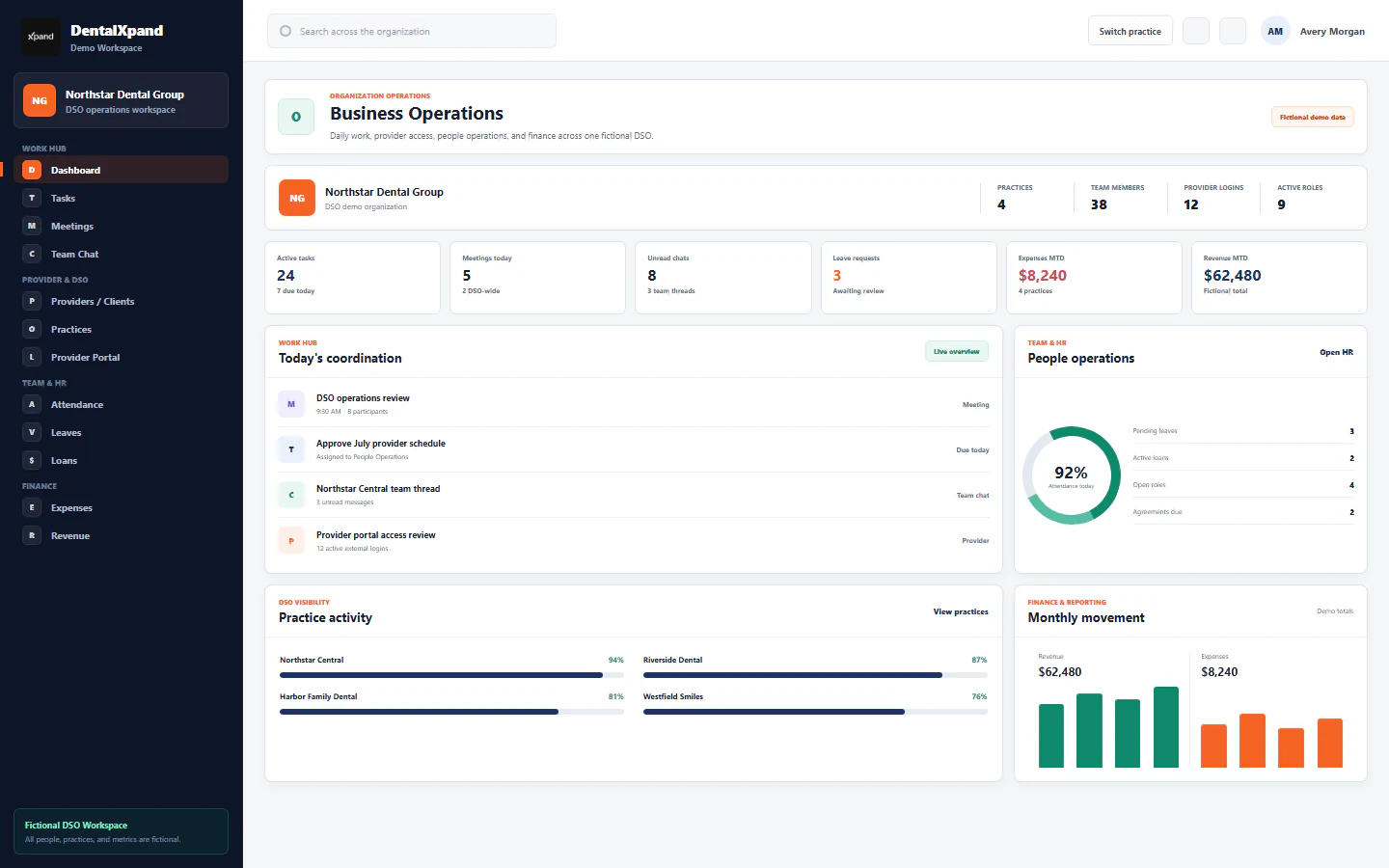
Start here: understand the DentalXpand workspace
Set up a secure first session, confirm organization and practice scope, understand role-based navigation, and choose the correct DentalXpand learning path.
DentalXpand is a permission-aware dental operations workspace. Before using any feature, learn how your account, organization, practice assignments, role, and page permissions decide what you can see and do.
01 / Prepare
Before you begin
Use an account created for you by an authorized DentalXpand organization administrator. Do not use another employee’s account and do not create shared team credentials.
Have these items ready
- Your individual organization email address.
- Your temporary password or password-setup invitation.
- The correct DentalXpand application URL supplied by your administrator.
- The name of the organization, DSO, billing company, or practice you expect to enter.
- A private device or a trusted organization-managed workstation.
02 / Access
Sign in safely
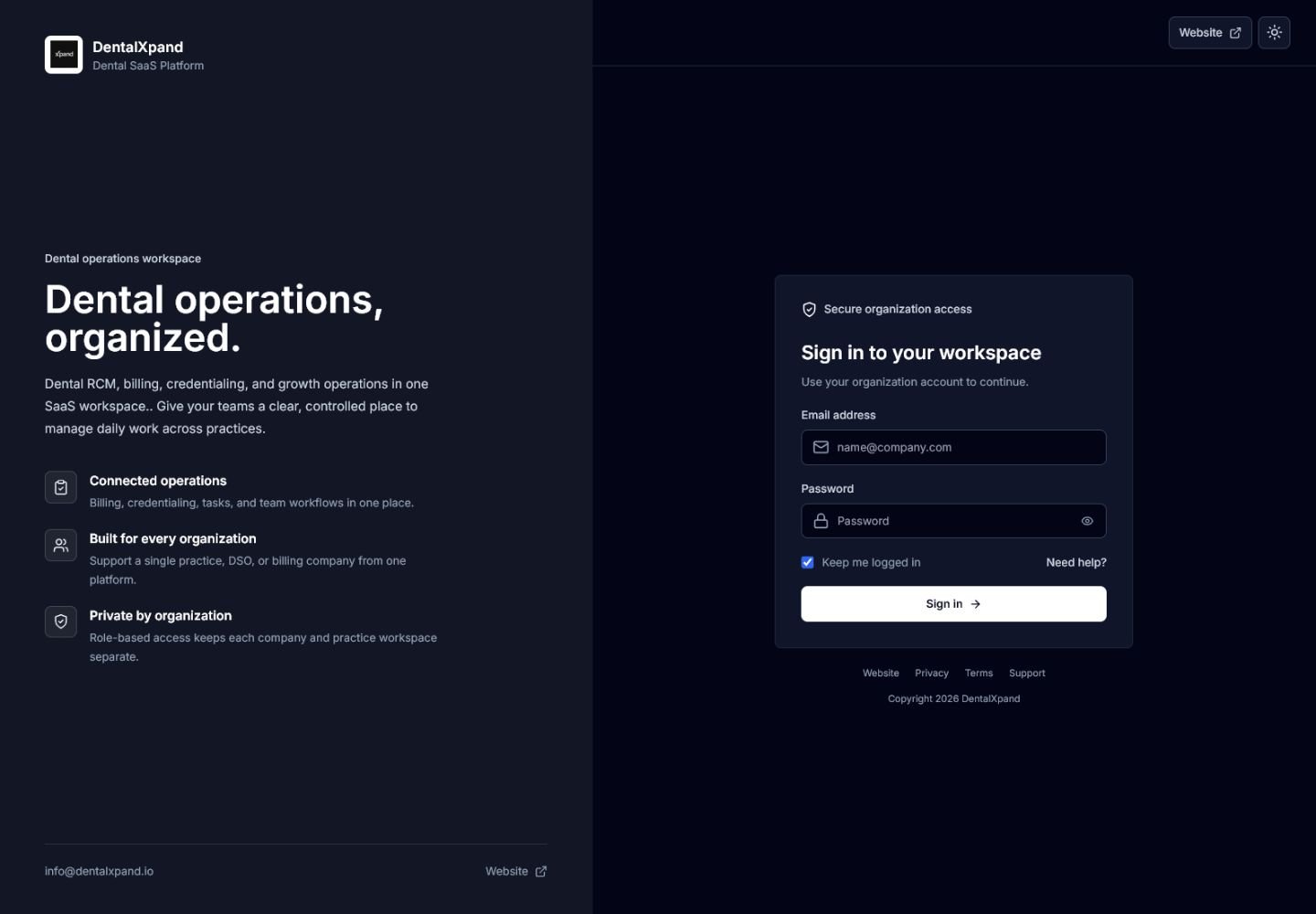
- Open the approved application URL.Check the domain before entering credentials. Avoid links forwarded through unknown messages.
- Enter your email address exactly.Use the address attached to your DentalXpand membership.
- Enter your password.Use the eye control only when nobody else can view your screen.
- Choose whether to stay signed in.Keep me logged in is appropriate only on a private or organization-managed device. Leave it off on shared devices.
- Select Sign in once.Wait for account and organization context to finish loading. Repeated clicks do not speed up access.
- Complete password setup when required.Invitation links require a new password of at least eight characters and matching confirmation. Expired or previously used links must be replaced by an administrator.
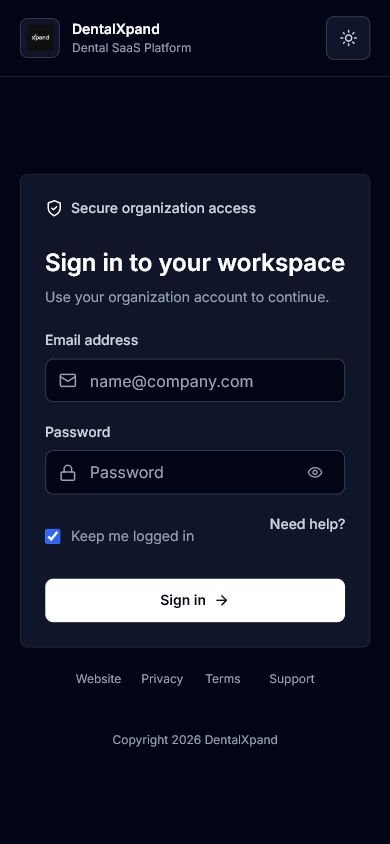
Important sign-in behavior
- Successful sign-in loads your live role and permission profile.
- A required password change is completed before the workspace opens.
- Repeated incorrect attempts trigger a timed pause. Wait for the displayed countdown instead of retrying.
- A persistently blocked account requires an administrator-assisted password reset.
- Deactivated or suspended access cannot be bypassed by typing a page URL directly.
03 / Scope
Confirm the correct workspace context
DentalXpand loads a tenant context after authentication. This context connects your account to one organization, its membership, subscription, plan, branding, permitted practices, and access scope.
The company-level boundary, such as a practice group, DSO, or billing company. Records must remain inside this boundary.
A dental location or client practice assigned to the organization. Your account may be limited to selected practices.
Your active relationship to the organization, including role, status, permissions, access scope, and password requirements.
A baseline access profile such as admin, HR, finance, employee, provider, or another organization-defined role.
An explicit, audited temporary workspace entry used by authorized platform support. It is not normal daily access.
A SaaS-level operator. Without an authorized support session, this account remains in the Platform Admin area rather than a client workspace.
Continue to the organization, practice, and tenant context guide
04 / Navigate
Understand the workspace screen
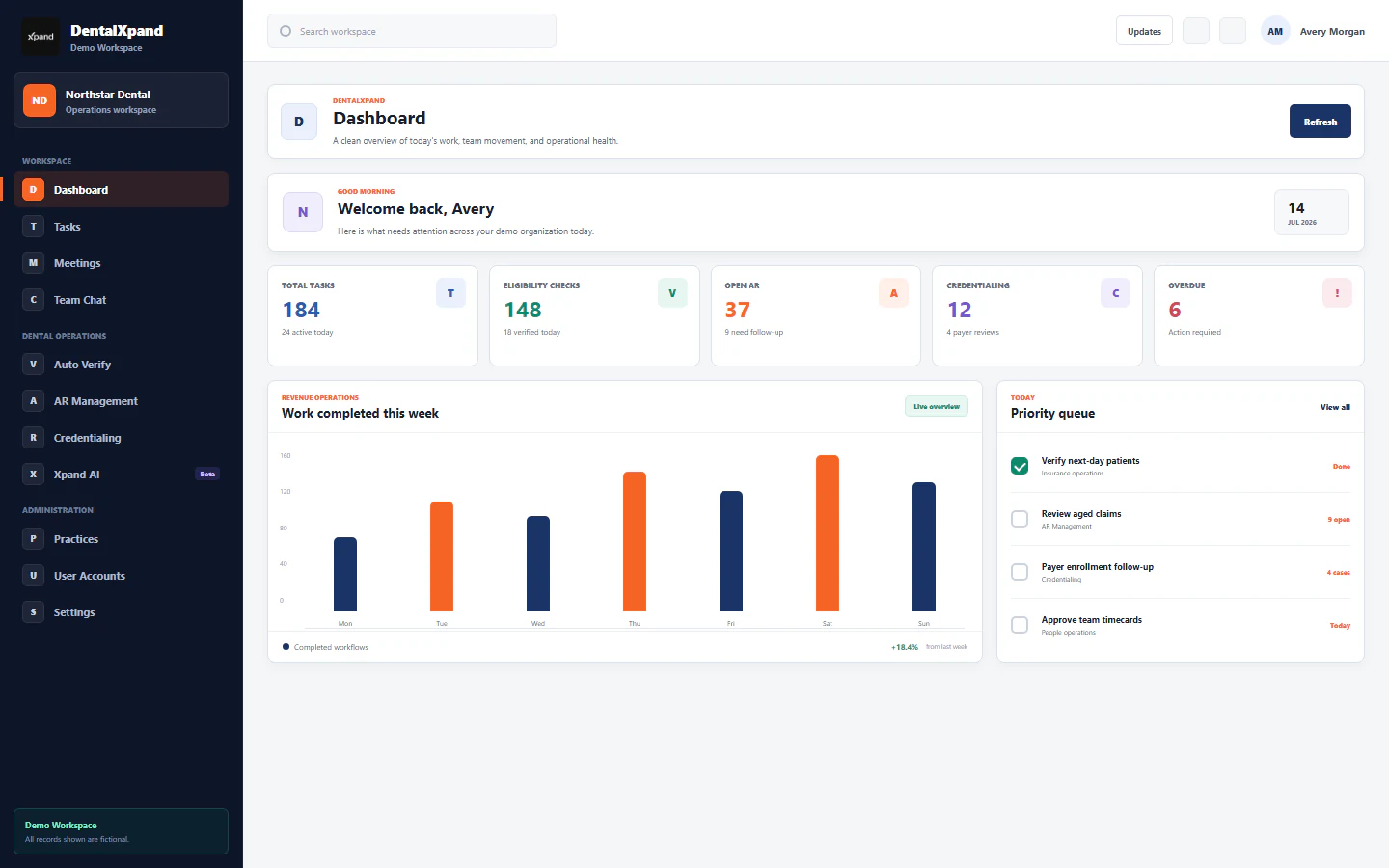
The sidebar header identifies the active company or workspace.
Only permitted groups and pages appear. Desktop users can collapse it; mobile users open it with the menu button.
The header names the current workspace page so you can confirm where you are before changing data.
The header search area is available on supported desktop views. Feature-specific search remains inside each module.
Updates, Settings, theme mode, and Notifications are available from the header when permitted.
Open your profile, settings, or Logout. Confirm your displayed email, department, and role when access appears unexpected.
05 / Platform map
Know where each type of work belongs
Your sidebar is not expected to show every DentalXpand module. It is intentionally filtered by role, department, organization type, and exact page permissions.
Dashboard, Tasks, Meetings, Messages, Notifications, Documents, Profile, Support, and Xpand AI.
Providers or Clients, Practices, Client Agreements, AR Follow Up, AR Management, and Medical Billing OS.
Client Instructions, VOB or BOB, Auto Verify, Auto AR, and VOB Auto-Fill.
Provider portal, Provider Data, payer workflow, and client-facing credentialing reports.
Lead Generation, Leads Directory, Cold Calling CRM, Email Outreach, and Marketing Scraper.
Teams, Attendance, Leaves, Loans, Directory, Recruitment, Agreements, and Employee Notices.
Authorized Expenses, Revenue, and management reporting workflows.
Employees, User Accounts, Role Management, Data Intelligence Vault, Practices, and platform controls.
Permission-aware Xpand AI, approved knowledge sources, continuous learning, and NATO Phonetics.
Personal and organization settings, downloads, branding, integrations, and authorized configuration.
06 / Permissions
Understand page access and action permissions
DentalXpand checks access in more than one place. A hidden sidebar item is not the only protection: guarded routes also reject direct URL access when the required page permission is missing.
- Admins and super admins pass standard workspace permission checks, but still operate inside the active tenant boundary.
- Department routes may allow HR, billing or operations, and marketing users through department membership or explicit permissions.
- Provider and client portal roles receive a focused menu and essential portal permissions.
- New or restricted users may land on My Profile when Dashboard is unavailable.
- An Unauthorized page means access was not granted. Do not borrow another person’s account; request the correct permission.
Continue to the complete roles, permissions, and page access guide
07 / First session
Complete the first-session checklist
- Confirm your displayed name and email in the user menu.
- Confirm the active organization and, when applicable, the practice or client context.
- Check that the sidebar contains only the pages required for your work.
- Open My Profile and verify your department, designation, and contact details.
- Open Notifications and review unread operational alerts.
- Open Settings and choose the preferred light or dark theme.
- Open Dashboard when permitted and confirm the summary belongs to the expected workspace.
- Locate Support Hub and record the approved escalation method.
- Sign out once and confirm you can return through the approved sign-in page.
08 / Security
Protect the workspace during daily use
Do
- Use only your own account.
- Confirm context before opening or editing records.
- Lock the device when stepping away.
- Use Logout on shared or public devices.
- Report unexpected access, records, exports, or AI responses immediately.
Do not
- Share passwords or invitation links.
- Store credentials in an unapproved browser or note.
- Copy PHI or sensitive business data into personal tools.
- Photograph or screenshot live data for training without approval.
- Use Xpand AI to cross organization or practice boundaries.
09 / Learning order
Choose the correct learning path
| Role or responsibility | Begin with | Continue to |
|---|---|---|
| Every user | Start Here, Sign-in, Navigation, Profile, Notifications | Work Hub modules granted to the account |
| Provider or client | Provider portal and practice context | Credentialing, assigned Tasks, Messages, permitted AR views |
| Billing or operations | Client context and Dental RCM map | VOB, Auto Verify, AR, Medical Billing, Credentialing |
| HR | Teams, Directory, Employees, Attendance | Leave, Loans, Recruitment, Agreements, Notices |
| Finance | Organization and practice context | Expenses, Revenue, Reports, authorized approvals and exports |
| Marketing | Lead ownership and approved outreach rules | Lead Generation, CRM, Calling, Email Outreach, Scraper |
| Organization admin | Tenant boundary and least privilege | Practices, Employees, User Accounts, Roles, Settings, security controls |
| Platform admin | Platform scope and audited support sessions | Organizations, provisioning, plans, support access, system import or export |
| AI or automation user | The underlying manual workflow and data boundary | Xpand AI, approved knowledge, review, and automation guides |
10 / Recover
Troubleshoot access without creating risk
| What you see | What it means | Correct action |
|---|---|---|
| Invalid email or password | The submitted credentials were not accepted. | Check the exact email and keyboard state. Retry carefully; do not guess repeatedly. |
| Wait before trying again | A temporary local sign-in pause is active after repeated failures. | Stop and wait for the full displayed countdown. |
| Account temporarily blocked | Persistent failed sign-ins require administrator assistance. | Ask an authorized admin to reset the password and confirm account status. |
| Password link expired or used | The one-time setup grant is no longer valid. | Request a new setup link. Do not reuse or forward the old link. |
| Account unavailable | The organization or membership is suspended, inactive, or blocked. | Contact the organization administrator. Do not create another account as a workaround. |
| Unauthorized page | Your current role or user permissions do not include that page. | Return to an allowed page and request least-privilege access when business need exists. |
| Wrong organization or records | The workspace context may be incorrect. | Stop immediately, do not interact with data, sign out, and report the incident. |
| Workspace keeps loading | Tenant context or connectivity did not complete. | Wait once, refresh, then contact support with the time, page, and non-sensitive error text. |
11 / Verify
Verify that Start Here is complete
You are ready for feature training when every statement below is true.
- I can identify the approved DentalXpand sign-in URL.
- I know when Keep me logged in is appropriate.
- I can confirm my organization, practice, role, and displayed user identity.
- I understand that sidebar visibility and direct page access use the same permission model.
- I know the difference between page permission, action permission, and record scope.
- I can locate Profile, Settings, Notifications, Support, and Logout.
- I know what to do if I see the wrong organization or unauthorized data.
- I have selected the learning track that matches my responsibilities.
Need workflow support?