
Sign in and access your account
Sign in securely, complete first-time password setup, understand post-login routing, recover from access errors, and know when an administrator must help.
Use this guide whenever you sign in for the first time, return on a new device, receive a password-setup invitation, or cannot reach the expected DentalXpand workspace.
01 / Account
Use the correct individual account
Your email address connects authentication to an application user, employee or provider profile, organization membership, role, permissions, and permitted practice scope.
Confirm before signing in
- The email belongs to you and is the address invited by your organization.
- The organization administrator created or invited the account.
- You know whether you received a temporary password or a one-time Create password link.
- You are opening the approved DentalXpand application, not only the public marketing website.
- You expect to enter the named organization, DSO, billing company, provider portal, or practice workspace.
02 / Verify
Verify the sign-in page before entering credentials
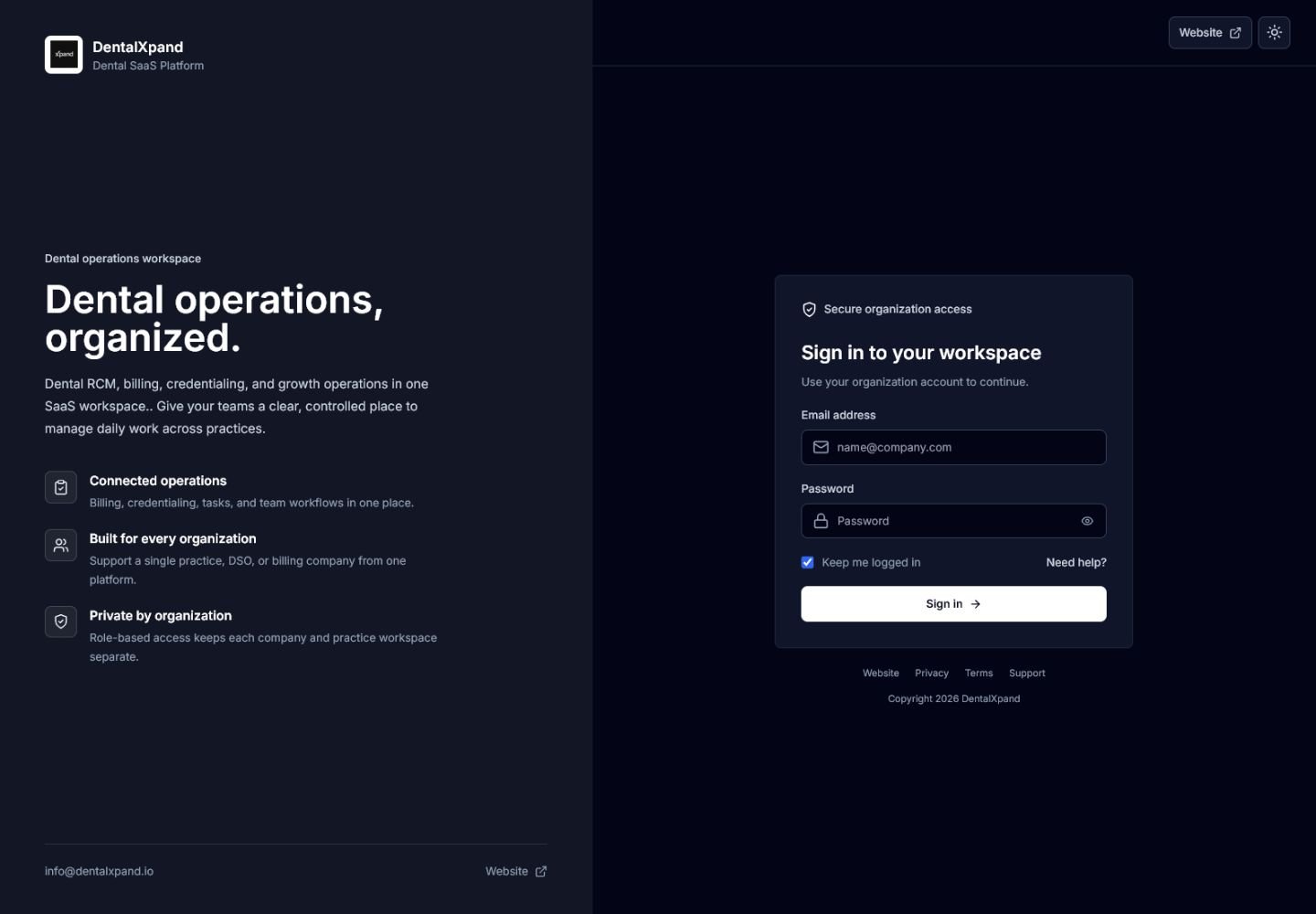
Confirm the DentalXpand or approved white-label identity supplied by your organization.
Inspect the browser address or desktop-app identity before entering a password.
The form is intended for organization-issued accounts, not public self-registration.
Website, Privacy, Terms, Support, and Need help? should lead to approved destinations.
03 / Sign in
Complete each sign-in control
- Enter Email address.Use the exact address attached to your membership. The form checks that an email is present and formatted correctly.
- Enter Password.Passwords are case-sensitive. Check Caps Lock and keyboard layout before retrying.
- Use the eye control only when private.Reveal the password only when nobody else can view or record the screen.
- Review Keep me logged in.Leave it selected only on a private or organization-managed device. Clear it on a shared workstation, kiosk, borrowed computer, or public device.
- Use Need help? when required.This opens the support route configured by the active brand.
- Select Sign in once.The button displays a loading state while authentication completes. Wait instead of submitting repeatedly.
Mobile safety
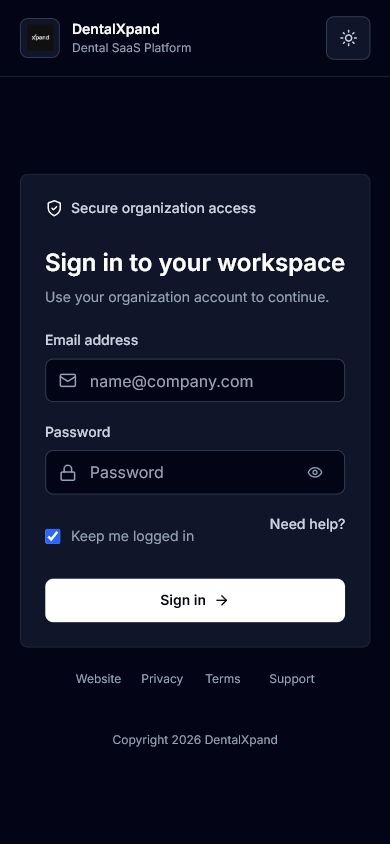
- Use a trusted browser and operating-system version.
- Avoid public Wi-Fi when your organization has not approved it.
- Do not allow another person to watch the password entry.
- Lock the phone or tablet whenever it is unattended.
- Use Logout before returning a shared device.
04 / Validate
Resolve form validation before authentication
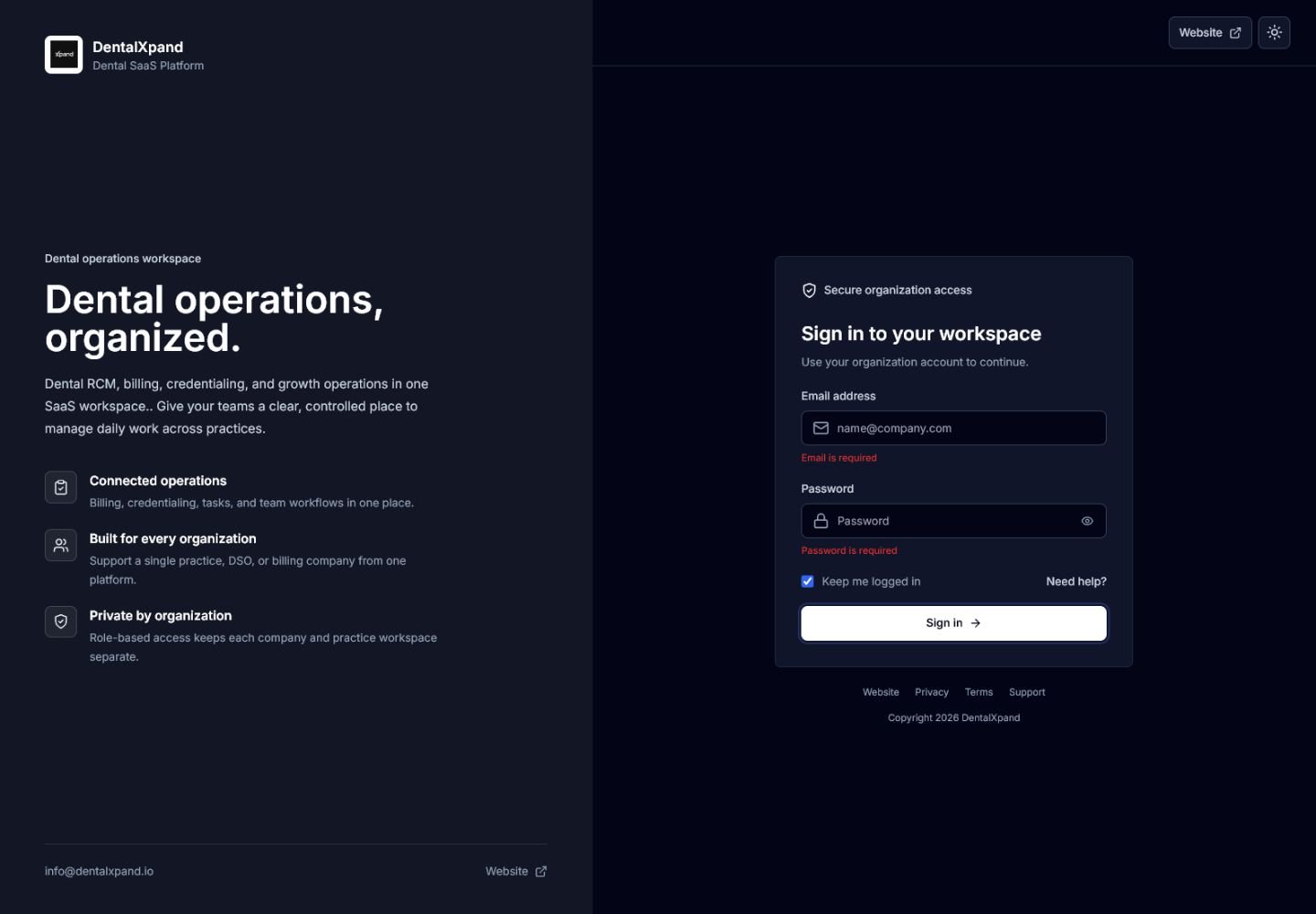
| Message | Meaning | Correct action |
|---|---|---|
| Email is required | No email was submitted. | Enter the individual account email. |
| Invalid email format | The address does not match a standard email structure. | Correct spaces, missing characters, or the domain. |
| Password is required | No password was submitted. | Enter the password or use the approved reset process. |
These field messages appear before a server sign-in attempt. Correct them once; do not use repeated guesses.
05 / Activate
Complete first-time password setup
Organizations can onboard an account with a one-time setup link or a temporary password that must be replaced before workspace access.
One-time Create password link
- Open the newest invitation.The link must include the secure password-setup callback created for your account.
- Wait for Checking your secure link.DentalXpand validates that the signed-in recovery session matches the invitation.
- Complete the time-limited session.The current setup grant is valid for 10 minutes after the secure link is opened.
- Create a password.Use at least eight characters and enter the same value in Confirm password.
- Return to sign-in.Successful setup signs the recovery session out globally. Sign in normally with the new password.
Temporary password change
If the organization marks the membership for a required password change, DentalXpand redirects to Create your password before opening the workspace. Enter the temporary password, create a different new password of at least eight characters, confirm it, and sign in again after success.
Continue to the complete password setup, reset, and change guide
06 / Route
Understand what happens after successful authentication
A correct password is only the first access decision. DentalXpand then loads the current account profile and organization context before selecting a destination.
| Condition | Expected destination |
|---|---|
| Standard user with Dashboard access | Dashboard |
| User without Dashboard page permission | My Profile |
| Required temporary-password change | Create your password |
| Inactive or suspended organization or membership | Account or Workspace unavailable |
| Platform administrator without support session | Platform Admin |
| Tenant configuration or context error | Workspace unavailable with retry and sign-out controls |
07 / Recover
Recover from failed attempts safely
Correct response
- Read the complete displayed message.
- Check email spelling, Caps Lock, and keyboard language once.
- Wait for the full countdown after a temporary pause.
- Use an administrator reset after a persistent block.
- Replace an expired setup invitation.
Do not
- Try password variations repeatedly.
- Use another employee’s account.
- Ask anyone to send a password in chat or email.
- Clear security state to bypass a pause.
- Create a duplicate account as a workaround.
09 / Device
Use shared and private devices safely
| Device type | Keep me logged in | Required behavior |
|---|---|---|
| Private organization-managed computer | Only when organizational policy allows it | Lock the screen when away and use Logout when access should end. |
| Private mobile device | Only with device passcode and approved browser | Keep the operating system current and prevent shoulder surfing. |
| Shared workstation | No | Use a private session when approved, never save credentials, and log out completely. |
| Public, borrowed, or unmanaged device | No | Do not sign in unless an authorized emergency procedure explicitly permits it. |
| DentalXpand desktop application | Only on an assigned device | The desktop app can use secure credential storage for auto-login; Logout clears stored credentials. |
10 / Exit
Sign out securely
- Finish or save permitted work.Confirm uploads, forms, or edits have completed before leaving.
- Open the user menu.Select the avatar in the workspace header.
- Select Logout.This clears the application session and, in the desktop app, stored credentials.
- Confirm the sign-in page appears.Closing a tab or application window is not a substitute for Logout on a shared device.
- Close the browser or app when appropriate.On shared devices, also close the private browsing session and follow local workstation policy.
11 / Administrator
Administrator account checklist
When a user cannot sign in, an authorized organization administrator should verify the account without requesting or viewing the user’s password.
- Confirm the exact invited email and the intended organization.
- Confirm the authentication identity and application user are linked.
- Confirm an active or pending-password-change organization membership exists.
- Confirm role, custom page permissions, access scope, and practice assignments.
- Confirm the account and organization are active and not suspended.
- Issue a new password-setup invitation or approved temporary-password reset when required.
- Tell the user to discard older invitation links and use only the newest one.
- After successful sign-in, confirm the user reaches the least-privilege destination.
- Investigate any unexpected cross-organization access as a security incident.
12 / Support
Prepare a safe support request
Include
- Date, time, and time zone.
- Application URL or desktop-app version.
- Your account email and expected organization.
- The exact non-sensitive error message.
- Whether this is first setup, normal sign-in, or a new device.
- Steps already completed.
Never include
- Current, temporary, or proposed passwords.
- Full invitation or recovery links.
- Access or refresh tokens.
- Patient or provider PHI.
- Unredacted financial or employee records.
- Another user’s credentials.
Contact support@xpand.dental through the approved support process.
13 / Troubleshoot
Troubleshoot sign-in and account access
| What you see | Likely cause | Correct action |
|---|---|---|
| Email is required or invalid | Missing or malformed email | Enter the exact invited address in standard email format. |
| Password is required | Empty password field | Enter the password or use approved reset assistance. |
| Invalid login credentials | Email or password was rejected | Check spelling and keyboard state once; do not guess repeatedly. |
| Wait before trying again | Temporary failed-attempt pause | Wait for the complete displayed countdown. |
| Account temporarily blocked | Persistent failed attempts | Contact an authorized administrator for reset assistance. |
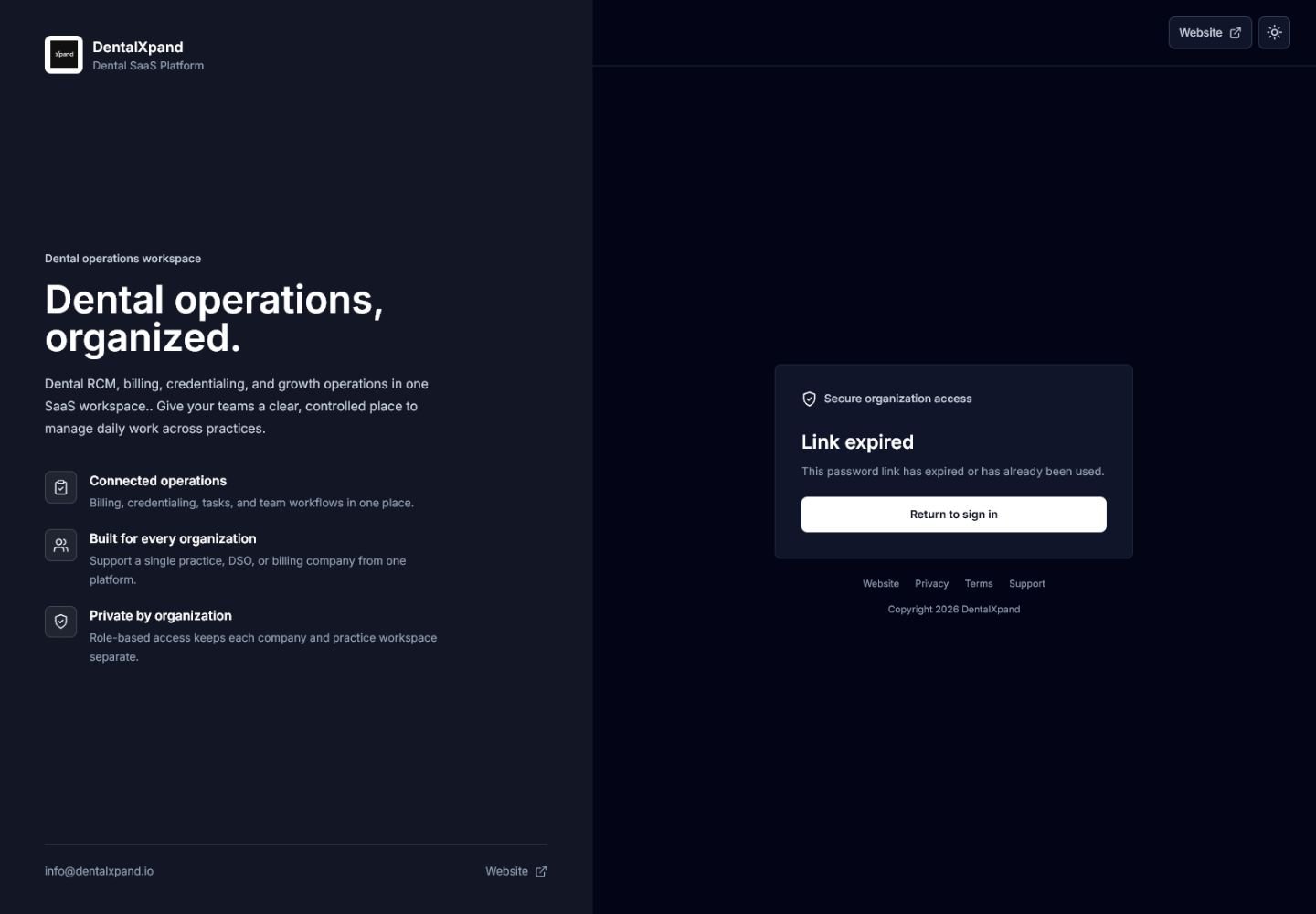
| Link expired | Setup link is old, used, incomplete, or outside its time window | Return to sign-in and request a new setup invitation. |
| Create your password | Temporary password must be replaced | Enter current temporary password, a different new password, and matching confirmation. |
| Workspace unavailable | Context verification failed or tenant is inactive | Retry once when offered; otherwise sign out and contact admin or support. |
| Unauthorized | Page permission is missing | Request only the permission needed for the business task. |
| Wrong organization or records | Unexpected tenant context | Stop, sign out, and report immediately without interacting with data. |
| Cannot connect to server | Network, configuration, or service availability problem | Check approved connectivity once, then send a safe support request. |
14 / Verify
Verify that account access is complete
- I can identify the approved application URL and expected organization.
- I use only my individual DentalXpand account.
- I understand every sign-in field and when Keep me logged in is unsafe.
- I can complete a valid password-setup or required-change flow.
- I know to wait after failed attempts instead of guessing repeatedly.
- I understand Dashboard, My Profile, Platform Admin, and unavailable-account routing.
- I know how to log out and clear an assigned desktop-app session.
- I can prepare a support request without sending passwords, tokens, links, or PHI.
- I know that wrong-organization access must be reported immediately.
Need workflow support?