
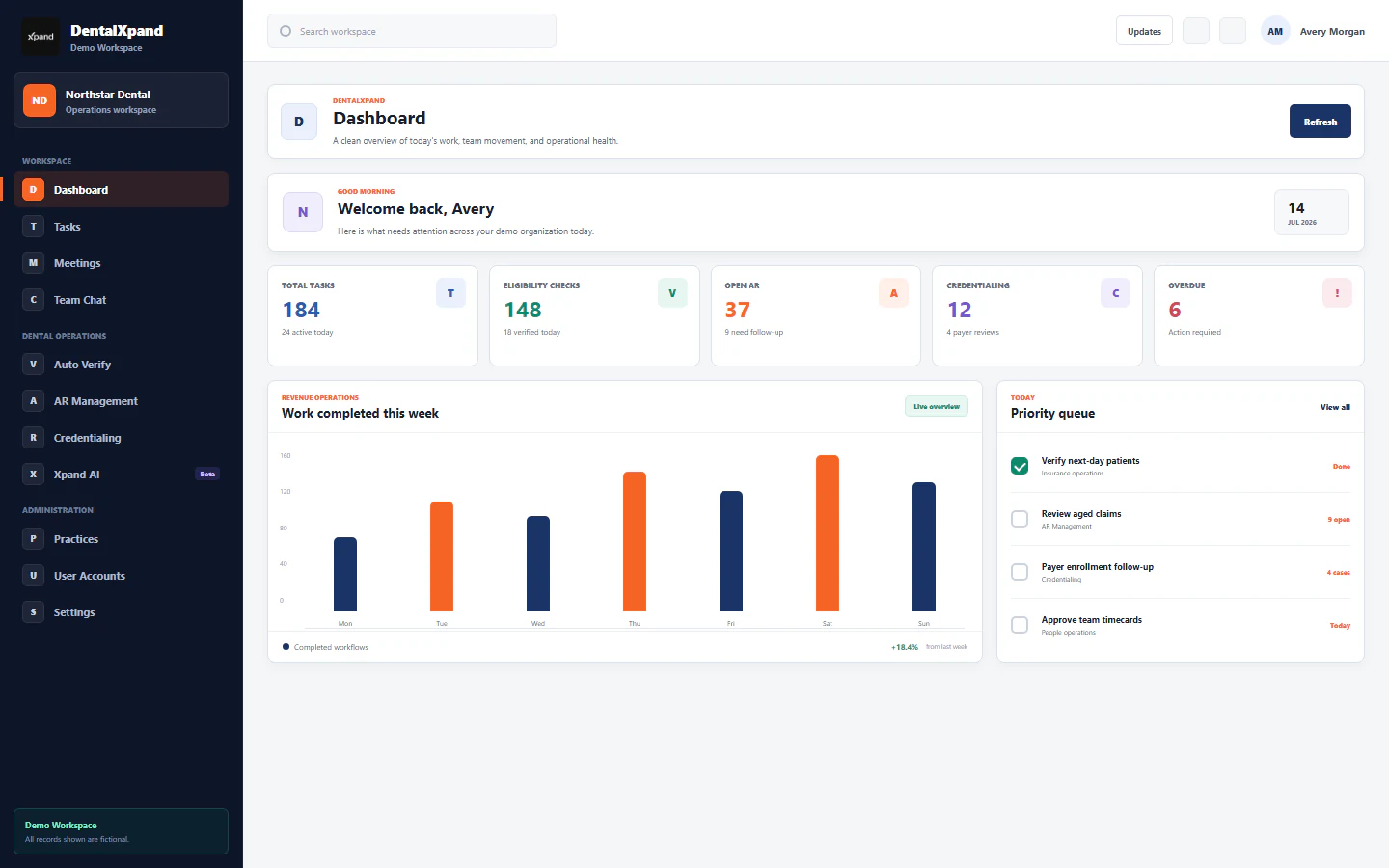
Use the Dashboard command center
Use the role-specific DentalXpand Dashboard to scan operational exceptions, open source modules, refresh data, interpret admin, employee, and provider views, and respond safely to loading, empty, failed, or unauthorized states.
The DentalXpand Dashboard is a permission-aware command center for deciding where attention is needed next. It summarizes authorized work, links to source modules, and changes its layout for administrators, employees, and provider or client portal users. It is an operational index, not a replacement for the underlying task, employee, finance, billing, credentialing, attendance, leave, notification, or report record.
01 / Purpose
Understand what the Dashboard is designed to do
Surface overdue, pending, open, failed, unread, or needs-review work that may require attention.
Use cards, quick actions, module summaries, activity items, and View all links to open the relevant workflow.
Compare workload and exceptions so the team can decide what should be investigated first.
Return after the source action, refresh the overview, and confirm the expected summary movement.
The Dashboard should answer, “Where should I look next?” It should not be used alone to answer, “What exactly happened to this record?” or “Who is authorized to see or change it?”
02 / Access and context
Confirm the account, organization, practice, permission, and date
The protected /dashboard route requires an authenticated account, a ready and active tenant context, completion of any required password change, and the pages:dashboard page permission.
- Confirm the signed-in person.Use your own named account. Check the profile name or avatar in the application shell.
- Confirm the active organization.Read the organization or workspace shown in navigation before interpreting any total.
- Confirm the practice where applicable.Provider and client users should verify the assigned practice context before opening records.
- Confirm the role-specific view.Administrator, employee, and portal layouts deliberately show different information.
- Confirm the date and time period.Separate today, this week, this month, month-to-date, and total counts.
If Dashboard permission is unavailable, the home redirect can send the user to My Profile. A typed Dashboard URL is still checked and can redirect to Access denied. Review roles, permissions, and access boundaries before requesting a change.
03 / Role-specific view
Know which Dashboard experience applies
| Account type | Dashboard focus | Primary boundary |
|---|---|---|
| Admin or Super Admin | Organization employees, tasks, expenses, revenue, dental operations, medical billing, workspace modules, activity, and pending review queues | Active organization plus backend and database authorization |
| Employee and other internal roles | Personal tasks, attendance, leave, notifications, profile, available tools, and personal progress | Current user’s assignments and granted pages |
| Provider, client, customer, practice, client-provider, or external portal role | Permission-visible portal links, assigned tasks, task progress, profile, and team members derived from assigned work | Organization, assigned practices, portal permissions, API scope, and row policies |
Two users in the same organization can have different dashboards without either account being broken. Compare their approved responsibility, exact page list, action permissions, organization membership, and practice assignments rather than expecting identical cards.
04 / Orientation
Orient yourself before reading numbers
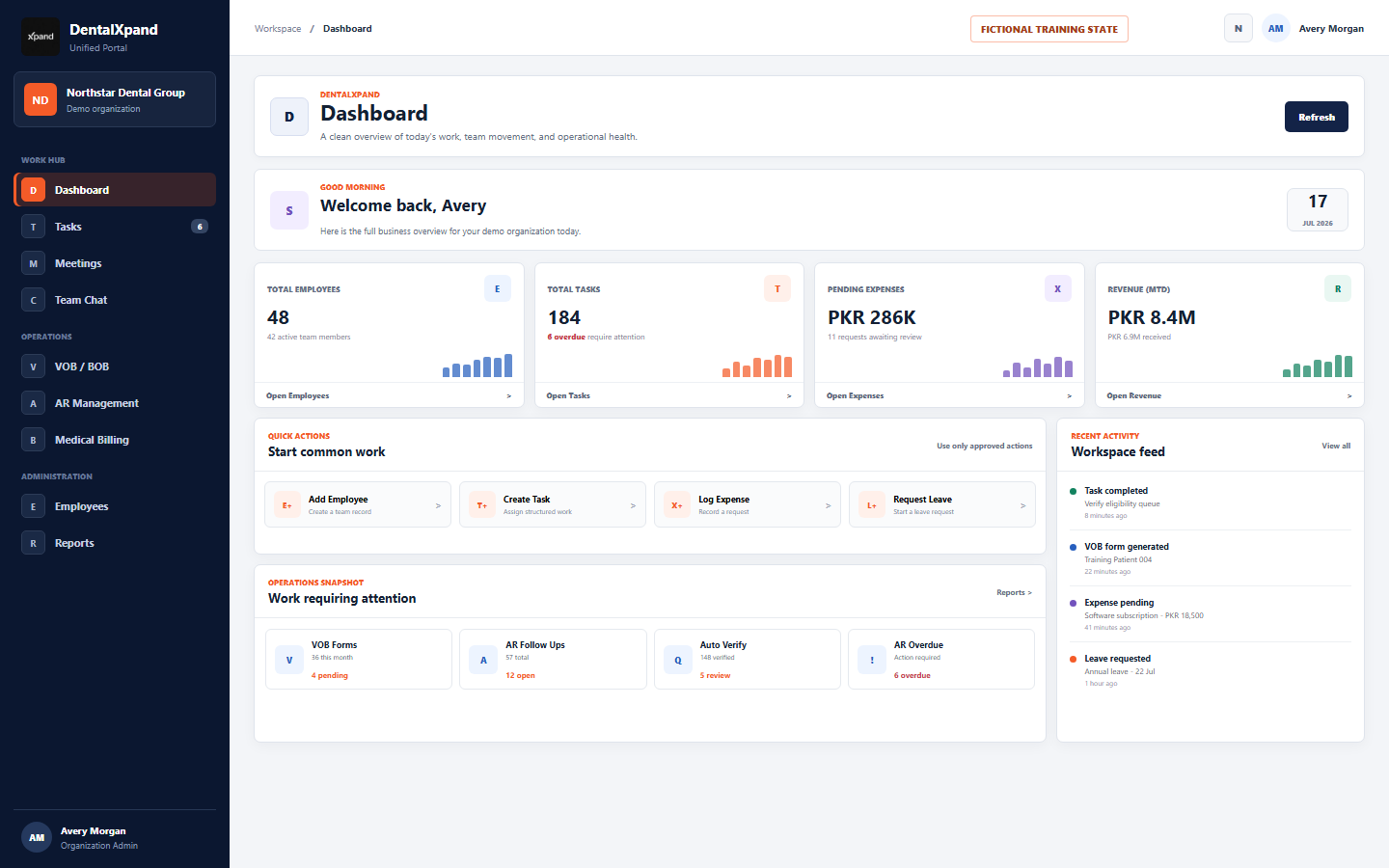
The greeting changes by time of day and the welcome banner shows the current date. These are orientation cues; they do not change record scope or authorization.
05 / Refresh
Refresh when a decision depends on recent changes
- Allow the first load to complete.Wait for the loading skeleton and loading message to resolve.
- Use the visible Refresh button when needed.The button re-fetches the relevant overview and role-specific supporting data.
- Wait for the spinner to stop.A second click is unnecessary while refresh is in progress.
- Open the source module for an important discrepancy.The Dashboard can lag or show an incomplete source; the record page remains the verification destination.
- Refresh after a completed source action.Confirm that the expected count, status, queue, or activity item changes.
While the page is open, DentalXpand also subscribes to relevant database changes and schedules a silent refresh after a short debounce. A fallback interval refreshes the administrator overview at about 30 seconds and the employee overview at about 45 seconds. These mechanisms improve freshness but do not guarantee that every card changes immediately or that every source is available.
06 / Administrator cards
Read the four administrator summary cards
| Card | Summary shown | Open and verify |
|---|---|---|
| Total Employees | Total organization employees, with active status context | Employees: identity, employment status, organization, team, and current lifecycle record |
| Total Tasks | Total tasks and an overdue count | Tasks: assignment, due date, status, priority, steps, comments, and timer or time logs |
| Pending Expenses | Pending amount and request count | Expenses: request owner, category, amount, receipt, status, and approval responsibility |
| Revenue (MTD) | Month-to-date amount and received amount | Revenue or Reports: source, invoice, amount, date, status, and reporting period |
The cards are clickable navigation. Their animated counters improve readability and their mini sparklines provide visual context only. The current sparkline shapes are display data supplied by the component, not a report-quality historical query. Use Reports or the source module for verified trends.
07 / Quick actions
Use administrator quick actions as workflow entry points
Open the employee workflow and confirm identity, organization, role, department, status, and approved access before activation.
Enter a clear outcome, assignee, due date, priority, status, structured steps, and only necessary attachments.
Record the correct category, amount, date, business reason, receipt, and approver path.
Submit the correct leave type, dates, reason, and handoff details through the leave workflow.
08 / Operations Snapshot
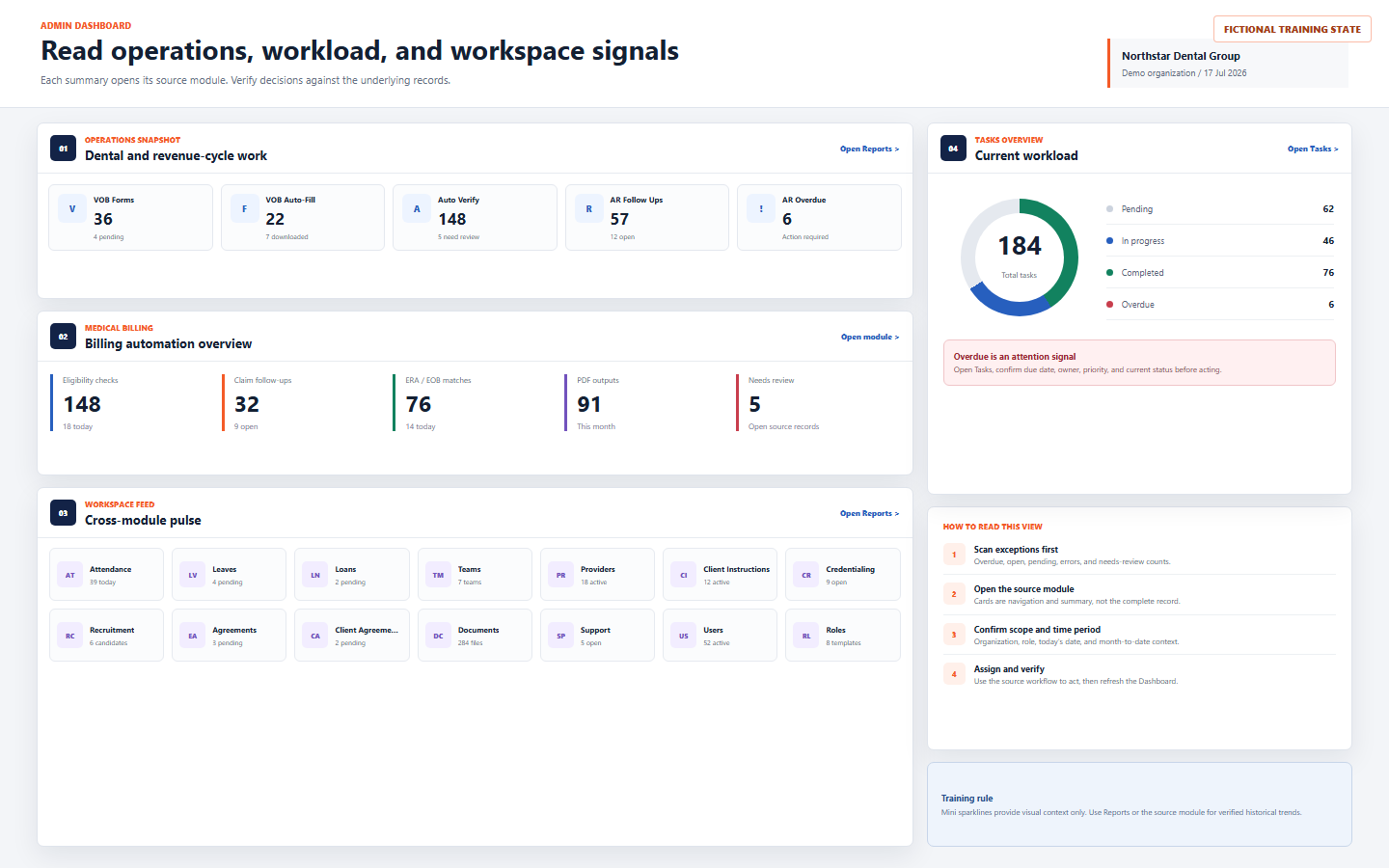
Read dental operations and revenue-cycle attention signals
| Signal | What it summarizes | What to verify |
|---|---|---|
| VOB Forms | Generated or manually processed VOB form activity | Patient or case identity, insurance source, form status, selected output, and current workflow owner |
| VOB Auto-Fill | Selected PDFs, parsed history, downloaded output, or fields found | Correct file, parsed fields, download state, and source document quality |
| Auto Verify | Verification logs and current verification outcomes | Payer, patient or case, verification date, coverage result, and any needs-review state |
| AR Follow Ups | Open and completed AR tasks plus ClaimMD follow-up activity | Claim or account, payer, current status, owner, follow-up date, matched claim count, and notes |
| AR Overdue | AR tasks past due and not completed | Due date, priority, assignee, current status, blocking issue, and next follow-up |
Patient and payer information can be sensitive. Open only records required for approved work, avoid copying data into chat or screenshots, and follow the organization’s privacy and retention requirements.
09 / Medical Billing
Use Medical Billing cards to locate the right queue
Shows eligibility activity, including today where available. Open the module to confirm payer response and verification result.
Shows follow-up usage and open or completed workflow state. Confirm the claim match and next action.
Shows matching activity or searches. Verify the actual remittance, claim, and match confidence.
Shows generated output activity. Confirm that the correct record, date, and authorized destination were used.
Shows errors or unresolved states. Treat this as a queue for investigation, not proof that a record is incorrect.
Selecting any Medical Billing summary opens the Medical Billing workspace. Use its status, response, log, PDF, and record details to make the final decision.
10 / Workspace Feed
Use the cross-module feed as an organization pulse
The administrator Workspace Feed includes clickable summaries for Attendance, Leaves, Loans, Teams, Providers, Client Instructions, Credentialing, Recruitment, Employee Agreements, Client Agreements, Documents, Support, Users, and Roles.
| Area | Useful question | Source check |
|---|---|---|
| People operations | Is attendance recorded, is leave pending, or is a loan awaiting review? | Open Attendance, Leaves, Loans, Employees, or Teams and inspect the individual records |
| Provider and client operations | Are providers active and are current instructions available? | Open Providers, Practices, and Client Instructions; confirm organization and practice |
| Credentialing and recruitment | Which cases, requests, enrollments, documents, candidates, or positions remain open? | Open the relevant case or candidate workflow and check ownership and stage |
| Agreements and documents | Are agreements pending and are expected files available? | Open the agreement or document; verify version, signer, access, and status |
| Support and administration | Are complaints open and are user or role totals unexpected? | Open Support, User Accounts, or Role Management with the required administrative permission |
A high or low count can be normal for the current organization and period. Compare against the source and an approved target, not against another tenant’s numbers.
11 / Tasks and alerts
Prioritize overdue work without acting from the count alone
The Tasks Overview separates Total, Pending, In Progress, Completed, and Overdue. An overdue alert appears when at least one non-completed task has a due date before the current day.
- Open Tasks.Do not assign blame from the Dashboard count.
- Confirm due date and time zone.Make sure the date is genuinely past due for the active workspace.
- Confirm status.A completed task should not remain overdue; a stale status may require an authorized update.
- Confirm assignee and collaborators.Determine who owns the next action and who is merely following the task.
- Review priority, steps, comments, and blockers.Understand the work before reassigning or escalating.
- Save the correct next action.Update status, due date, owner, step, or comment only when approved.
- Refresh and verify.Confirm the Tasks record and Dashboard count now agree.
Continue with Manage tasks, assignments, steps, and timers for the complete task workflow.
12 / Administrator review panels
Use activity, employee status, expense, and leave panels
| Panel | Current Dashboard behavior | Verification destination |
|---|---|---|
| Recent Activity | Combines recent task, employee, leave, expense, revenue, VOB, Auto-Fill, Auto Verify, and ClaimMD events, sorts newest first, and shows up to eight items | Select the activity item or View all; confirm the source record and its timestamp |
| Employee Status | Counts active, on-leave, resigned, terminated, or inactive states | Employees and Leaves; confirm lifecycle and current approved leave |
| Expense Summary | Shows approved, pending, rejected, and total amounts | Expenses; confirm currency, amount, category, owner, receipt, and status |
| Leave Requests | Shows the first pending requests with status and a Manage link | Leaves; review balance, dates, handoff, status, and approval responsibility |
Recent Activity is an operational feed, not a complete audit log. Use the record history and approved audit tools when the timing or actor matters.
13 / Marketing and calling
Read optional lead, outreach, and cold-calling analytics
When corresponding data is available, the administrator Dashboard can show Lead Generation, Email Outreach, and Cold Calling Analytics. Employee users with calling data can receive a personal progress panel.
| Area | Possible metrics | Do not assume |
|---|---|---|
| Lead Generation | Total leads, new today, emails found, forms sent | A found email, form mention, or lead count is not a qualified or consented contact |
| Email Outreach | Accounts, active campaigns, sent today, total sent | A sent count does not prove delivery, consent, reply, or conversion |
| Cold Calling | Calls by period, conversions, notes, emails, status changes, follow-ups, and agent leaderboard | A dashboard metric does not replace call notes, local calling rules, or quality review |
Open the corresponding marketing, email, or calling workflow to confirm source records, date range, ownership, consent requirements, disposition, and follow-up.
14 / Employee Dashboard
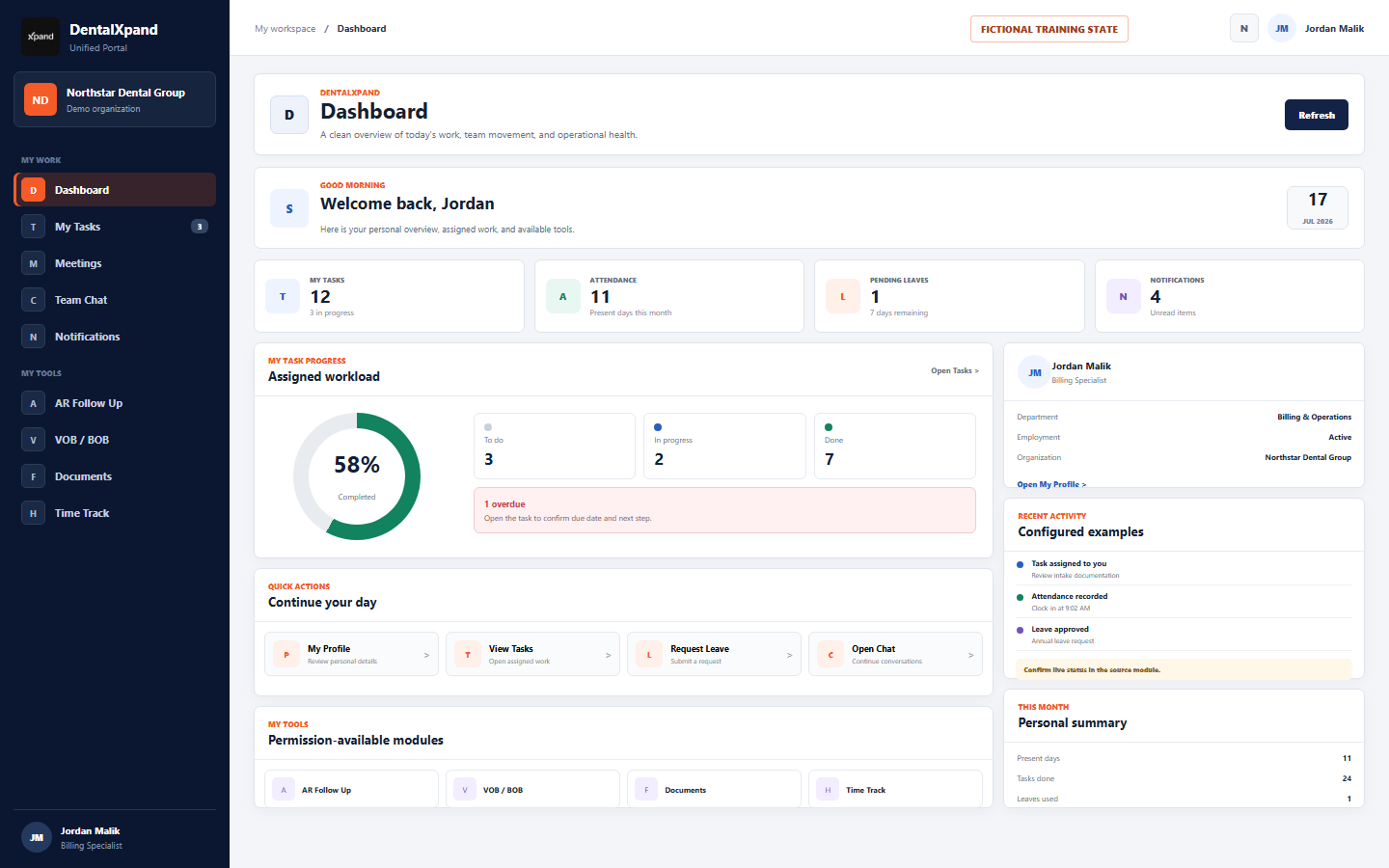
Use the personal Dashboard to organize your own day
| Area | How to use it | Source of truth |
|---|---|---|
| My Tasks | Scan total, to-do, in-progress, completed percentage, and overdue work | My Tasks, including assignment, due date, status, steps, and comments |
| Attendance | Review available present-day or current attendance context | Attendance and the recorded clock-in or attendance row |
| Pending Leaves | Notice pending requests and remaining balance where supplied | Leaves and the approved leave-balance policy |
| Notifications | Notice unread alerts | Notification Center and the source record linked by each alert |
| Quick Actions | Open My Profile, Tasks, Leave, or Chat | The destination module and successful saved action |
| My Tools | Open AR Follow Up, VOB / BOB, Documents, or Time Track when granted | The module’s own permissions and records |
Personal attendance and leave cards depend on overview data available to the current account. A zero does not by itself prove absence, no balance, or no request. Verify the source before reporting a discrepancy.
15 / Provider and client portal
Use the focused portal Dashboard
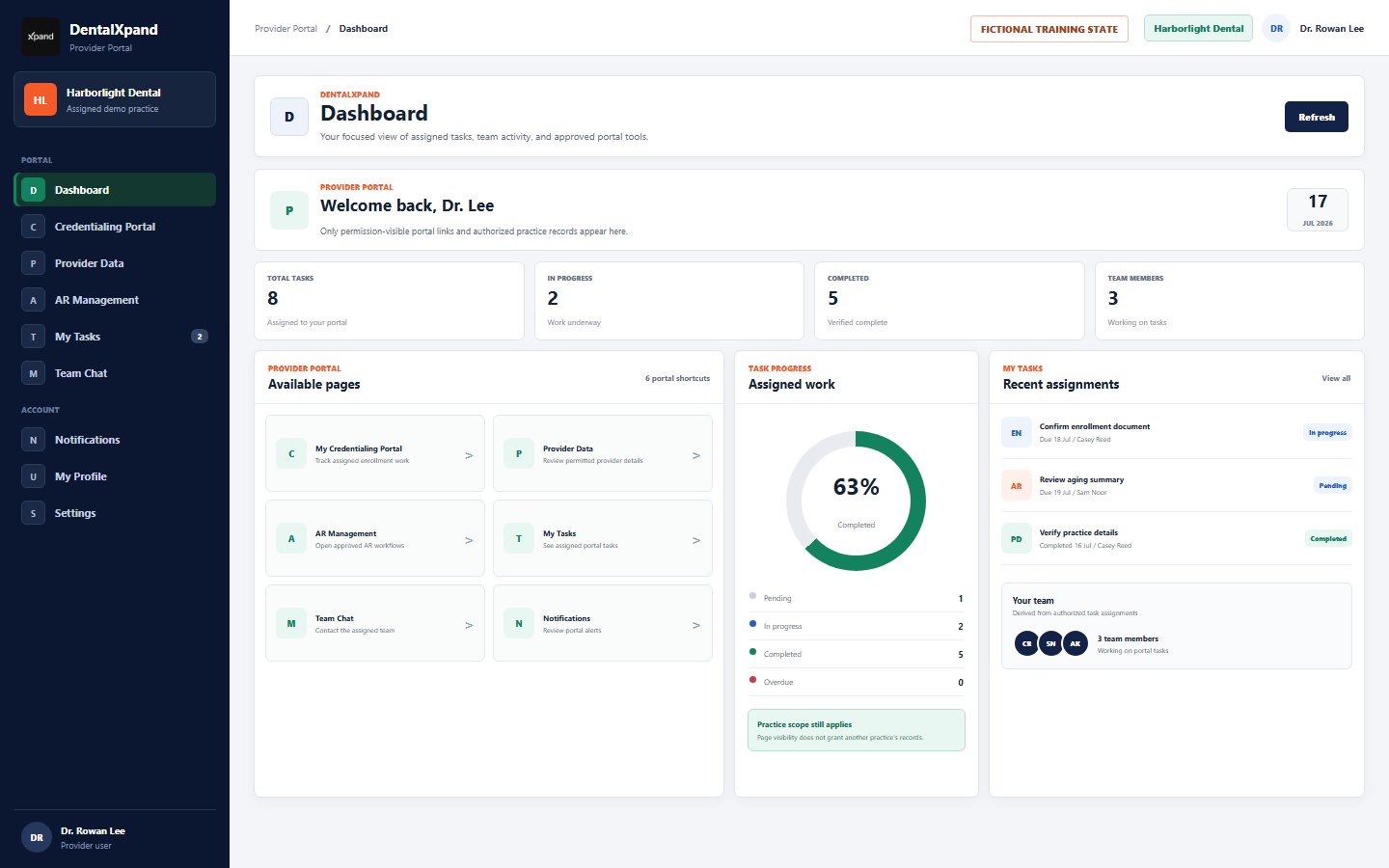
Depending on exact permissions, the Provider Portal can display links for My Credentialing Portal, Provider Data, AR Management, My Tasks, Team Chat, Notifications, My Profile, and Settings.
- Confirm the practice context.Do not continue if the organization or practice is unexpected.
- Review Total, In Progress, Completed, and Team Members.These summarize tasks available to the portal experience.
- Open a permission-visible portal destination.A missing shortcut can be expected when that page is not approved.
- Use Task Progress to locate pending or overdue work.Open the task before acting.
- Review My Tasks.The panel shows a limited recent list with owner or team member, due date, and status; use View all for the complete authorized list.
- Use Your Team as task context.The visible team is derived from unique employees attached to available task assignments, not the entire organization directory.
Continue later with Use provider login and the client portal for the complete external-user workflow.
16 / Portal security
Keep portal visibility and data isolation separate
The portal interface filters shortcuts by page permission and displays tasks related to the current user or provider identifier. Interface filtering improves usability, but it is not the security boundary.
If a portal user sees another practice, client, provider, patient, employee, or organization, stop work immediately, avoid opening more records, sign out, preserve only non-sensitive diagnostic details, and report the incident through the approved security process.
17 / Loading, failure, and empty states
Respond to each Dashboard state correctly
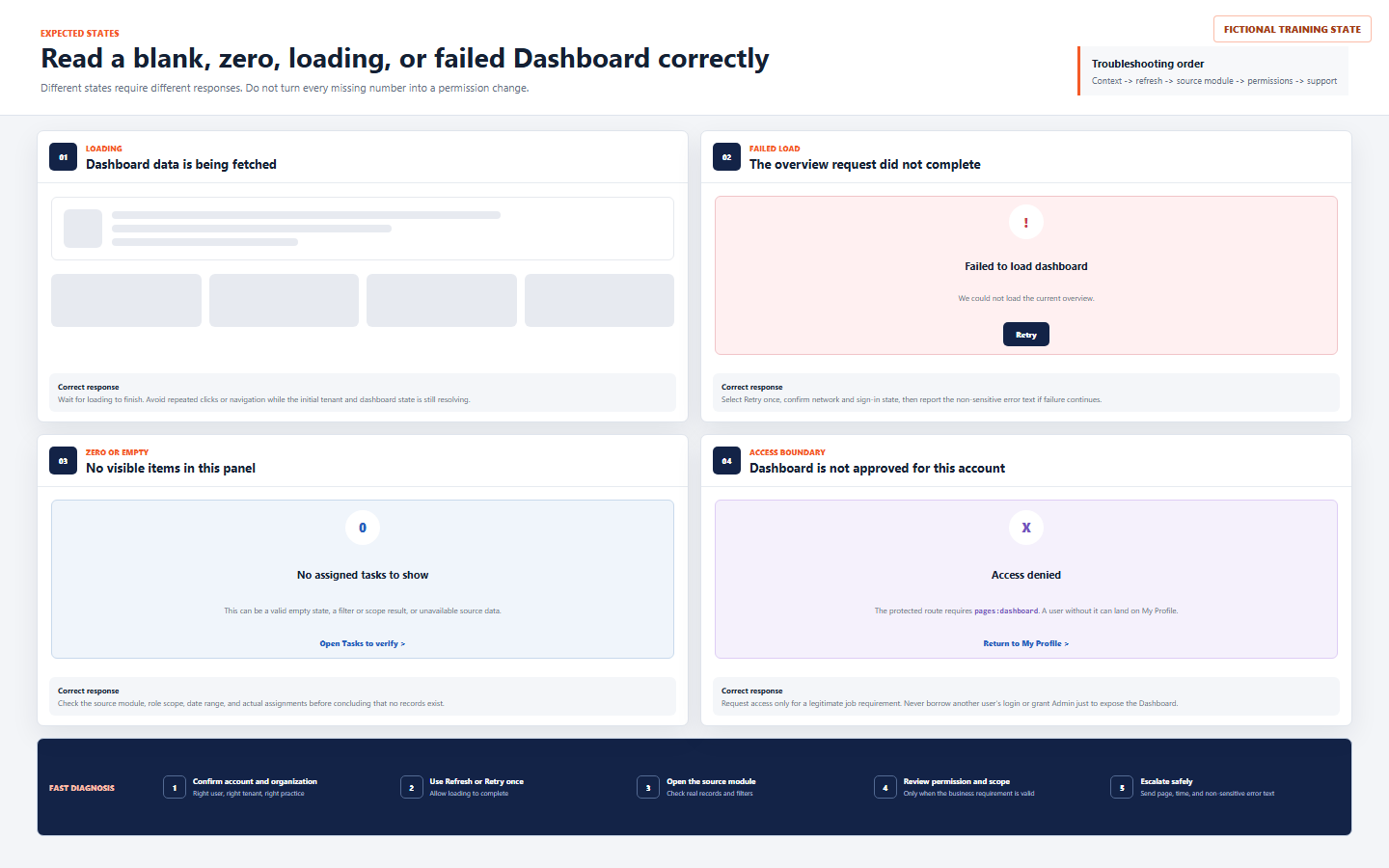
| What you see | What it can mean | Correct first response |
|---|---|---|
| Loading skeleton or Loading dashboard data | Tenant and overview requests are still resolving | Wait; avoid repeated clicks during the initial load |
| Failed to load dashboard | The overview request threw an error | Select Retry once, confirm network and sign-in, then capture non-sensitive error text |
| Zero count | No records, unavailable source rows, incompatible status values, missing overview fields, or current scope | Open the source module and confirm filters, records, status, date, and permissions |
| Empty activity or tasks | No authorized recent items, no assignments, or an unavailable source | Check the relevant source and assignment; do not assume organization-wide emptiness |
| Shortcut missing | Page permission or portal rule does not include the destination | Confirm the legitimate work requirement and exact access |
| Access denied | The Dashboard route permission is unavailable | Return to My Profile or an available page; request least privilege only when needed |
18 / Data confidence
Understand refresh, aggregation, scope, and source of truth
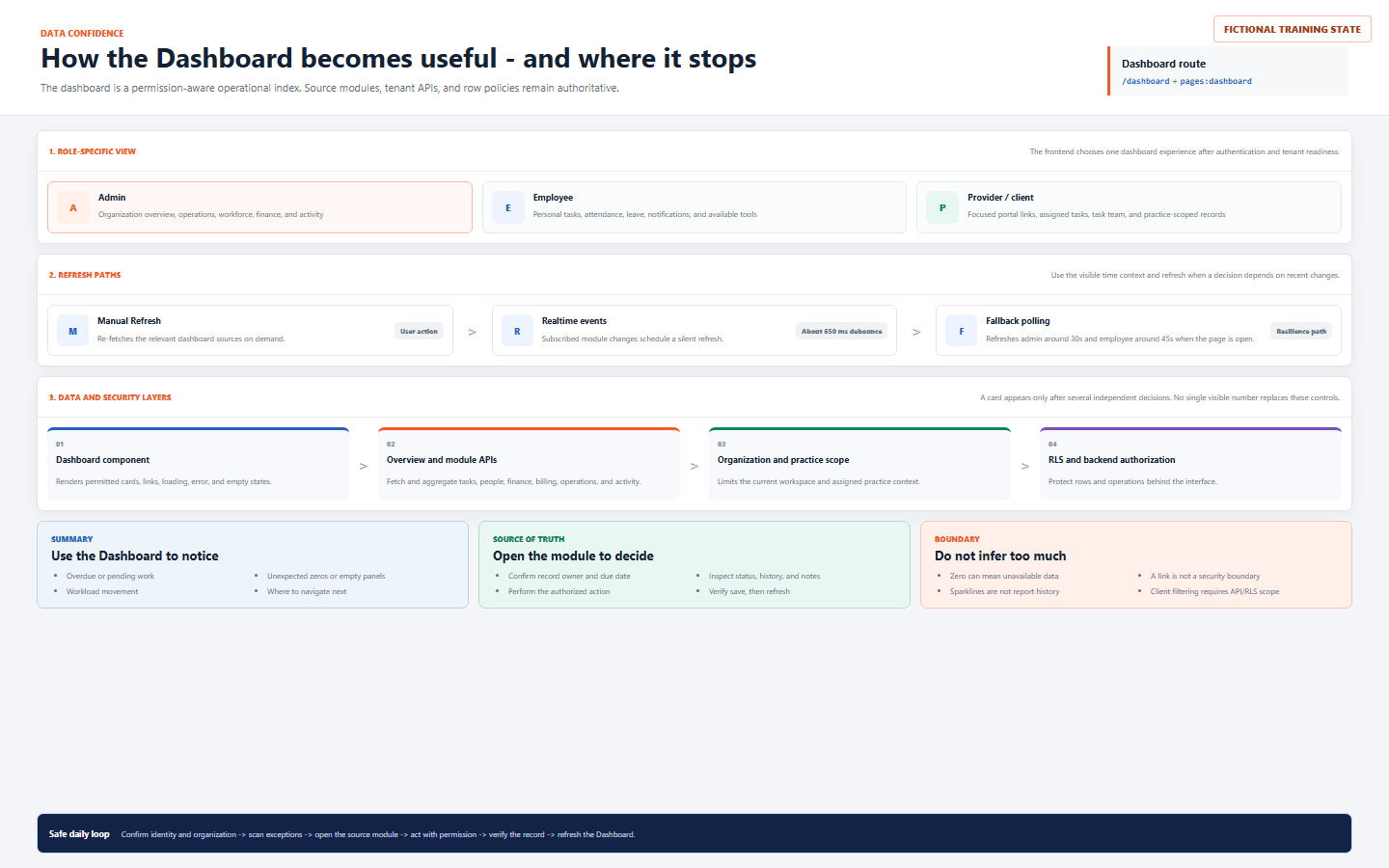
Use the Dashboard to
- Notice exceptions and workload movement.
- Choose the next authorized module.
- Compare current summaries within the same organization and period.
- Verify that a completed action is reflected after refresh.
- Detect unexpected zeros, missing links, or cross-scope concerns that need investigation.
Do not use the Dashboard to
- Replace the underlying record, report, audit trail, or approval.
- Treat a mini sparkline as verified historical data.
- Assume zero always means no records exist.
- Assume a visible link proves backend authorization.
- Rely on client-side filtering for tenant or practice isolation.
Some administrator sources are deliberately tolerant: an unavailable table can return an empty contribution so one module does not necessarily crash the entire overview. This improves resilience, but it means an unexpected zero should be checked against the source and system health.
For formal management decisions and verified historical trends, continue with the relevant source module and Reports, KPIs, and management dashboards.
19 / Daily workflow
Follow a safe Dashboard command-center loop
- Sign in with your own account.Complete any required password change and confirm the account is active.
- Confirm organization and practice.Stop if the tenant context is unexpected.
- Confirm the date and role view.Know whether you are reading admin, employee, or portal summaries.
- Allow loading to complete.Use Refresh only when data freshness matters or the page has been open during changes.
- Scan exceptions first.Prioritize overdue, open, pending, unread, errors, and needs-review conditions.
- Select one summary or quick action.Navigate to the source module that owns the work.
- Verify the source record.Check scope, identity, owner, status, due date, amount, history, and attachments as relevant.
- Complete the permitted action.Do not broaden access or use another account as a shortcut.
- Confirm the save.Read the resulting status and record history before leaving.
- Return and refresh.Confirm the Dashboard reflects the expected change or document the remaining discrepancy.
20 / Troubleshoot
Troubleshoot without guessing or bypassing controls
| Problem | Likely reason | Correct response |
|---|---|---|
| Dashboard is not in navigation | pages:dashboard is not approved or the current role/navigation rule does not include it |
Use My Profile or another available page; request only legitimate least-privilege access |
| Direct URL shows Access denied | The protected route rejected the page permission | Return safely; do not guess routes, edit browser storage, or borrow an account |
| Page remains loading | Tenant context, authentication, network, or an overview request has not resolved | Wait briefly, check network, refresh the page once, and report non-sensitive timing and error details |
| Failed to load dashboard | The overview request failed instead of returning a resilient empty source | Select Retry once; verify sign-in and network; report error text without patient or credential data |
| One card shows zero unexpectedly | No rows, wrong period or status, source unavailable, overview field absent, or insufficient scope | Open the source module and verify records, filters, status, organization, practice, and permissions |
| Number changed but no one edited the page | Realtime event, fallback polling, another authorized user, or source update refreshed the summary | Open the record history and activity source before deciding what happened |
| Card opens a page but an action fails | Page permission passed but action permission, backend authorization, ownership, scope, or RLS rejected the operation | Investigate that specific action and record; do not grant full Admin |
| Employee activity does not match live work | The current employee panel uses configured examples | Use Tasks, Attendance, Leaves, Messages, and Notifications as the current source |
| Provider shortcut is missing | The exact portal page permission is unavailable | Confirm the approved responsibility and update access through the administrator workflow if justified |
| Provider task is missing | It is not assigned to the current portal identity, not in permitted scope, or the backend did not return it | Confirm assignment, organization, practice, API policy, and RLS without broadening the client query |
| Another tenant or practice appears | Potential organization, practice, API, RLS, cache, search, or AI isolation failure | Stop, avoid opening more data, sign out, and report as a security incident immediately |
| Sparkline conflicts with Reports | The mini sparkline is component display context, not verified history | Use Reports and source records for historical comparison |
When escalation is required, send the page name, account role, organization or practice name, approximate time, expected result, actual non-sensitive text, and steps already tried to support@xpand.dental. Never send a password, token, patient record, payer document, unredacted screenshot, or another person’s login.
21 / Verify
Verify that the Dashboard command center is understood
Practical verification
- I can explain why the Dashboard is an operational index and not the final record.
- I can confirm my account, organization, practice, role-specific view, date, and time period.
- I know that
pages:dashboardprotects the Dashboard route. - I can explain the admin, employee, and provider or client portal differences.
- I know when to use Refresh and what realtime and fallback refresh can and cannot do.
- I can open the source for employee, task, expense, revenue, operations, billing, or workspace summaries.
- I can use a quick action without assuming it grants every operation.
- I can prioritize overdue work by opening and reviewing the task rather than acting from a count.
- I know that the employee Recent Activity panel currently contains configured examples.
- I understand that portal link or task filtering does not replace backend and RLS isolation.
- I can distinguish loading, failed, empty, zero, missing-link, and unauthorized states.
- I know that mini sparklines are not verified historical reports.
- I can complete the daily loop: context, scan, source, action, save, refresh, verify.
- I know how to report a cross-tenant or cross-practice concern immediately and safely.
Open the configured DentalXpand application and complete verification with your own authorized account and fictional or non-sensitive demonstration data.
Related lessons
Need workflow support?