
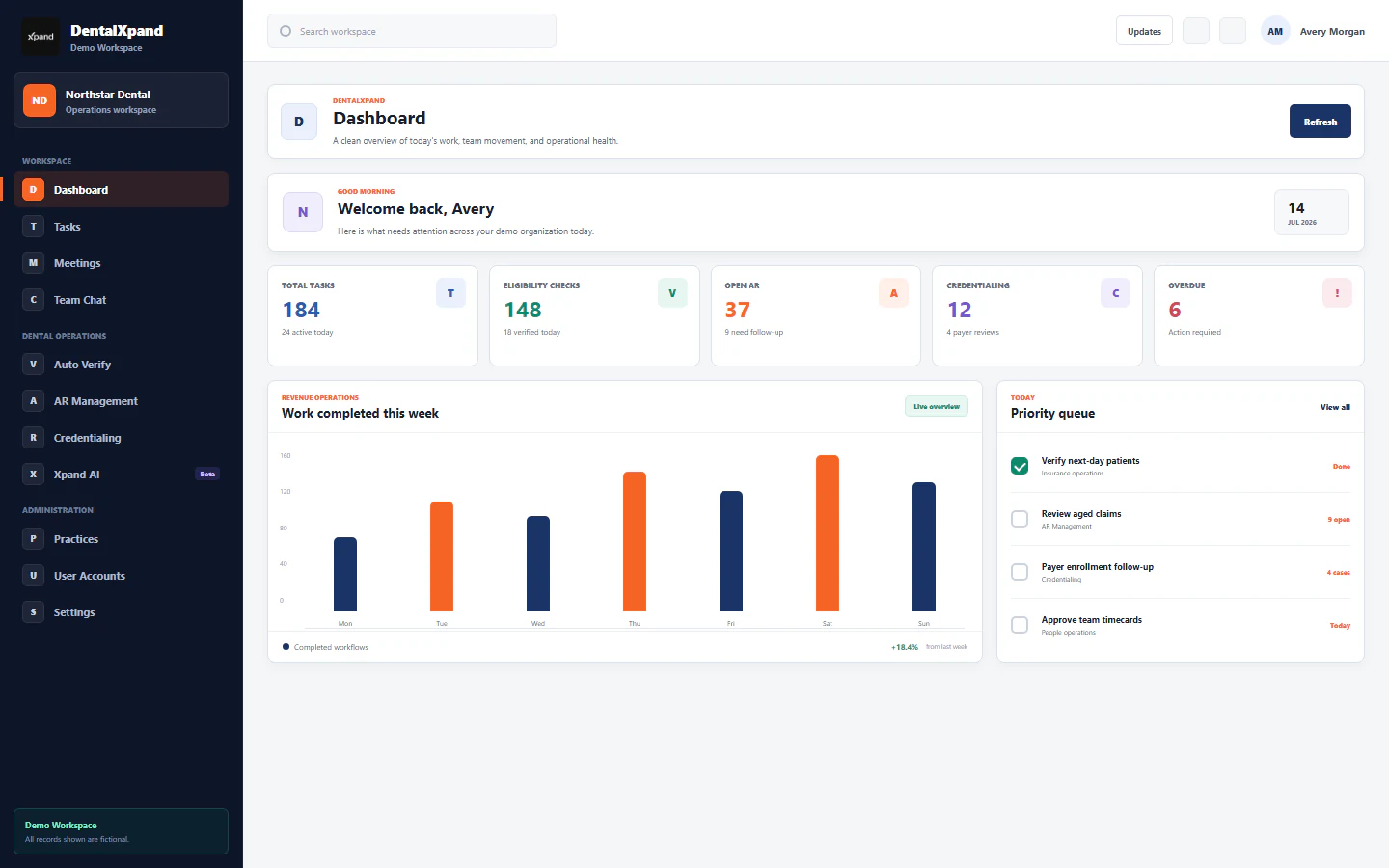
Manage notifications, reminders, and push alerts
Use the personal notification center, search and view controls, read states, reminder overlays, browser permissions, Web Push conditions, privileged broadcasts, and tenant-safe incident handling.
DentalXpand Notifications is a personal operational inbox. It helps an authorized user notice current work, meeting context, messages, updates, and reminders, then open the owning workflow. A notification, unread badge, overlay, browser banner, desktop prompt, link, or Web Push payload is not the authoritative task, meeting, patient, provider, client, finance, HR, credentialing, compliance, or security record. Always verify the current source workflow before acting.
1 / Purpose
Understand the personal notification center
The current Notifications screen retrieves notification records for the signed-in user, orders them newest first, and requests the current latest set. It is an operational attention surface, not a complete historical archive or evidence that all past events remain available.
Unread count and sidebar badges help prioritize attention. An unread alert is not an emergency classification, a source-record change, or proof that the user must have access to every related record.
Some alerts contain a route. Selecting an alert can mark it read and open that route, where the current account, role, organization, practice, and page permissions must still control access.
The same underlying operational context can appear in the inbox, an in-app overlay, a browser or Electron desktop notification, or a supported Web Push prompt. Delivery does not grant additional authorization.
Open the app’s current Notifications screen after you sign in. Read Use the Dashboard command center first if you need help locating day-to-day work.
2 / Access and privacy
Confirm identity, scope, and safe alert content before using an alert
| Check | Confirm before acting | Why it matters |
|---|---|---|
| Identity | Use your own active DentalXpand account and current session. | A shared browser, another person’s desktop profile, copied link, cached push banner, screenshot, or notification title is not permission to see or act on a record. |
| Organization and practice | Confirm the expected DentalXpand tenant, organization, practice, and operating context. | Alerts must not bridge Guardian Connect and DentalXpand or expose data from an unrelated organization, practice, provider, client, patient, or employee. |
| Screen privacy | Use an appropriate private device and consider lock-screen visibility before allowing browser or desktop notifications. | Notification text can be exposed to someone near a shared screen or device even when the full application remains protected. |
| Source record | Open the current linked task, meeting, message, or owning workflow before making a decision. | Alerts can be read, dismissed, delayed, duplicated, stale, retained, deleted, or superseded while the source record continues to change. |
| Role and policy | Confirm the action and data are appropriate for your role and current assignment. | Visible client code, a badge, an alert card, or a route in a notification does not override backend authorization, row-level policy, storage policy, or tenant controls. |
Review roles, permissions, and access boundaries and organization and practice context before troubleshooting an unexpected alert.
3 / Command center
Read the notification command center and linked routes
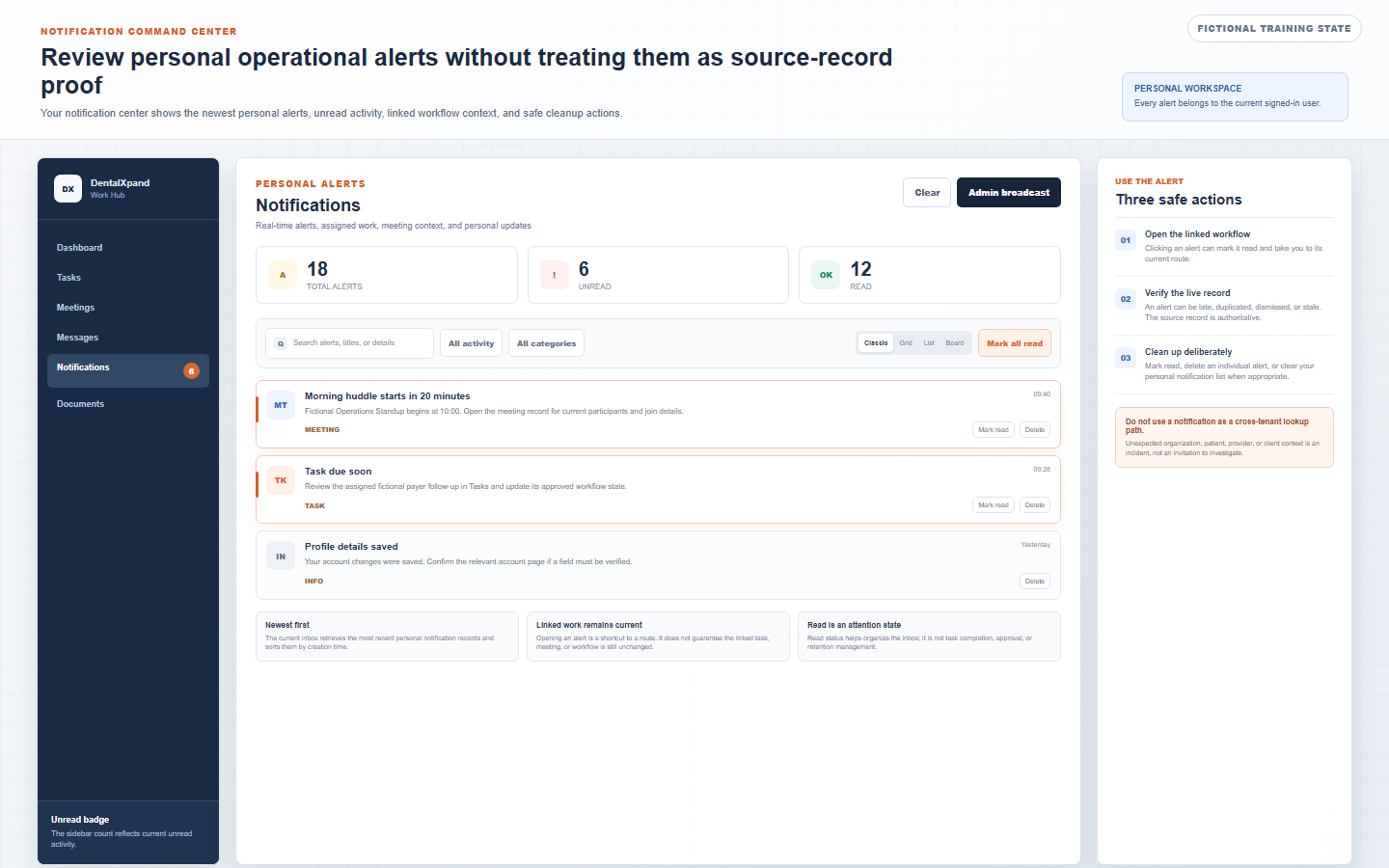
- Open Notifications from the sidebar, header, dashboard, or the current personal route.The primary screen summarizes total, unread, and read items. Navigation badges are attention cues, not records of completion.
- Read the title, detail, type, and time without assuming the alert is still current.Note the work area it refers to, then open the route or use the owning workflow directly.
- Select a legitimate alert to follow its link.The current page marks an unread alert read before navigating when a link is present. The destination must still enforce the current user’s access.
- Verify the source record.For a task, confirm assigned owner, status, priority, steps, comments, and due date. For a meeting, confirm participant, status, time, join state, and current details.
- Return to the inbox to manage attention deliberately.Do not leave operational decisions only in a notification title or rely on a badge as proof that the underlying record has been reviewed.
4 / Search, filters, and views
Search, filter, and choose a view that makes work easy to scan
| Current control | How to use it | Correct interpretation |
|---|---|---|
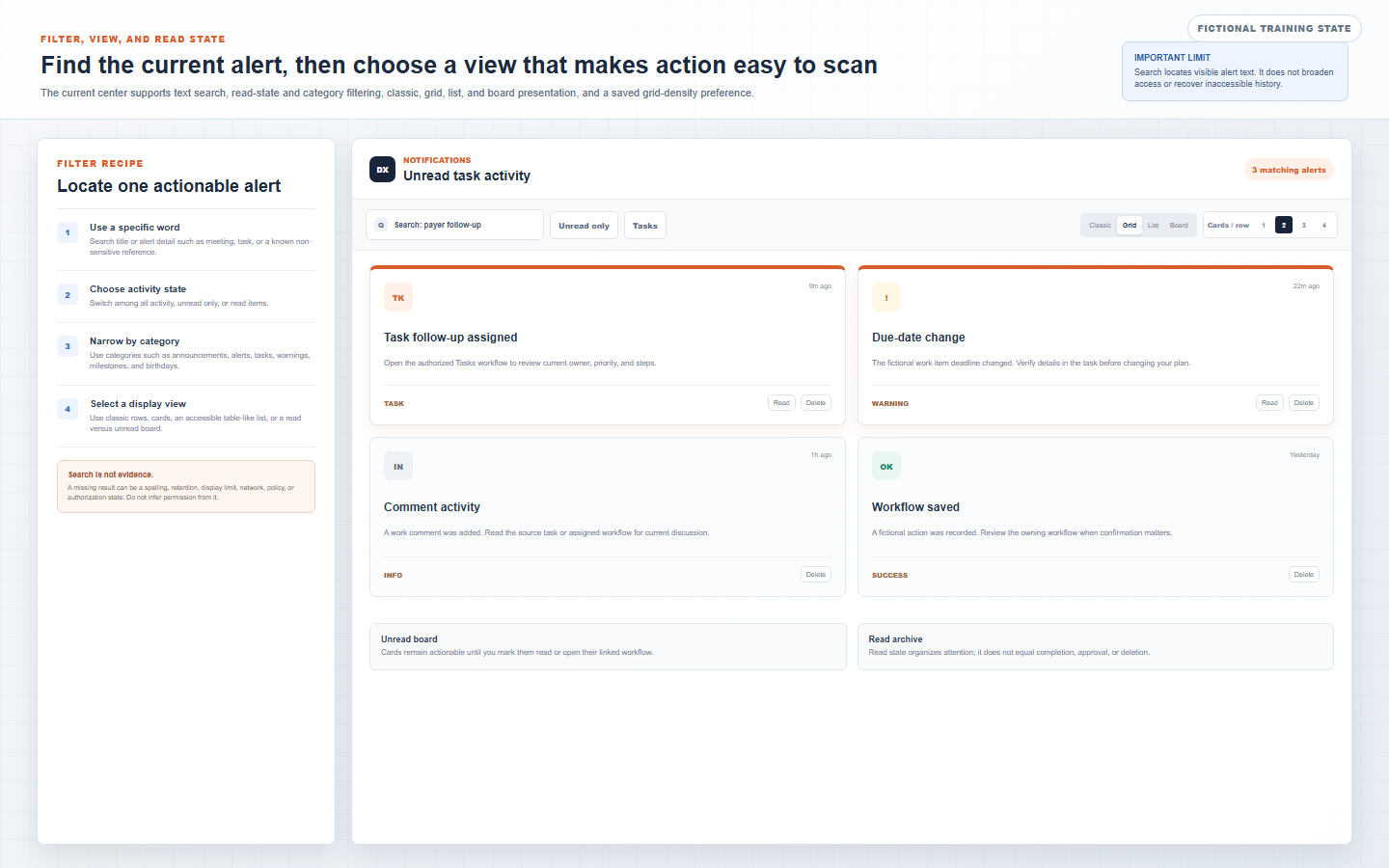
| Text search | Search current notification title and message text with a known, non-sensitive term. | Search is a navigation aid. A missing result may reflect spelling, limits, filters, connectivity, deletion, retention, policy, or authorization; it does not prove that data should be exposed. |
| Read-state filter | Choose all, unread, or read to focus attention. | Read means the alert state was updated. It does not mean the linked work was completed, approved, escalated, or retained correctly. |
| Category filter | The current selector includes all categories plus announcements, alerts, tasks, success, warnings, info, milestones, and birthdays. | Use all categories when the type you need is not exposed as a separate selector. A category label is not a security label or priority policy by itself. |
| Classic, grid, list, and board | Choose classic rows for quick reading, cards for scanning, list for structured comparison, or board to separate unread from read activity. | Each view presents the same personal inbox state differently. It does not change access, ownership, or source-record truth. |
| Cards per row | In grid view, choose the current card density that is comfortable for your screen. | The preference is stored locally in the browser. It is not a role setting and may not follow the user to another browser or device. |
5 / Read state and cleanup
Manage read state and cleanup deliberately
Use the available check action, or open a linked unread alert. This updates the alert’s read state to help organize the personal inbox.
Use the current global read action only when you have reviewed or intentionally triaged the relevant activity. It updates unread notifications for the current user; it does not resolve the source work.
Use individual delete only when you no longer need the inbox prompt. Deleting the alert does not delete the related task, meeting, message, person, source record, or any separate retention obligation.
The current control removes the current user’s notification records from the inbox. Treat it as consequential housekeeping, not evidence that the source work, audit need, or business retention obligation is gone.
| What you see | What it means | Correct next action |
|---|---|---|
| Unread badge remains | Some personal alerts are still unread or the display has not refreshed. | Open the inbox, check the active filters, refresh safely, and review source work. Do not assume a count means a failure or incident. |
| Read alert still matters | The alert has been acknowledged in the inbox, but the source workflow may remain open or changed. | Open the source task, meeting, or workflow and record the approved next action there. |
| Delete feedback conflicts with a reload | Network, policy, session, realtime, or save state may have differed from the local display. | Refresh the authorized inbox once, avoid repeated clicking, and report a non-sensitive description if the state continues to conflict. |
6 / Reminders
Use meeting, task, and personal reminders as prompts to open current work
| Current reminder path | Reviewed behavior | Required discipline |
|---|---|---|
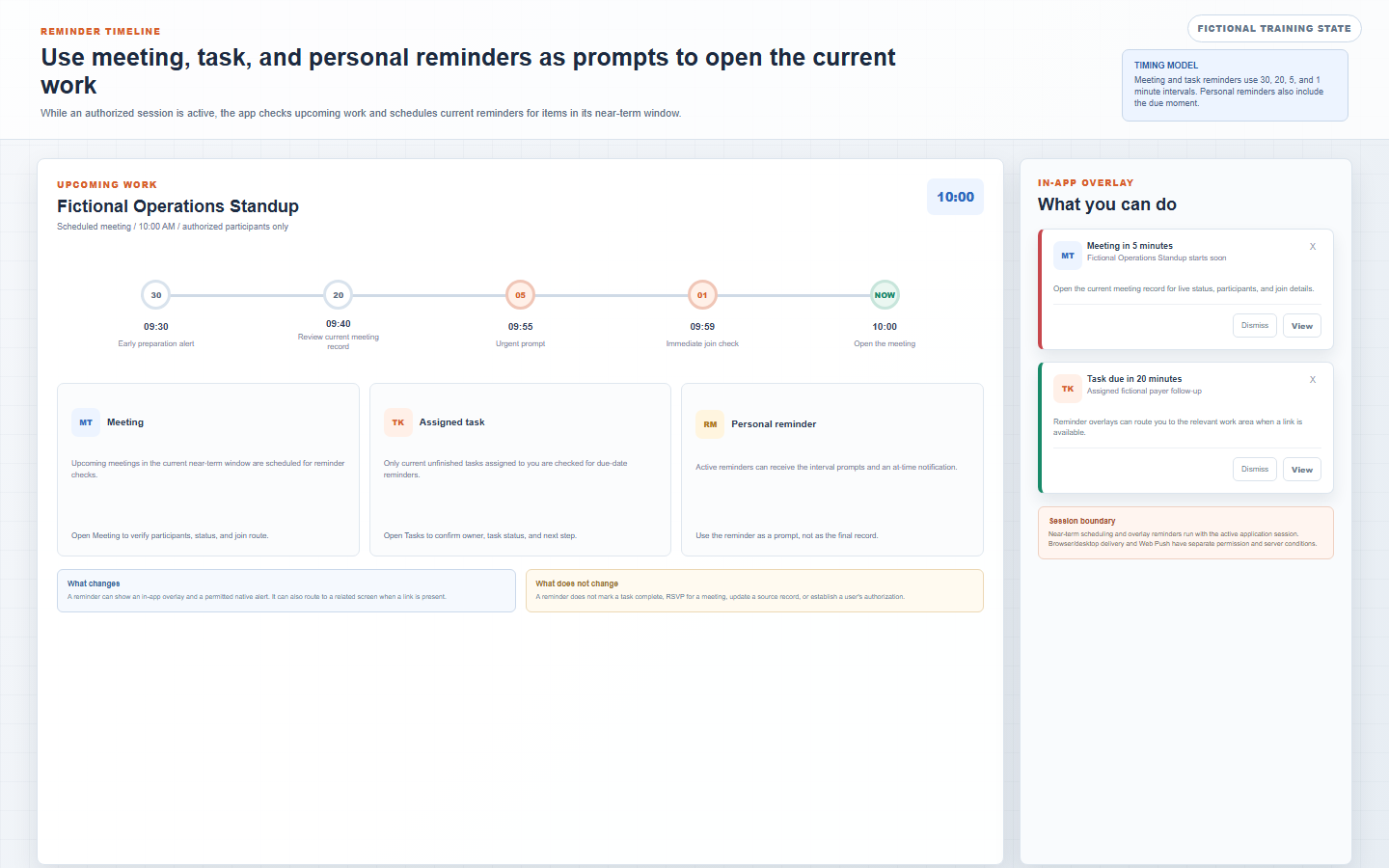
| Meeting reminders | The current client schedules future reminders at 30, 20, 5, and 1 minutes before an upcoming meeting returned in the near-term check window. | Open the current Meeting record to verify status, participants, current time, and join details. A reminder is not proof that the meeting is still scheduled or that you may join. |
| Assigned task reminders | The current client checks unfinished tasks assigned to the signed-in user with due dates in the near-term window and schedules the same 30, 20, 5, and 1 minute prompts. | Open Tasks to verify assignment, due date, status, priority, steps, and the actual next action before changing work. |
| Personal reminders | Active personal reminders in the current user’s near-term window use 30, 20, 5, and 1 minute prompts plus an at-time reminder. | Use the prompt to review the intended work. It does not create an audit record, task completion, or authorization decision. |
| Polling and re-scheduling | The app initializes the near-term check at sign-in and repeats it every minute while the authorized application session is active. | Past intervals, a closed session, sleep mode, permission blocks, connectivity, device behavior, and server conditions can affect what is seen. Do not rely on an in-app reminder as the only safeguard for critical work. |
Continue with Manage tasks, assignments, steps, and timers and Schedule and manage meetings for the source workflows that reminders commonly reference.
7 / Browser, desktop, and Web Push delivery
Understand delivery layers before relying on a device alert
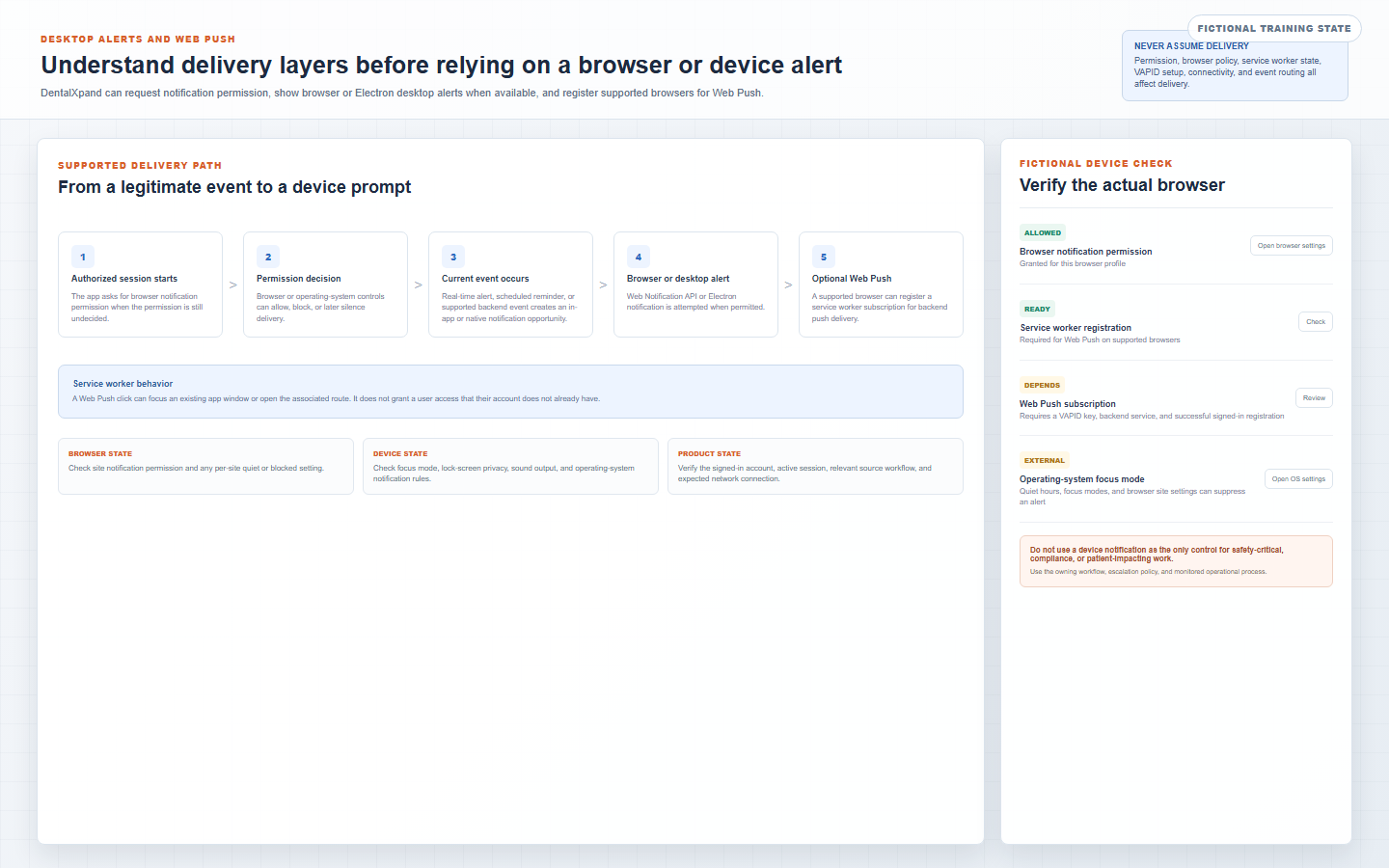
| Layer | Current behavior | What to check |
|---|---|---|
| Permission request | At an eligible logged-in session, the app asks for browser notification permission when the browser permission is still undecided. | Allow or block only on a private approved browser profile. If blocked, use your browser’s site settings rather than repeatedly retrying in the app. |
| Native notification | When permission is granted, the current service can use the Web Notification API. In the Electron desktop environment, it first attempts the Electron notification bridge. | Check browser permission, browser notification settings, operating-system focus or quiet mode, lock-screen privacy, sound, and device policy. |
| Web Push registration | A supported browser can register the service worker, retrieve the public VAPID key, create or reuse a push subscription, and send it to the authenticated backend. | Registration needs supported browser capabilities, granted permission, a working service worker, available VAPID configuration, successful signed-in API access, and backend availability. |
| Push click | The service worker can focus an existing app window or open the route included in the push data. | The route must still enforce the current account and tenant access. A push click does not authenticate a user or bypass a protected route. |
| Closed or inactive session | Web Push can support backend delivery to a subscribed browser, while in-app polling and overlays depend on the active app session. | Do not assume every reminder or alert is delivered after the app closes. The event type, backend sender, browser, permission, and current subscription all matter. |
8 / Broadcasts and preferences
Use broadcasts and saved settings only within their intended authority
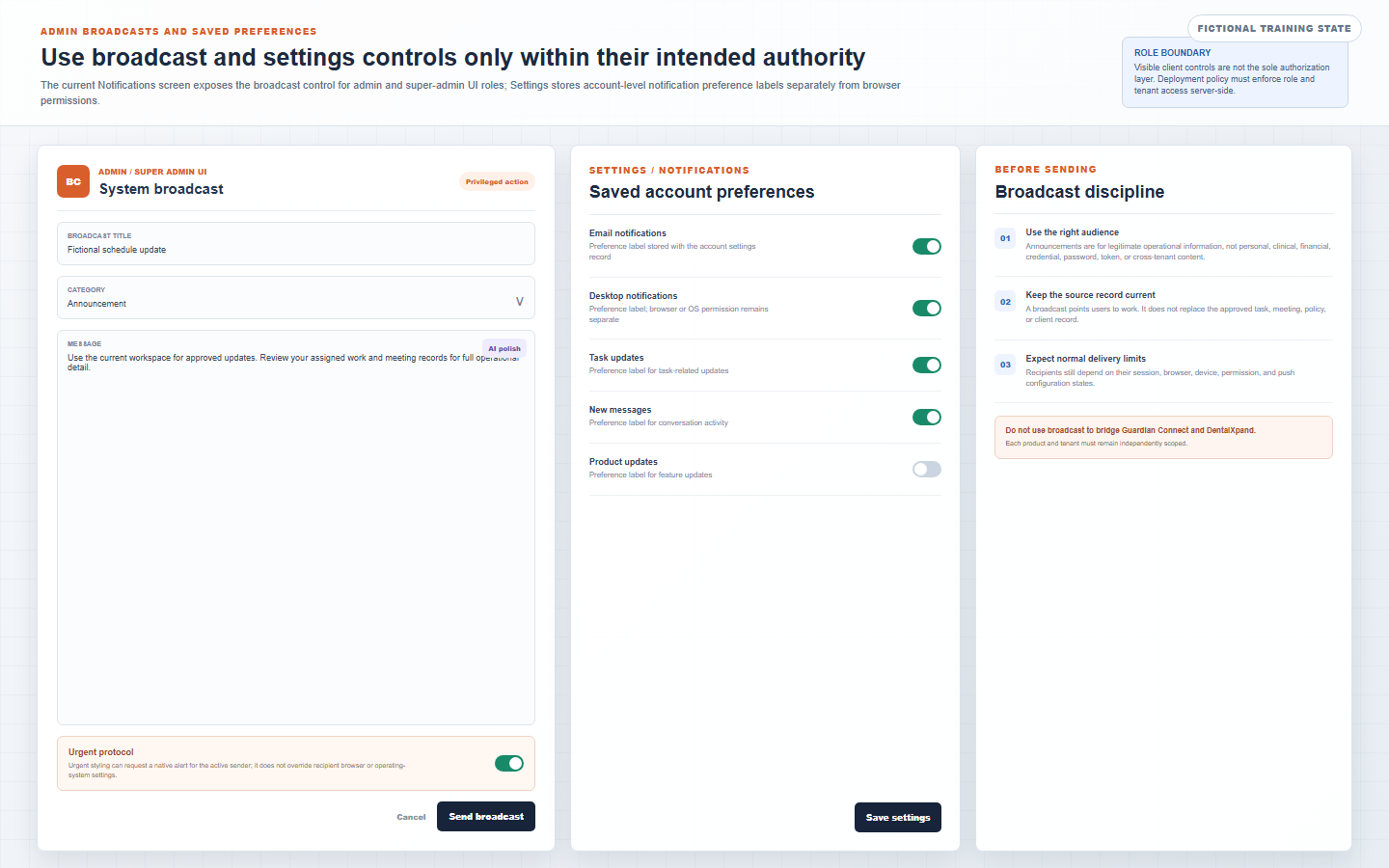
| Control | Reviewed current interface | Boundary |
|---|---|---|
| Broadcast action | The Notifications page shows the broadcast control only when the current UI identifies the user as an admin or super admin. The form accepts a title, message, category, optional urgent flag, and an AI text-polish action. | Use only for legitimate operational communication. Never paste protected records, passwords, tokens, sensitive employee or finance content, or any cross-tenant information into a broadcast. |
| Broadcast audience | The reviewed client send flow creates notification records for active user records. | In a multi-tenant deployment, server-side authorization and tenant targeting must restrict recipients to the intended organization. Do not rely on a visible role button as the security boundary or use it to communicate across Guardian Connect and DentalXpand. |
| Urgent option | Urgent selection can request a native notification for the current active sender in the reviewed flow. | It does not override a recipient’s browser permission, device focus mode, operating-system rules, session state, tenant access, or product policy. |
| Settings preferences | Settings presents saved labels for email, desktop, task, message, and product-update notification preferences. | Those saved account preferences are separate from browser and operating-system permission. Do not state that a toggle alone guarantees or suppresses every current delivery path without validating the deployed behavior. |
9 / Security and tenant boundaries
Protect tenant boundaries and report unsafe notification states
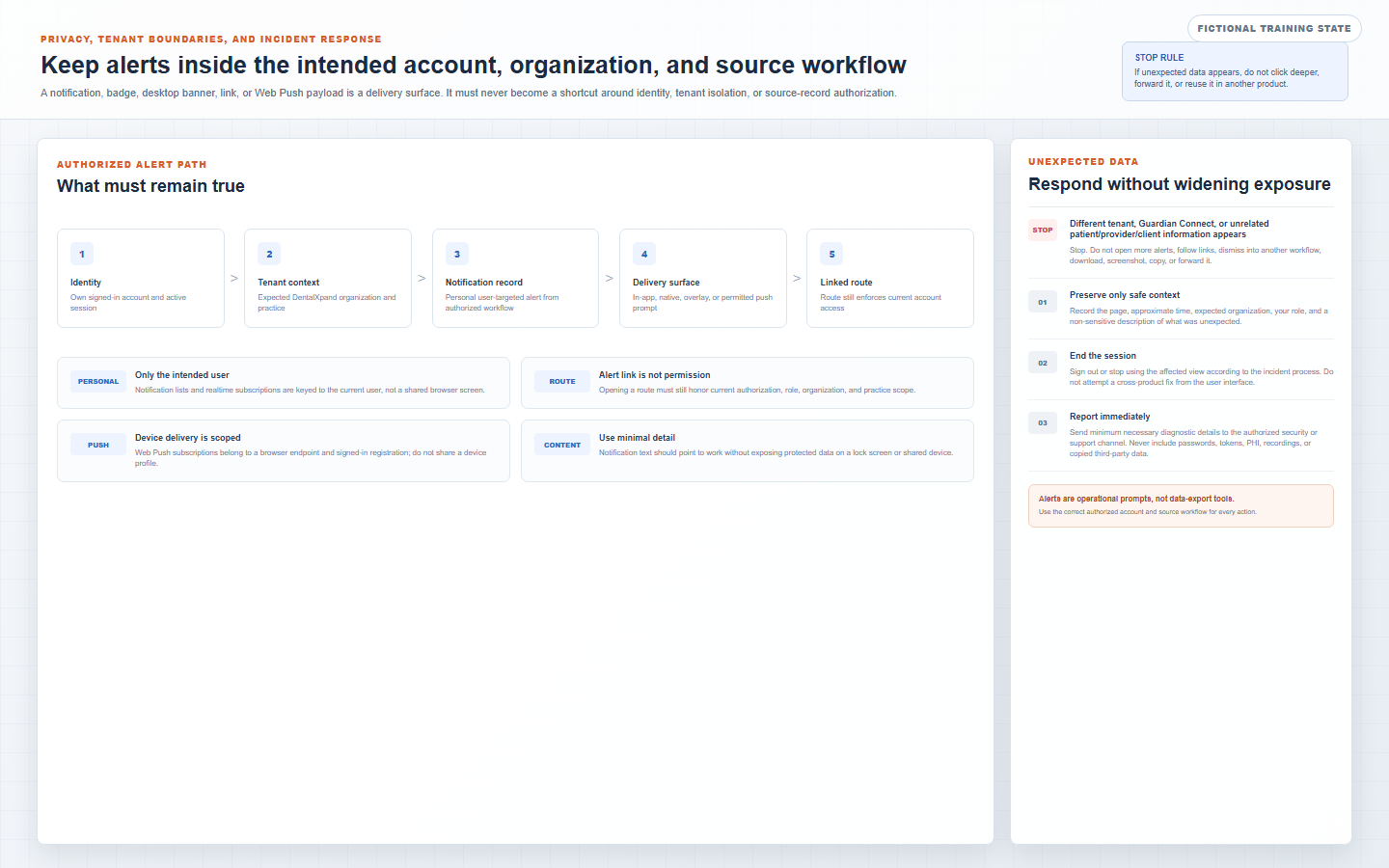
| Boundary | What must remain true |
|---|---|
| Identity | The current signed-in user performs the action with their own account and current session. Shared devices and copied browser profiles require separate care. |
| Notification ownership | The inbox and realtime delivery must be limited to the intended user’s authorized notification records. A badge, browser banner, or push endpoint must not expose another person’s alerts. |
| Tenant context | The expected DentalXpand organization, practice, provider, client, and work context remain correct. Notifications must not surface Guardian Connect or unrelated tenant data. |
| Linked route | Following an alert link must still enforce current role, page, organization, practice, record, storage, and row-level authorization. A deep link is navigation, not entitlement. |
| Push subscription | Web Push subscriptions belong to the registered browser endpoint and authenticated setup. Do not share a browser profile or use push delivery as a data-export channel. |
| Notification content | Titles and messages use minimum necessary detail and do not leak protected or cross-tenant content to a shared device, lock screen, browser history, log, screenshot, or support ticket. |
10 / Troubleshooting
Troubleshoot delivery without bypassing access or sharing sensitive data
| What you see | Likely category | Correct first response |
|---|---|---|
| No browser permission prompt | The permission may already be granted or blocked, browser policy may prevent prompts, or the app session may not be eligible. | Check the browser’s site notification settings and use an approved private profile. Do not repeatedly clear browser data or borrow another person’s profile. |
| No desktop alert | Permission, browser support, Electron state, focus mode, device settings, sound, connectivity, event timing, or session state may be involved. | Open the current Notifications screen and source workflow first. Then check browser and device settings with non-sensitive test context. |
| Reminder did not appear | The item may be outside the near-term window, already past an interval, inactive, not assigned to the current user, unavailable to the current session, or affected by permission or connectivity state. | Open the source task, meeting, or personal reminder and verify its current data. Do not assume the work is cancelled or completed because an alert was absent. |
| Push does not arrive after the app closes | Browser support, permission, service worker, VAPID, backend setup, subscription state, network, device policy, or event sender can be missing. | Verify current browser permission and supported registration status, then report the non-sensitive symptom. Do not expose VAPID keys, tokens, endpoint data, or another user’s device details. |
| Alert opens an unavailable route | The record may have changed, your role or scope may not allow the destination, the session may be stale, or a policy may deny access. | Respect the access response, refresh your own session, confirm expected organization and role, and contact the authorized administrator or support channel. |
| Unexpected tenant or Guardian Connect data appears | Potential isolation, policy, cache, notification, storage, API, push, browser, or configuration failure. | Stop immediately, avoid further exposure, end the affected session, and report only page, time, expected context, role, safe description, and steps tried. Never paste copied protected data into a ticket. |
For help with message-specific alert activity, read Use team messages, conversations, and attachments. For source documents, continue to Manage documents, files, folders, and previews.
11 / Completion
Verify that you can use Notifications safely
- I can open my own notification center and distinguish the inbox, unread badge, linked source route, in-app overlay, native browser or desktop prompt, and Web Push delivery as separate surfaces.
- I confirm my signed-in identity, expected DentalXpand organization and practice context, and safe device environment before opening or acting on an alert.
- I can search current alert title or detail, filter by read state and available category, and choose classic, grid, list, or board view without treating those controls as access controls.
- I know a click can mark an alert read and navigate, but the destination must still authorize my current account and the source record remains authoritative.
- I can mark one alert or all alerts read and use delete or clear actions without assuming they resolve source work, erase retention duties, or remove related records.
- I understand the current near-term reminder timing for meetings, assigned tasks, and personal reminders, and I know polling and overlays depend on an active authorized app session.
- I understand browser, Electron, and Web Push delivery depend on permission, browser and operating-system behavior, service worker and VAPID configuration, authenticated registration, connectivity, and the relevant event sender.
- I know the Notifications UI presents broadcasting to admin and super-admin roles and that any multi-tenant broadcast must have server-side tenant-aware recipient controls.
- I know saved notification preference labels are different from browser and operating-system permission and do not guarantee delivery behavior by themselves.
- I will stop, avoid further access, and report immediately if another tenant, Guardian Connect, patient, provider, client, practice, employee, or unrelated information appears.
Need help with an expected notification issue? Contact support@xpand.dental with minimum necessary, non-sensitive context: page, approximate time, expected organization, role, current browser or desktop environment, what you expected, safe error text, and steps already tried.
Need workflow support?