
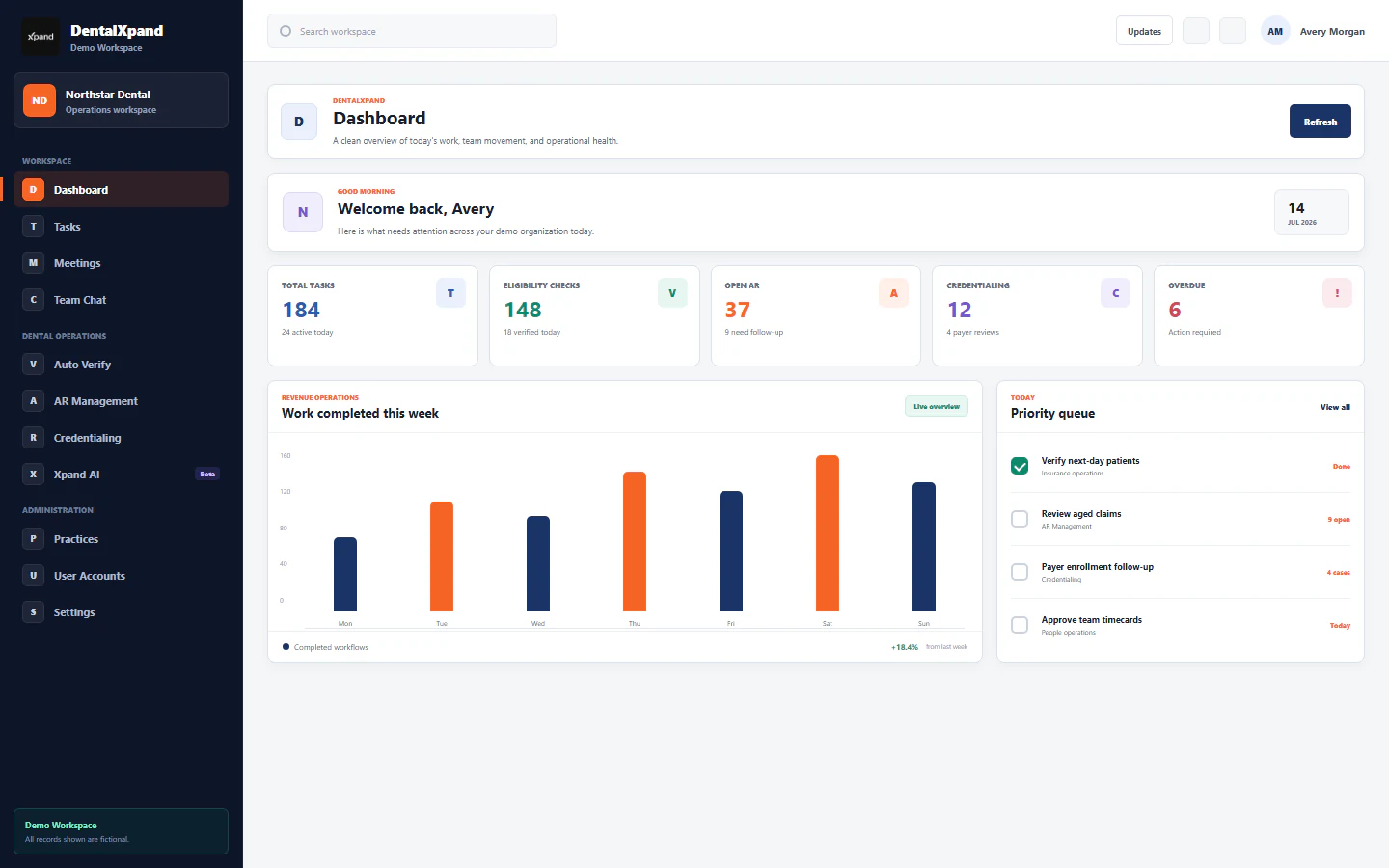
Manage documents, files, folders, and previews
Use the authorized Documents library, search and type filters, grid and list views, administrator uploads, in-app previews, signed file links, file actions, storage scope, and tenant-safe incident handling.
DentalXpand Documents is an authorized operational library. It presents file records that the current signed-in account may retrieve, lets permitted users search and preview visible records, and exposes upload, download, and deletion controls only to administrator roles in the current page UI. A card, filename, signed link, preview, storage path, or browser download is never permission by itself. Confirm your own account, active organization and practice context, role, source workflow, and retention need before taking action.
1 / Purpose
Understand the Documents library before treating it as a source of truth
The current screen reads file records from the Documents API, orders visible records by newest creation time, and creates temporary signed access URLs when an authorized storage object can be resolved. A displayed card is a current library entry, not proof that the file is the latest business record.
Uploads write the binary object to the files storage bucket and save a corresponding database record with its name, path, folder label, uploader, size, and MIME type. Both the object and record must remain within authorized policy.
View opens the supplied current file URL in the in-app document viewer. It is a convenience surface for authorized review, not a public publication, permanent copy, or entitlement to download.
Tasks, client instructions, agreements, credentialing, financial records, and other authorized workflows remain the source of current operational truth. A stored file can be superseded, revoked, retained, or linked elsewhere.
Open the application Documents screen after signing in. Review roles, permissions, and access boundaries first if Documents is not visible in your sidebar.
2 / Access and safe context
Confirm identity, scope, and file purpose before opening or changing a record
| Check | Confirm before action | Why it matters |
|---|---|---|
| Identity | Use your own active DentalXpand account and current session. | A shared browser, copied signed link, download folder, screenshot, cache, or another person’s desktop profile is not permission to open or act on a file. |
| Organization and practice | Confirm the expected DentalXpand tenant, organization, practice, and work context. | Tenant-aware paths and policy must prevent a file belonging to another organization, practice, provider, client, employee, or Guardian Connect workspace from appearing here. |
| Role and action | Confirm whether you may only view, or may upload, download, or delete. | The reviewed Documents UI renders upload, download, and delete controls only for admin or super-admin roles. Backend, row-level, and Storage policy still need to enforce every action. |
| Source and retention | Identify the owning workflow, file status, retention need, and whether a newer approved version exists. | A file library action can affect a current client instruction, evidence, agreement, report, workflow attachment, or another required record without updating those records automatically. |
| Device and local copies | Use an approved private device and controlled local storage when a download is authorized. | Preview and signed access remain protected surfaces, while a downloaded copy can be exposed through local folders, browser history, shared profiles, backups, or forwarding. |
Review organization and practice context whenever the expected workspace is unclear.
3 / Library
Read the document command center and distinguish available controls
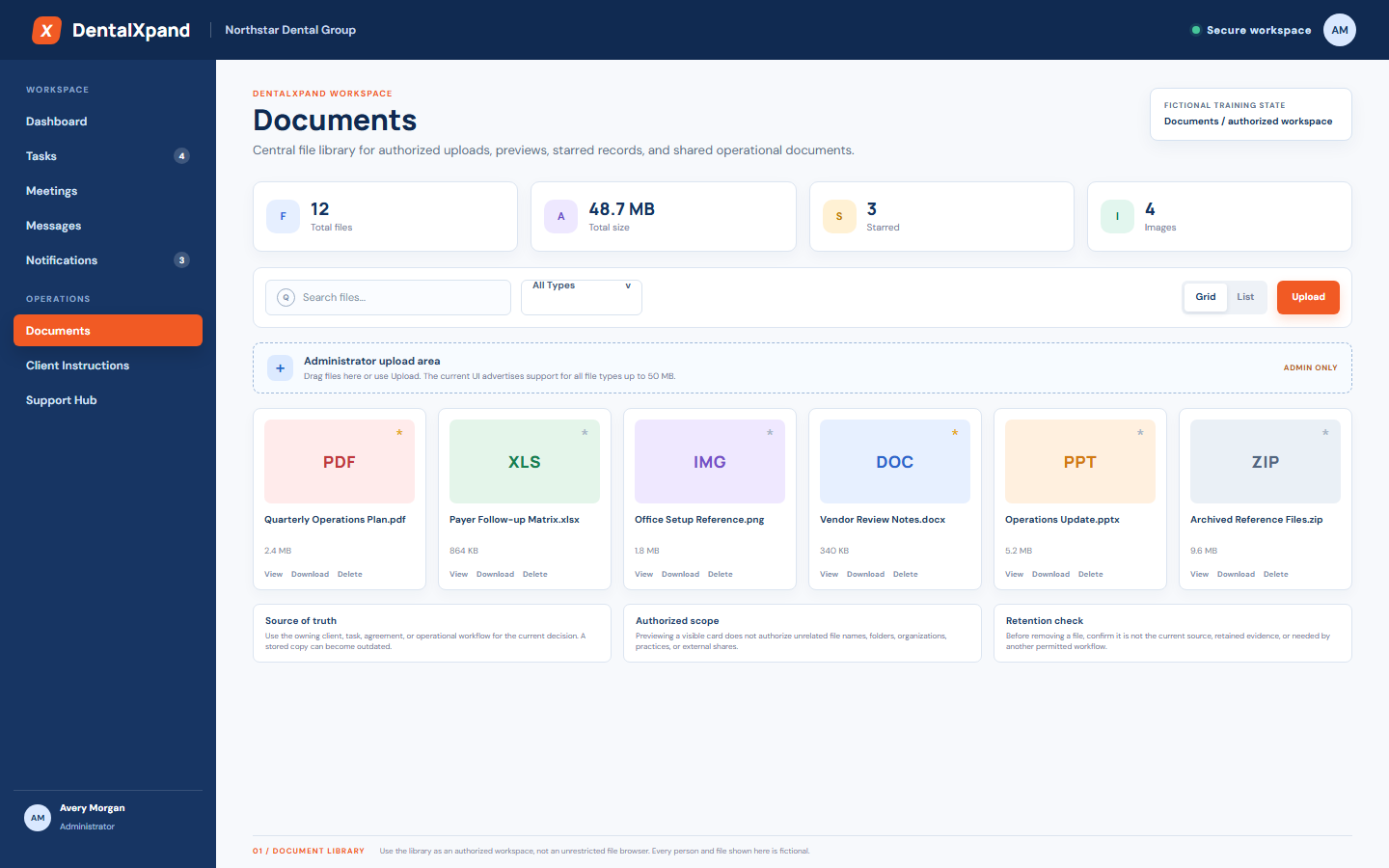
- Open Documents from the permitted sidebar or direct authorized route.If the page is unavailable, respect the access result. Do not use a copied URL, another person’s account, or a browser cache to bypass page permission.
- Read the total, size, starred, and image summaries as display indicators.They reflect the currently loaded library state and do not prove a full legal, audit, retention, or organization-wide inventory.
- Identify the file type and current filename.The page categorizes images, documents, spreadsheets, presentations, videos, audio, archives, code, and other files from extensions. A type icon does not validate content, safety, authorization, or accuracy.
- Use View for a file you are legitimately allowed to review.Check title, date, source workflow, and expected context once the viewer opens. Do not rely on a stale card or local browser cache.
- Use administrator actions only when appropriate.Upload, download, and deletion have different operational and retention effects. Do not infer authority merely because another user can see a card.
4 / Search, filters, views, and stars
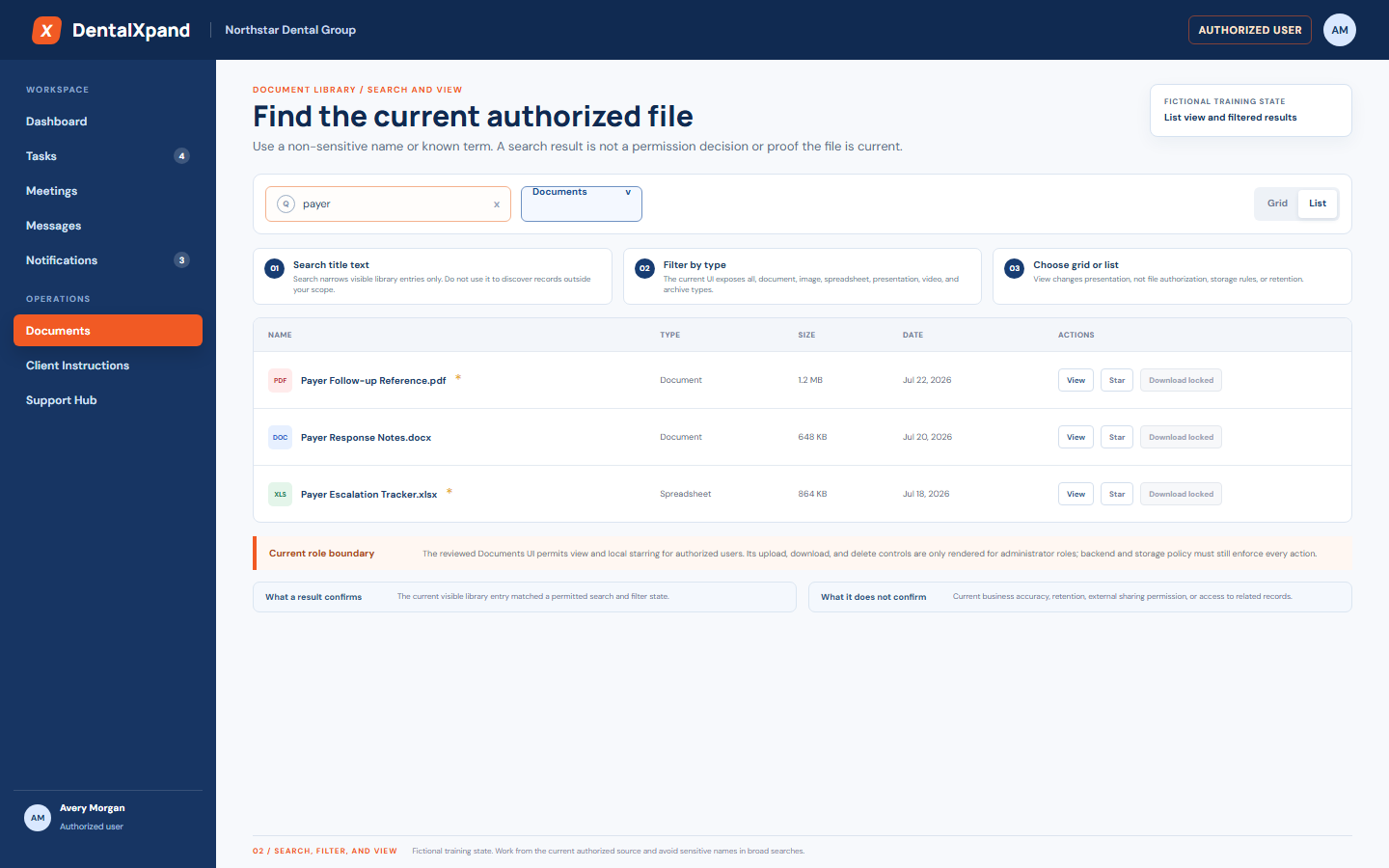
Find an authorized record without turning search into data discovery
| Current control | How to use it | Correct interpretation |
|---|---|---|
| Text search | Search the current visible filename with a known, non-sensitive term. | A result is not proof that you may open related records, download the file, or see a complete history. A missing result may reflect scope, query failure, spelling, deleted data, active filters, or policy. |
| Type filter | Choose all, document, image, spreadsheet, presentation, video, or archive from the current page selector. | Type derives from the filename extension in the current UI. It is not a malware scan, content classification, confidentiality label, or retention class. |
| Grid and list | Choose grid for visual scanning or list for structured comparison of name, type, size, date, and actions. | View mode changes presentation only. It does not change file availability, tenant scope, role, Storage policy, or source-of-truth status. |
| Star | Use the star to mark a visible item as helpful in the current page display. | The reviewed Documents page changes star state in its local React state and does not send a persistence request. Treat it as temporary personal visual assistance, not a shared, audited, or durable flag. |
| List actions | Use View for permitted review; administrators may see Download and Delete. | Client visibility is not sufficient authorization. The current record, account, organization, practice, database policy, and Storage policy must all allow the action. |
5 / Administrator upload
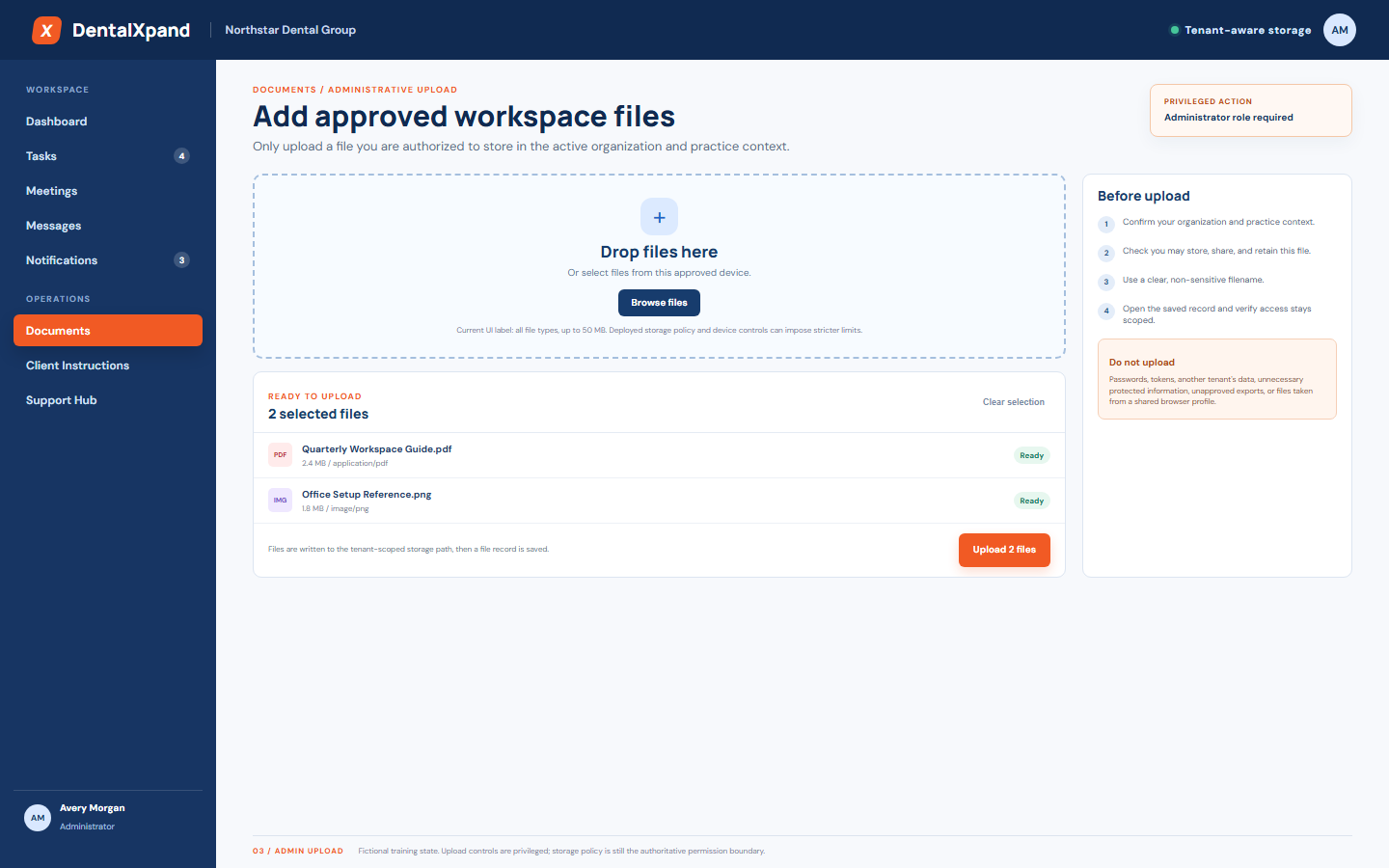
Upload approved files only after confirming purpose, scope, and retention
| Step | Reviewed behavior | Required discipline |
|---|---|---|
| 1. Confirm role and tenant | The page checks whether the current role is admin or super_admin before it starts upload, drop, download, or delete behavior. |
Use your own authorized administrator account in the expected organization and practice. A button or local role value is not a substitute for server and Storage policy. |
| 2. Select or drop files | The current UI accepts multiple files through the file picker and drag-and-drop zone. Its visible label says all file types up to 50 MB. | Treat the label as interface guidance. Bucket limits, browser/device rules, MIME handling, transport, storage policy, and deployment settings can impose different limits or reject a file. |
| 3. Build the storage path | The file API creates a documents/timestamp_filename relative path and uses tenant-aware path construction when current organization and practice context are available. |
Do not forge, paste, or reuse another organization or practice path. The path helper rejects cross-organization and cross-practice path attempts when tenancy context is present. |
| 4. Store object and record | The current API uploads to the files bucket, then saves a file record containing path, storage reference, folder, uploader, size, and MIME type. |
After upload, verify the expected current record through an authorized view. Do not share raw object references, signed URLs, browser logs, or an unapproved local copy. |
6 / Preview
Preview a current signed file while treating the viewer as an authorized surface
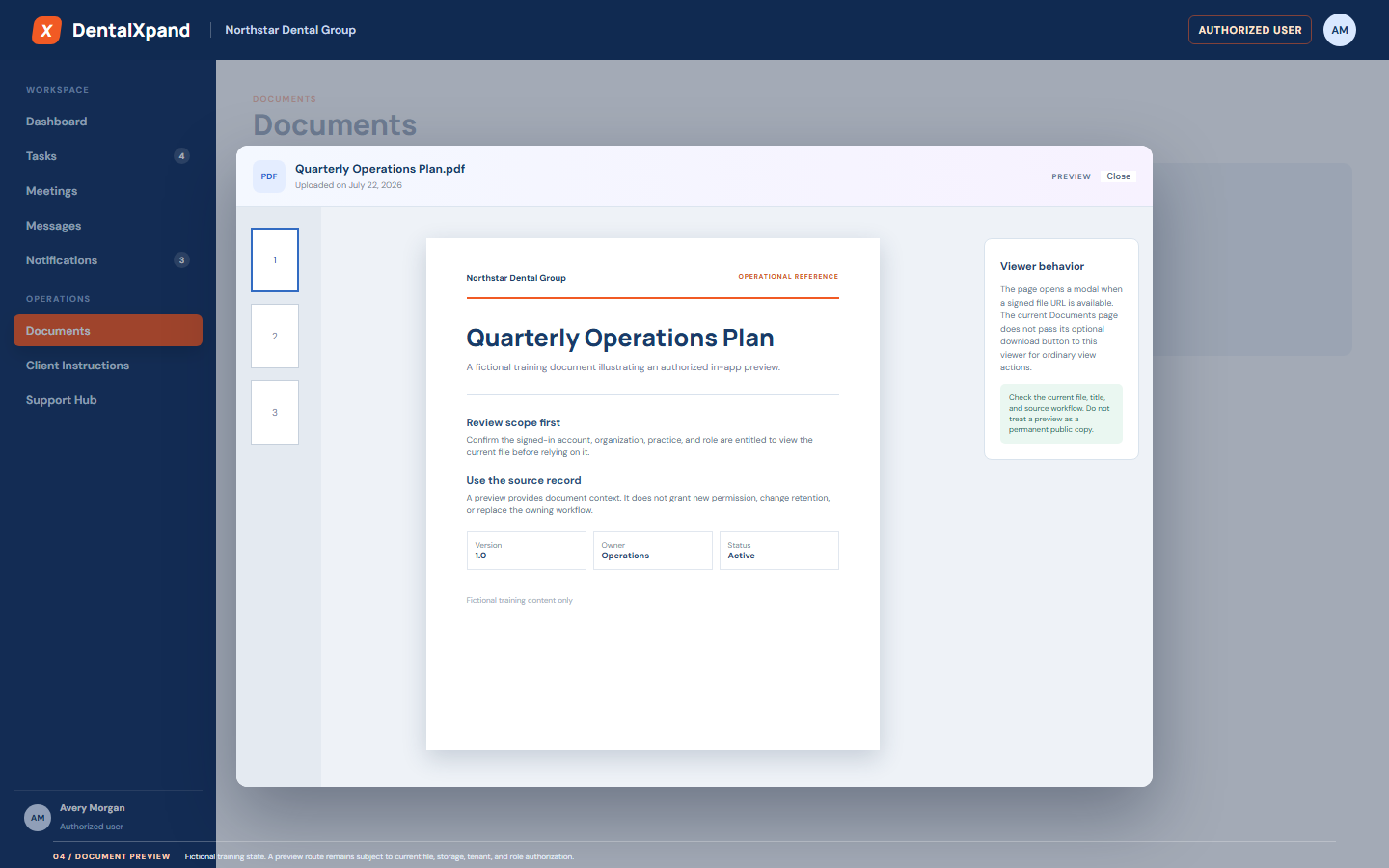
When the selected record has a downloadUrl or url, the page opens its document viewer with the title and upload date. If no URL is available, the page reports that the file URL is unavailable.
The viewer uses the supplied URL in an iframe and adds reduced-toolbar parameters for ordinary URLs. Google Drive-like URLs receive a Drive preview route. Browser support, file format, URL policy, expiration, and source availability can affect rendering.
The reusable viewer can render an optional download button, but the current Documents page opens it without that option. Do not assume preview alone creates a download entitlement.
The file API requests signed Storage URLs for listed entries. The helper defaults to one-hour expiration. Never treat a signed URL as a public permanent identifier or forward it to another person, browser profile, tenant, or product.
7 / Download, deletion, and retention
Use file actions deliberately and verify the result after a consequential change
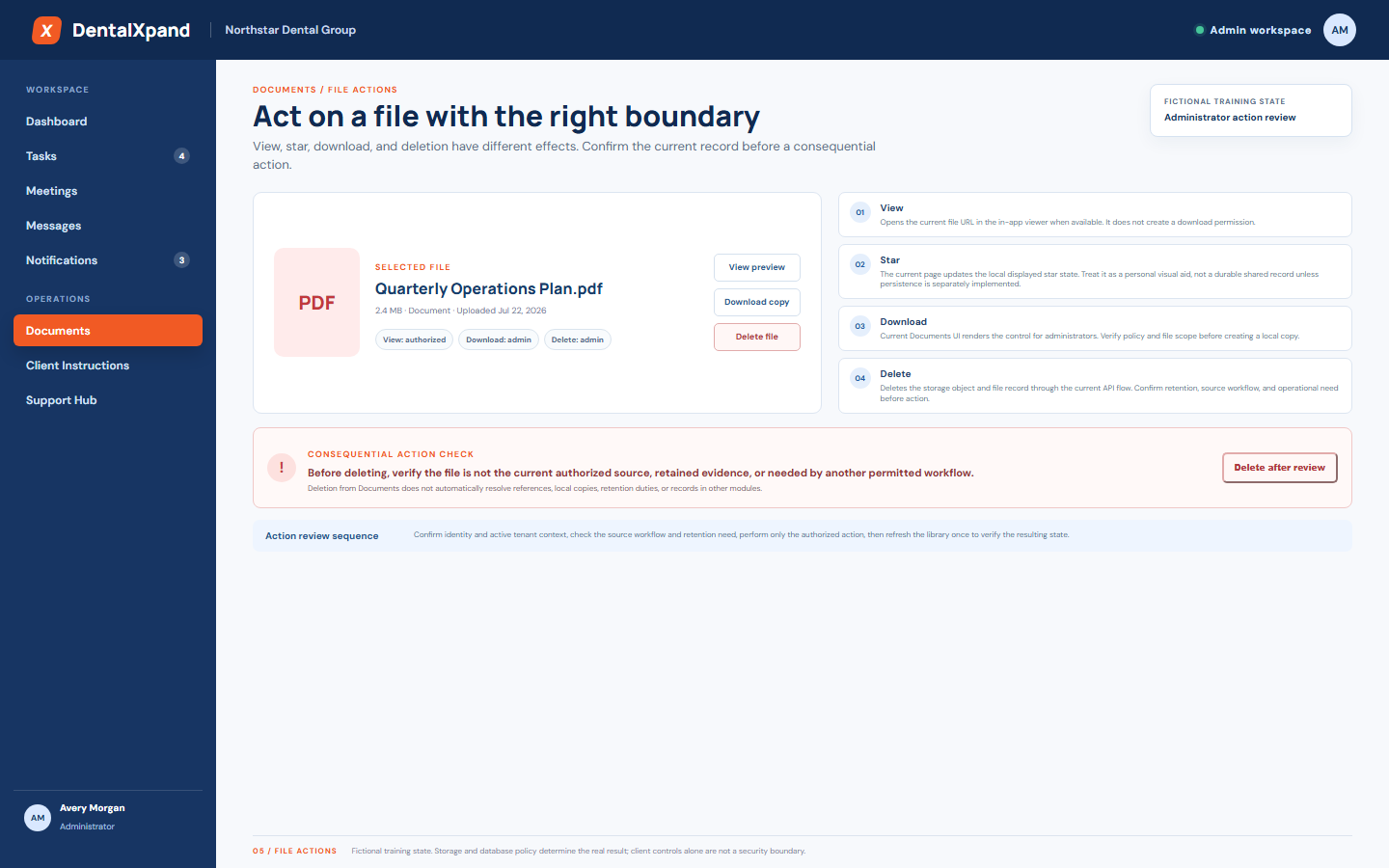
| Action | Current reviewed behavior | Required discipline |
|---|---|---|
| View | Opens the current file URL in the in-app viewer when one is available. | Confirm title, source, active tenant, and your role. A preview does not change record status, retain an audit note, approve a document, or create download access. |
| Star | Updates the visible local state of the file card or row. | Do not use a star as approval, retention, shared priority, completion, ownership, or legal status. It may not persist through a refresh. |
| Download | The current Documents screen renders the action only for administrator roles and triggers an anchor download from the current URL. | Download only when policy permits a local copy. Keep the copy in approved storage, avoid shared downloads folders, and do not forward the file or signed address. |
| Delete | The API first retrieves the file path, removes the object from Storage when present, then deletes the database record. | Confirm retention, references, version, source workflow, and business need before delete. Removal does not automatically clean local copies, linked records, or duties in other modules. |
| Deletion confirmation | The reviewed Documents page removes the card and shows a success toast even in its delete error fallback. | For material deletion, refresh the authorized library once and check the owning workflow. Report a non-sensitive discrepancy; never assume the local card disappearing proves a durable deletion. |
For versioned client-facing instructions, continue to Manage client instructions, options, and versions. For task evidence and current work, review Manage tasks, assignments, steps, and timers.
8 / Folder metadata, signed URLs, and storage security
Keep records, paths, previews, and policy within the intended tenant
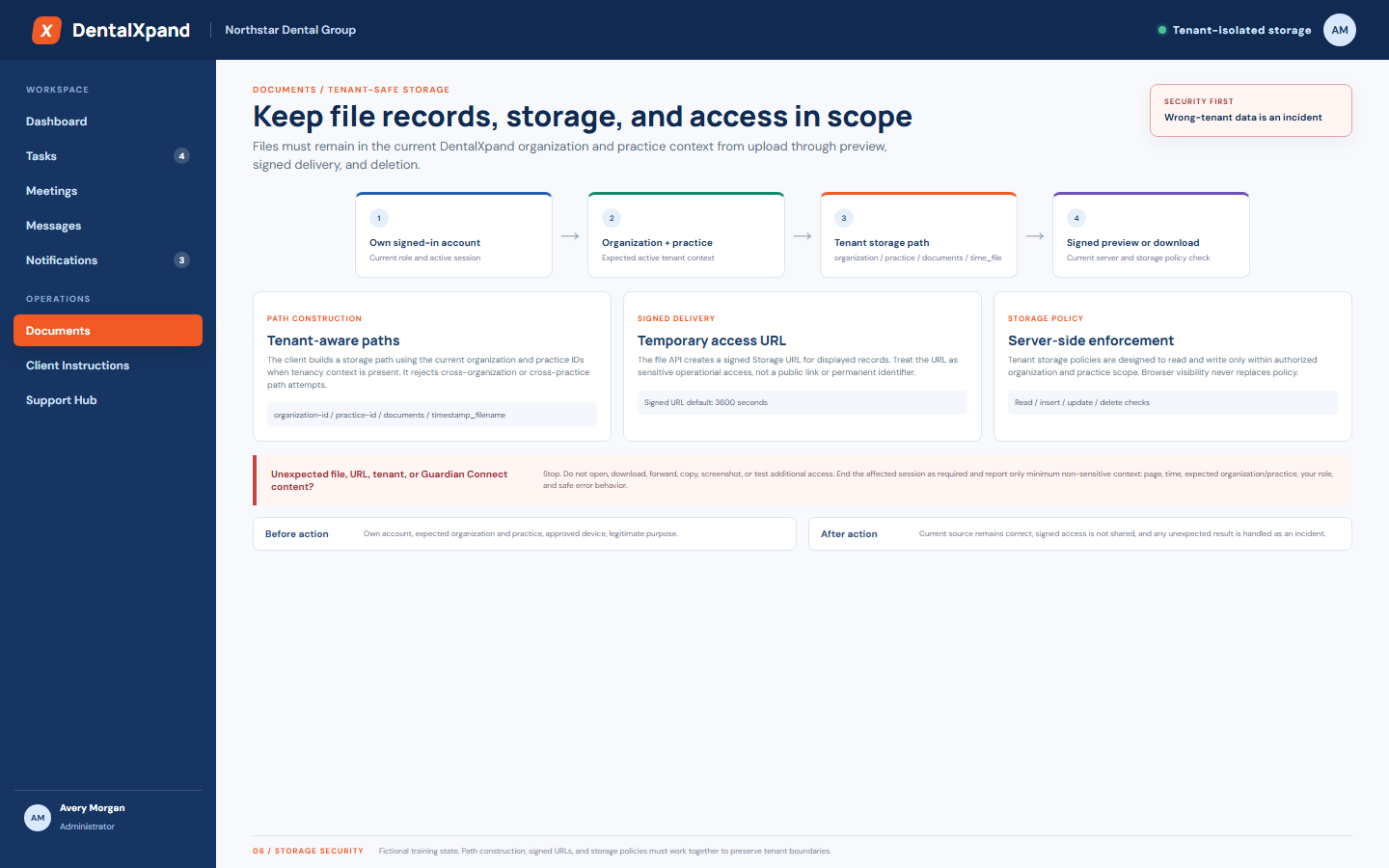
| Area | Reviewed implementation | Boundary |
|---|---|---|
| Folder metadata | The files API stores a folder value and can filter records by it. Documents uploads default to the documents folder label. |
The current Documents screen has type filters, but it does not expose a folder tree, create-folder, rename-folder, move-file, or folder-navigation UI. Do not describe an unimplemented folder control as available. |
| Tenant path | When organization and practice context are present, the client helper prefixes the relative path with those IDs and validates both identifiers. | A user must not select another organization or practice path. Missing tenancy context keeps a legacy relative-path path for compatibility, so production deployments must apply and verify tenant migrations and context setup. |
| Signed URL | The file API creates a signed URL for a current object; its helper defaults to 3,600 seconds. | A signed URL is sensitive, time-limited operational access. It is not a public share link, permanent reference, bypass of tenant scope, or permission to copy the file elsewhere. |
| Storage policy | The multi-tenant SQL migration defines Storage read, insert, update, and delete checks using organization and practice context and marks buckets non-public when that policy block can run. | Verify the deployed database and Storage policies in the correct Supabase project. Source code and a client control cannot prove policy is active in production. |
| Unexpected data | A wrong tenant, Guardian Connect record, unrelated file, path, signed URL, preview, or download response is a potential isolation incident. | Stop. Do not open, download, forward, copy, screenshot, or test more access. End the session according to policy and report only minimum non-sensitive context. |
9 / Troubleshooting
Resolve expected file states without bypassing access or exposing data
| What you see | Likely category | Correct first response |
|---|---|---|
| Documents is missing or direct route is unavailable | Role, page permission, session, organization, practice, or route policy may deny access. | Respect the access response. Confirm your own account and expected context, then contact the authorized administrator. Do not use another account or copied browser state. |
| Sample-looking records or an unexpected empty library | The reviewed page has a local mock-data fallback when file retrieval errors. | Refresh once and verify the expected tenant context. Treat display-only examples as unverified until an authorized source and current backend state are confirmed. |
| Upload fails | Role, file size, MIME handling, network, bucket, tenant path, practice context, Storage policy, or database record save can fail. | Keep the file in approved storage, retain a non-sensitive error description, and report through support. Do not retry through public, personal, Guardian Connect, or another tenant storage. |
| Preview does not load | Signed URL creation, expiration, file format, iframe policy, browser behavior, storage access, network, or missing file URL may be involved. | Refresh the authorized page once, confirm you are in the correct tenant and file record, and report the safe symptom. Do not paste a signed URL into an external service to test it. |
| Download or deletion is unavailable | The current role is not administrator, policy denies the action, file state changed, or the URL/object is unavailable. | Do not elevate through another user. Confirm retention and workflow need, then request the authorized administrator or support path. |
| Wrong tenant or Guardian Connect content appears | Potential tenant, cache, storage, URL, API, session, policy, or configuration isolation issue. | Stop immediately, avoid further exposure, end the affected session, and report only page, time, expected organization and practice, role, safe description, and steps tried. |
For guidance that needs version history and client-specific structure, continue to Manage client instructions, options, and versions.
10 / Completion
Verify that you can use Documents safely
- I can distinguish a Documents card, a database file record, a storage object, a signed URL, an in-app preview, and a local download as separate surfaces with different risks.
- I confirm my own account, expected DentalXpand organization and practice, role, source workflow, file purpose, and retention need before opening or changing a file.
- I can search visible filenames, use the current type filter, and choose grid or list without treating those controls as permission, content validation, retention, or an audit history.
- I know the current Documents page permits view and local star state for authorized users, while its upload, download, and delete controls are presented to admin or super-admin roles.
- I understand the visible 50 MB upload label is not the only deployed file limit and that bucket, policy, path, device, MIME, and network conditions can still reject a file.
- I can distinguish folder metadata in the API from an actual folder browser, and I know the current Documents screen does not provide folder creation, move, rename, or tree navigation.
- I understand that the current viewer uses available file URLs, preview does not automatically expose a download control, and signed URLs must not be shared or treated as permanent public links.
- I know delete affects the storage object and file record flow, but I must confirm retention and verify the result after a material action because local UI state can differ from durable persistence.
- I understand tenant-aware storage paths and deployed Storage policies must protect organization and practice scope from upload through preview, download, and deletion.
- I will stop and report immediately if another tenant, Guardian Connect, patient, provider, client, practice, employee, or unrelated file appears.
Need help with an expected Documents issue? Contact support@xpand.dental with minimum necessary, non-sensitive context: page, approximate time, expected organization and practice, role, action attempted, safe error text, browser or desktop environment, and steps already tried.
Need workflow support?